For every family member invited to visit and remember. This manual is short — because what a Viewer does is simple: to walk quietly into this memorial space, look at the photos, read the stories, and listen to the sounds left behind. Below, we will guide you through entering, browsing, organizing, and leaving, and finally include a note on how to open a “Time Letter.”
Your Role
Viewer is a close one invited by family to browse the memorial space. You can see all the content in this space — the life story, the Media Archive, the Healing material — and return to visit whenever you miss them. The Viewer is a browse-only role: you are neither needed nor asked to edit anything, so you can focus entirely on feeling and remembering.
A small note on names: most places on screen call you “Viewer,” and a few menus may show the word “Viewer” (檢視者). The two are the same role, so please do not worry.
Login URL
- Digital memorial platform (family side): https://your-tenant.curate.memorial
- The first time you enter, click through the dedicated link in your invitation email directly; on later visits use the URL above and log in with your email + password.
- The actual URL and login method should follow those provided in your invitation email and by your family / Account Manager.
Table of Contents
- Accept the Invitation and Enter
- Browse the Memorial Space
- Add to My Family Groups
- Leave the Memorial Space
- Appendix: I Received a Time Letter, How Do I Open It?
- Frequently Asked Questions
1. Accept the Invitation and Enter
When a family member adds you as a Viewer, the system sends an invitation email to your inbox. The process is simple, and once you enter you can browse right away, without anyone needing to approve again.
-
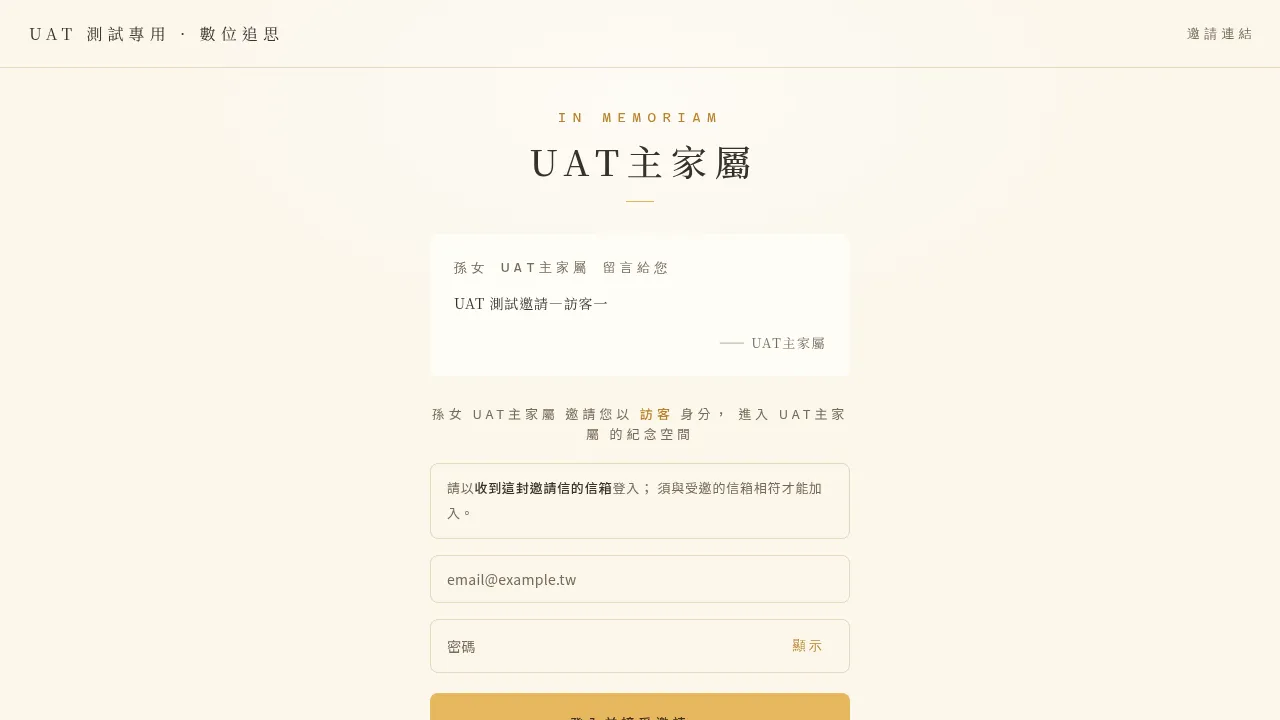
Open your inbox, find the invitation email whose subject includes “inviting you to join the … memorial space,” and click the dedicated link inside.
-
Follow the on-screen instructions:
- If you do not yet have an account: fill in your name and email, and set a password. The system sends a 6-digit verification code; enter it to complete (valid for 5 minutes).
- If you already have an account: simply log in with your password.
-
Once done, the system automatically takes you into this memorial space.
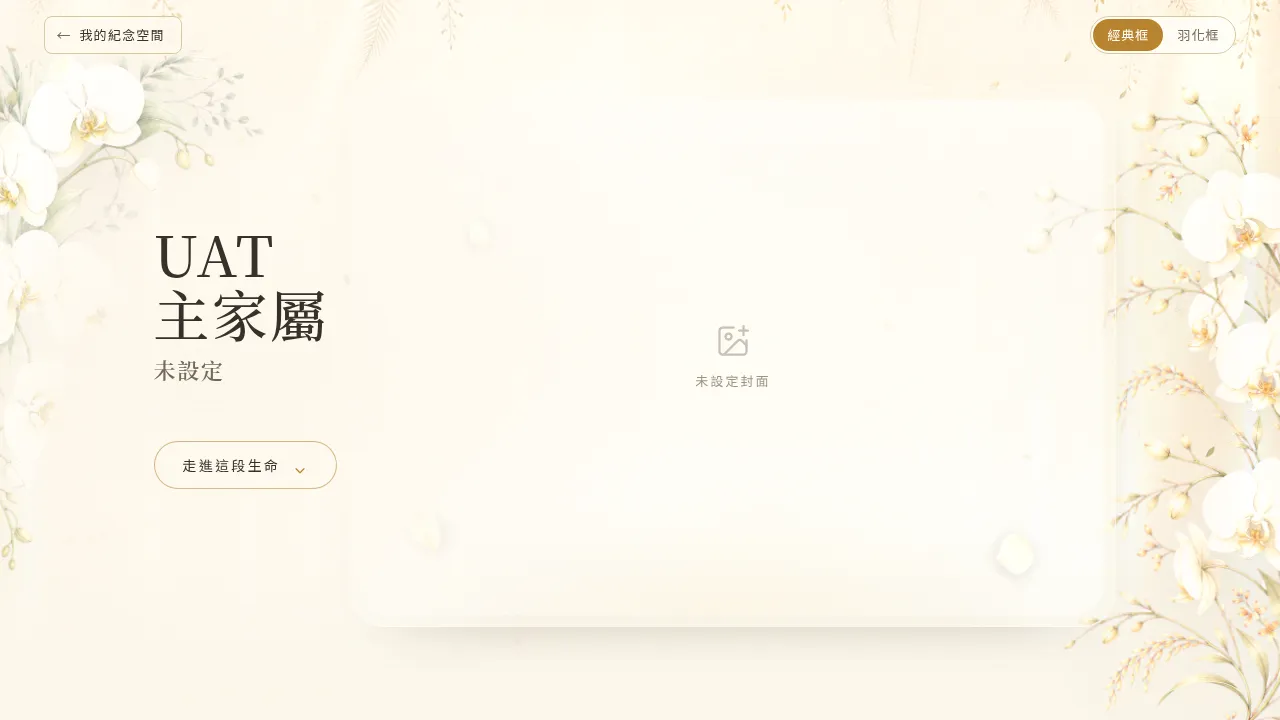
A gentle reminder: the invitation link is bound to “this memorial space” and can be valid permanently. Even if you do not have time to register right away, when you later register with the same email, the system will automatically connect you to the original invitation.
2. Browse the Memorial Space
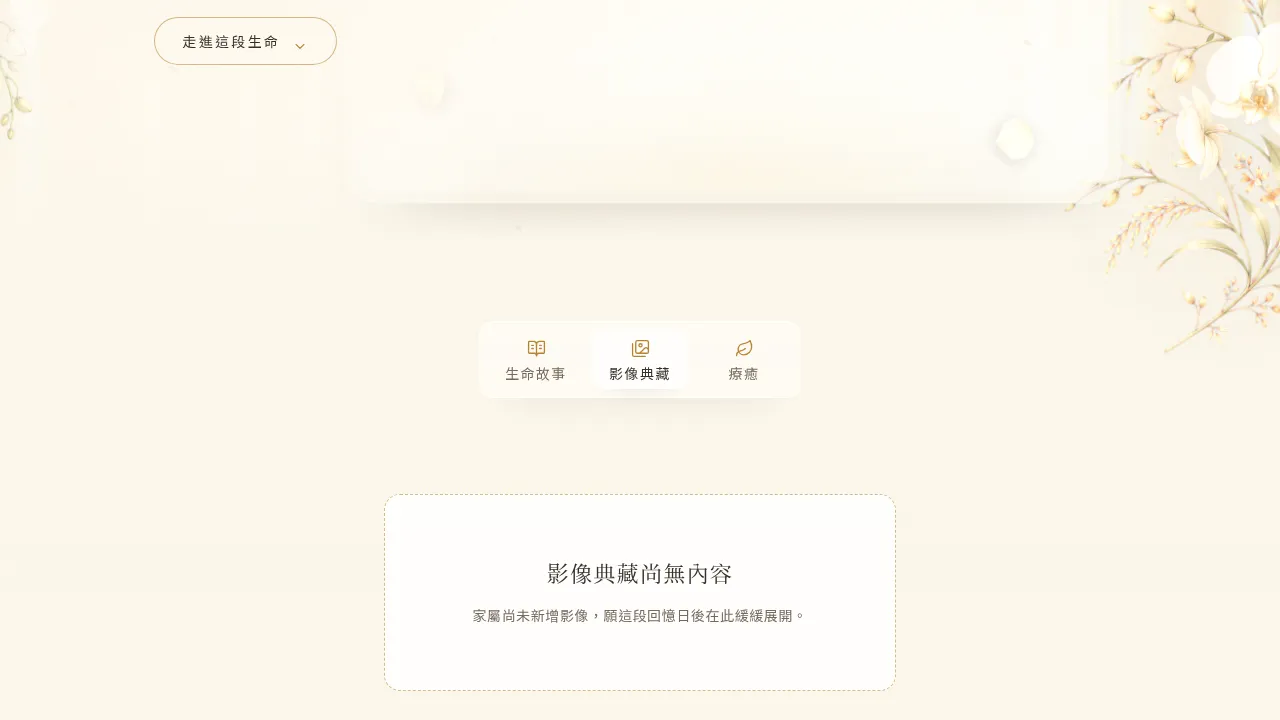
After entering, the top of the memorial space home page shows this family member’s basic details and cover, and below there are three tabs you can switch between:
- Life Story: the long biography text and a series of “records,” recording the important moments of a life.
- Media Archive: photos, videos, and sound, gathered into individual albums.
- Healing: shared blessing / healing material provided by Chin Pao San (such as sutra chanting and meditation audio and video), for quiet reflection.
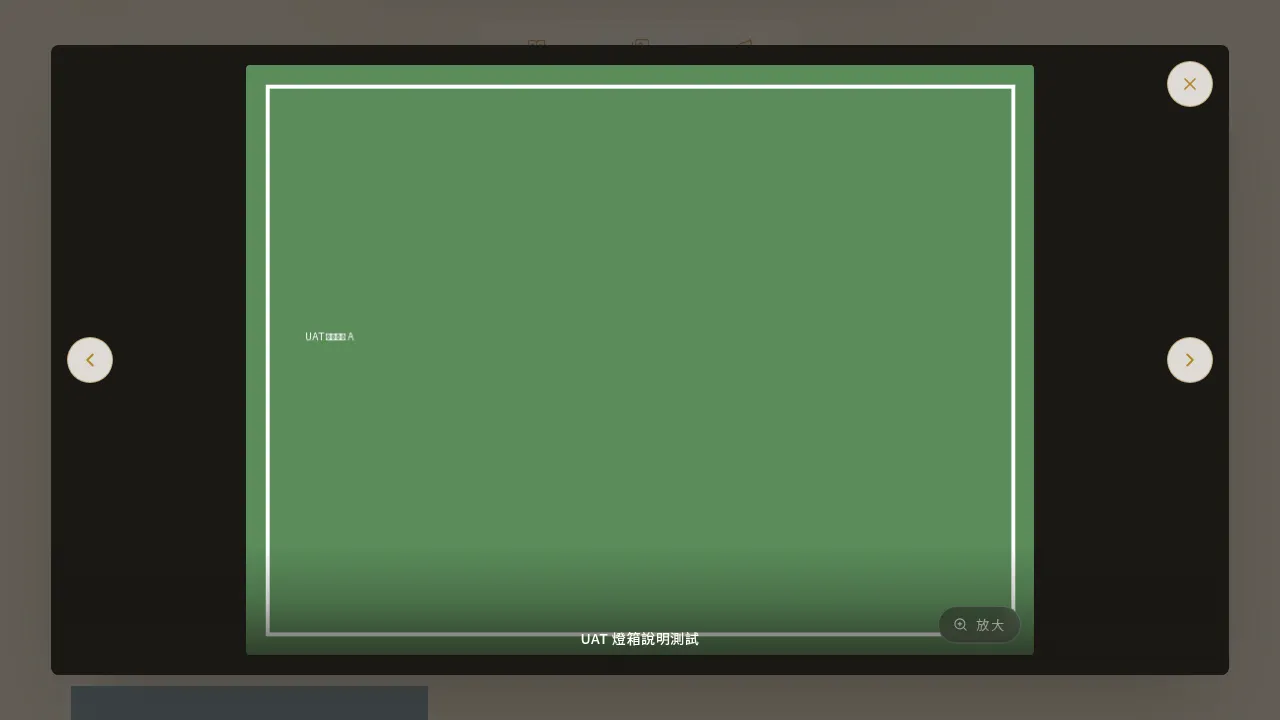
Tapping any photo or video opens the “lightbox” enlarged view: you can browse left and right, enlarge to look closely, and play videos and sound directly.
The Viewer is Browse-Only
As a Viewer, your screen will not have an edit switch, upload buttons, or a settings entry — this is normal. You only need to look with peace of mind and remember at your own pace. The adding and organizing of content is handled by this space’s Primary Manager and Co-Editors.
About downloading: the current version’s browsing interface does not provide a download button. If you need to obtain the original photos or videos, you can contact family directly, or ask the family’s Account Manager for help.
3. Add to My Family Groups
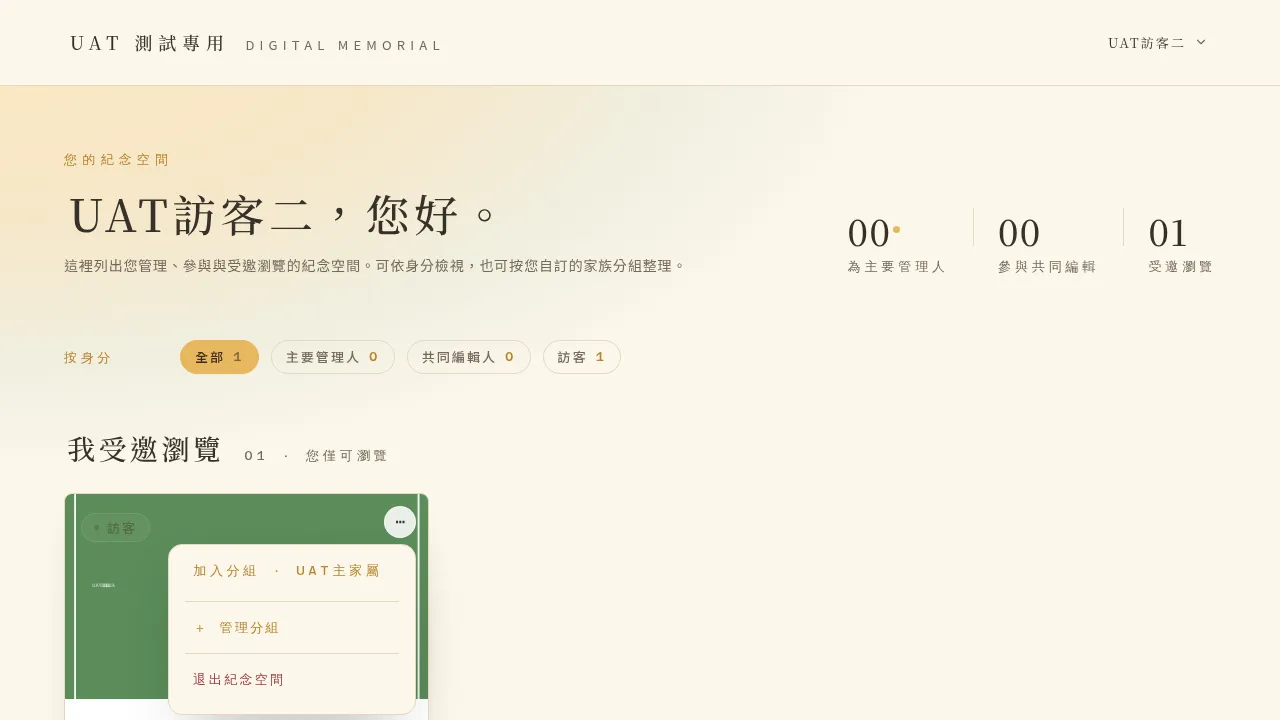
If you have been invited to browse the memorial spaces of several family members, you can use “Family Groups” to organize them in your own way (for example, “paternal side,” “maternal side,” “close friends”), so your dashboard is clear at a glance.
-
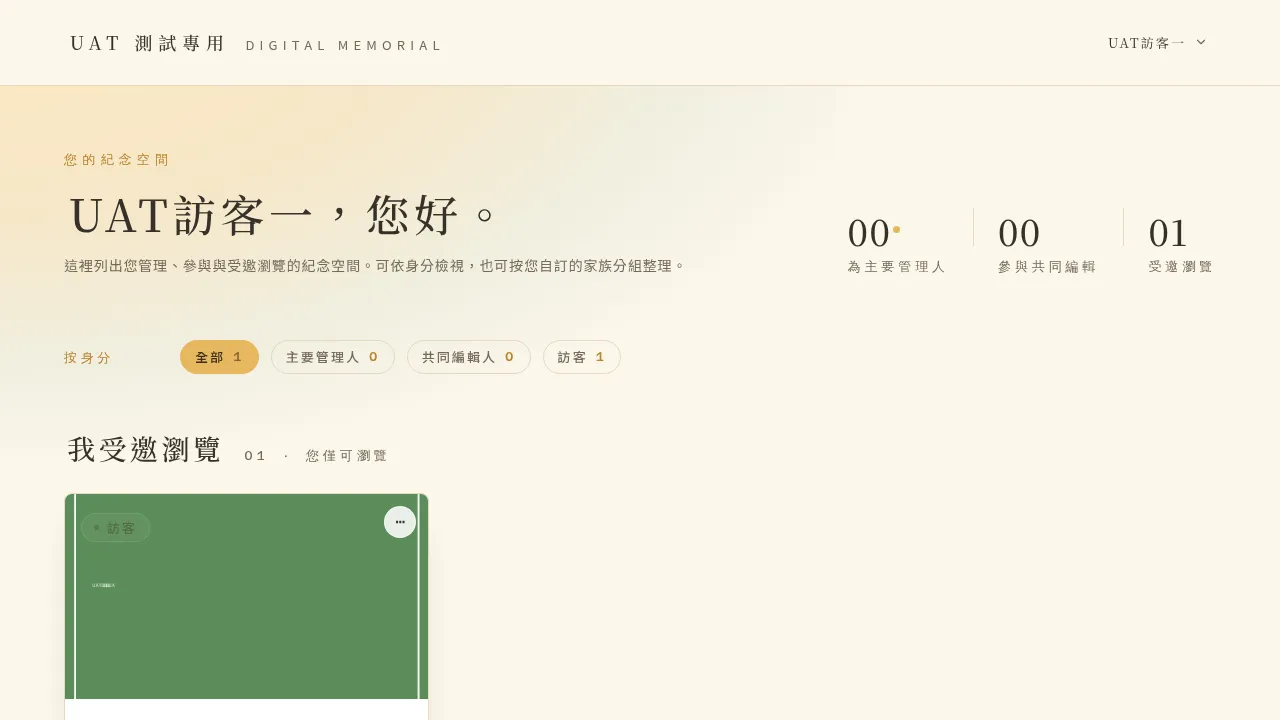
Return to the dashboard (“My Memorial Spaces”).
-
In the top-right corner of any memorial space card, tap the “⋯” menu and choose “Add to Group”; or first create and name a new group with “+ Manage Groups.”
-
A memorial space can be placed into several groups at once; a group is merely your personal way of organizing the view, and does not change the memorial space itself.
A privacy note: groups (and the family “nickname” you set for a certain loved one) are purely a personal view, visible only to you; they are not shared with other family members, nor do they change anyone’s permissions.
4. Leave the Memorial Space
If you no longer need to browse a certain memorial space in the future, a Viewer can leave on their own.
-
In the top-right corner of that memorial space’s card, tap the “⋯” menu and choose “Leave Memorial Space.”
-
The system brings up a confirmation dialog explaining the effects of leaving; please read it before deciding.
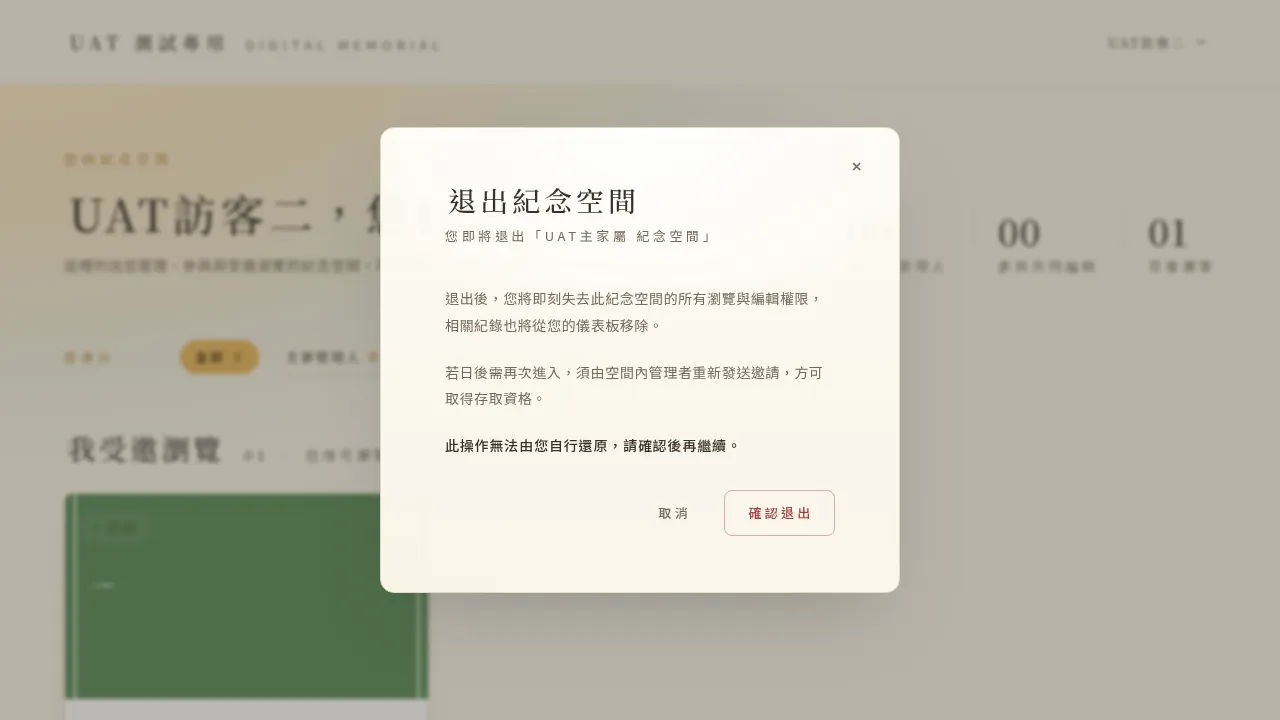
The dialog clearly explains: after leaving, you will immediately lose all browsing permission for this memorial space, and its record will be removed from your dashboard; this action cannot be reversed by yourself.
-
Once confirmed, tap “Confirm Leave” to finish.
An important reminder: once you leave, if you later want to enter again, the space’s manager must resend an invitation for you to regain browsing permission. So if you are only pausing for a while, you do not actually need to leave — simply not opening it is enough.
Appendix: I Received a Time Letter, How Do I Open It?
A “Time Letter” is a message a loved one set aside especially for you while living, to be delivered only at a certain moment — it may be a passage of text, a photo, a video, or a recording. The following is for you, the one who received this letter.
How the Letter Arrives and How to Open It
-
You will receive a Time Letter notification email in your inbox, containing a link dedicated to you.
-
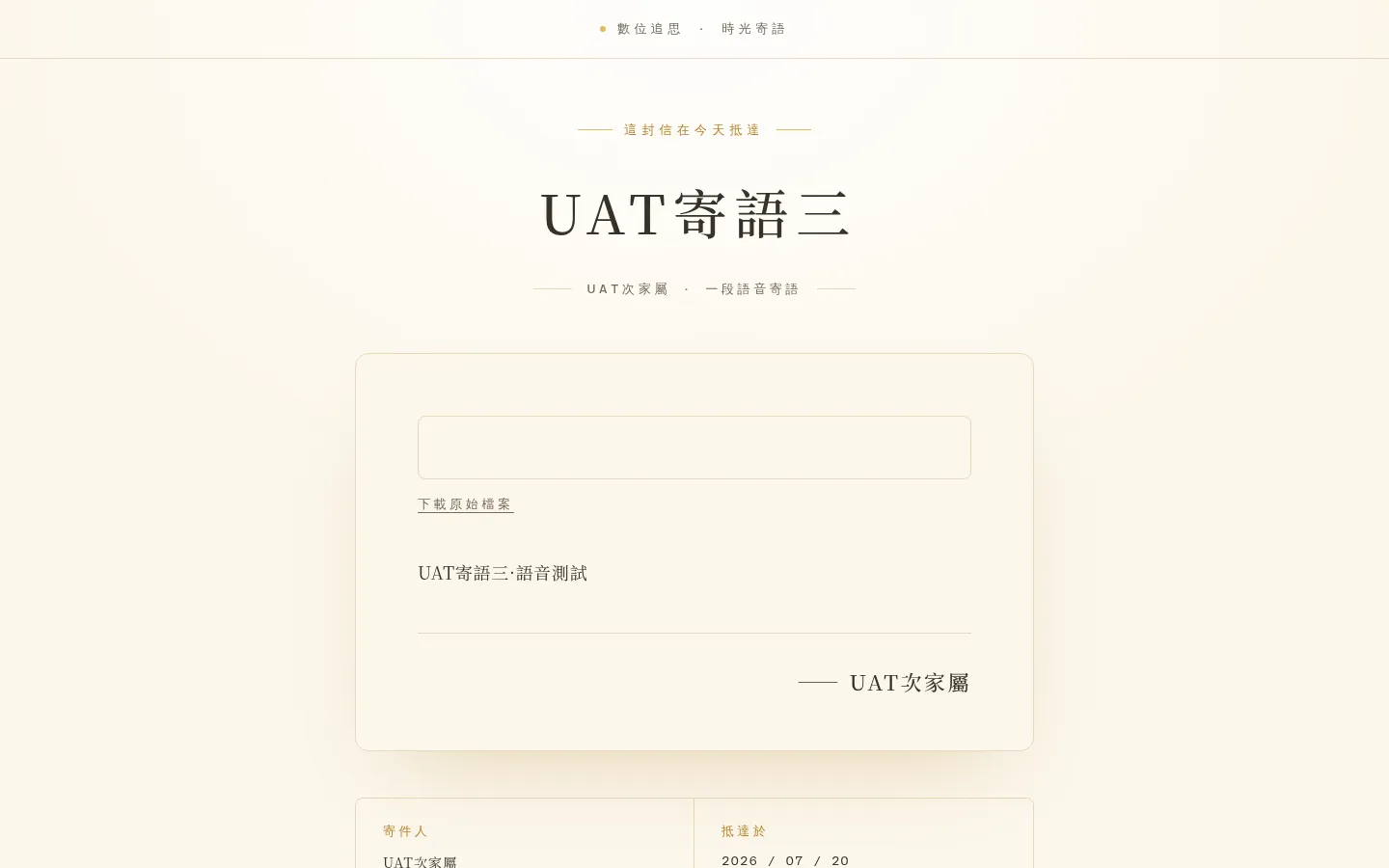
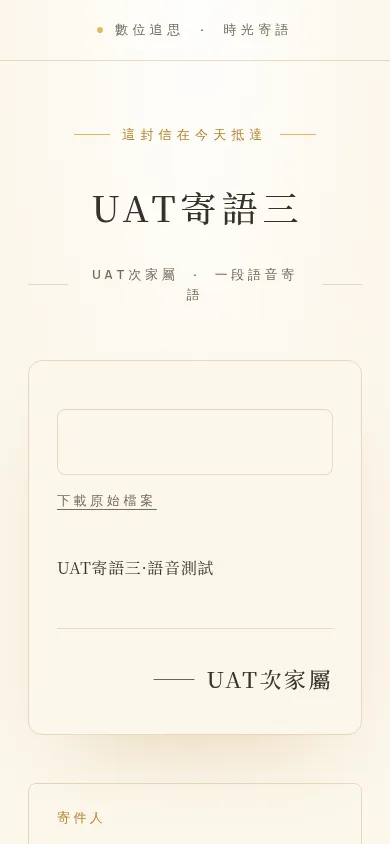
Simply click the link — you do not need to register, and need no account or password. The link opens a separate page, and on it is the content of this letter.
-
The page is just as clear and easy to read on a phone:
-
If the letter includes a photo, video, or sound, you can play it directly on the page; the page also offers “download original file,” so you can download and keep it when you need to.
A Few Important Reminders
-
The link has a time limit: from the day it is sent, the link is valid for 100 days. If you want to keep the content, we suggest opening and downloading it within that period.
-
The link is dedicated to you personally, please do not forward it: this link is a private message sent especially for you; to protect the sender’s intent and privacy, please do not share or forward it to others.
-
What if the link is lost or won’t open? If the time limit has passed, the link is broken, or you accidentally lost the email, the page will show “the link cannot be opened.” For privacy, the page will not reveal the exact reason — but the original content of the letter is still kept intact on the platform. In that case, please contact the family’s Account Manager, provide the identifier in the letter, and a new link can be resent to you.
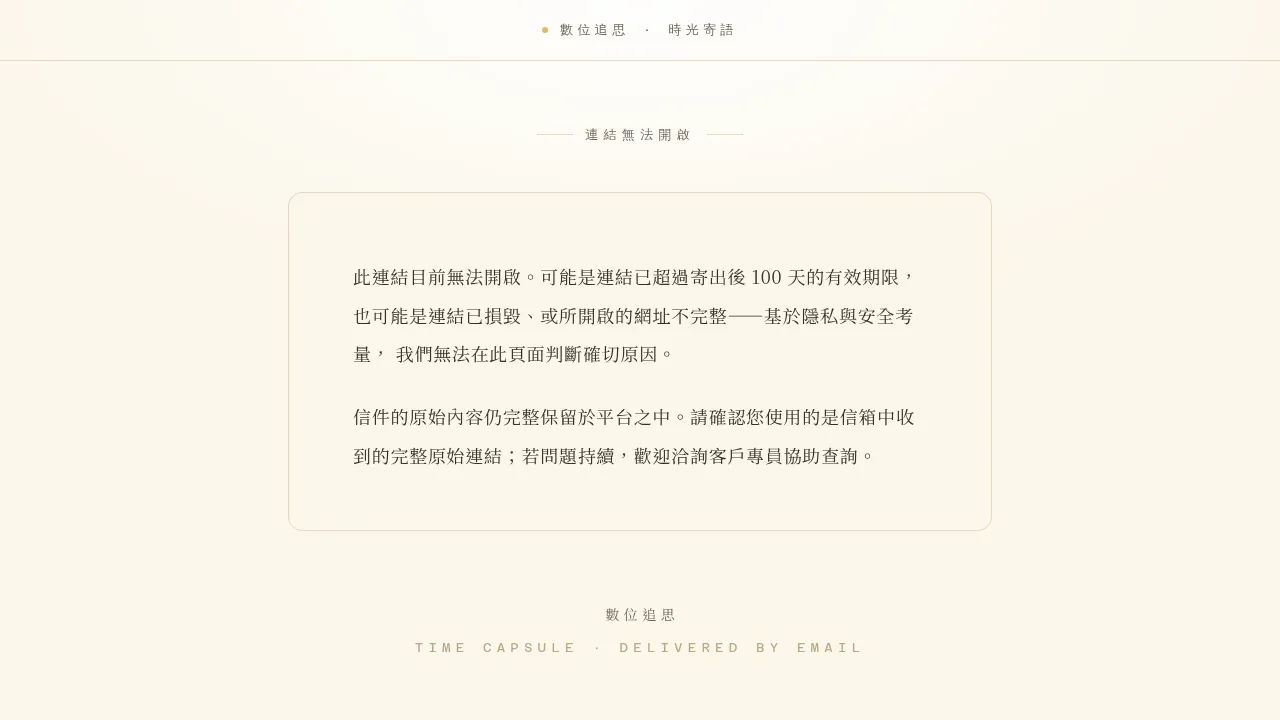
A small note: after a resend, a new identifier and new link are generated, and the old link becomes invalid. If you have several notification emails on hand, always go by the link and identifier in the latest email.
Frequently Asked Questions
Q1. I am a Viewer — can I comment or like? In the current version, Viewers are browse-only, with no commenting, liking, or other interactive features. You can browse and remember with peace of mind.
Q2. I want to download a photo as a keepsake, but can’t find a download button? The current version’s browsing interface does not provide a download button. If you need to keep something, you can contact family directly, or ask their Account Manager for help.
Q3. After I leave, if I want to come back, can I add myself back? No. After leaving, the space’s manager must re-invite you before you can enter again. If you are only pausing for a while, we suggest not leaving, and simply not opening it.
Q4. When I receive a Time Letter, do I have to register an account to read it? No. The Time Letter link is a separate page for the recipient; click it and you can read it, with no registration or login needed at all.
Q5. What if the Time Letter link has expired? The link is valid for 100 days from when it is sent. If it has expired or won’t open, the content is still kept on the platform; please contact the family’s Account Manager, provide the identifier in the letter, and a new link can be resent.
Q6. Why do some places call me “Viewer” and others show “Viewer” (檢視者)? The two are the same role, identical in function, so please use it with confidence.
This manual was compiled based on testing of the 2026-07-20 version of the platform, with illustrations taken from actual operation screens. If features and screens are updated, the latest version of the platform is authoritative; if you have any questions about operation, you are welcome to contact family or their Account Manager.