In the left navigation, click “Memorial Spaces” to get an overview of all the memorial spaces your team is responsible for.
Scope and view
- The memorial spaces a Manager sees = all memorial spaces the Manager’s Account Managers are responsible for (including those where the Manager acts as their own operator).
- At the top of the page there is an “Account Manager Scope” dropdown to switch between “All Account Managers / just one”; you can also filter with “Status” and the search box (honoree / email / niche number).
- “Export CSV” exports the list according to the current filters.
- Click any row to enter that memorial space’s detail page (account attributes, members, operate-on-behalf, etc. — for detailed operations, see the Account Manager Manual; the Manager interface is identical).
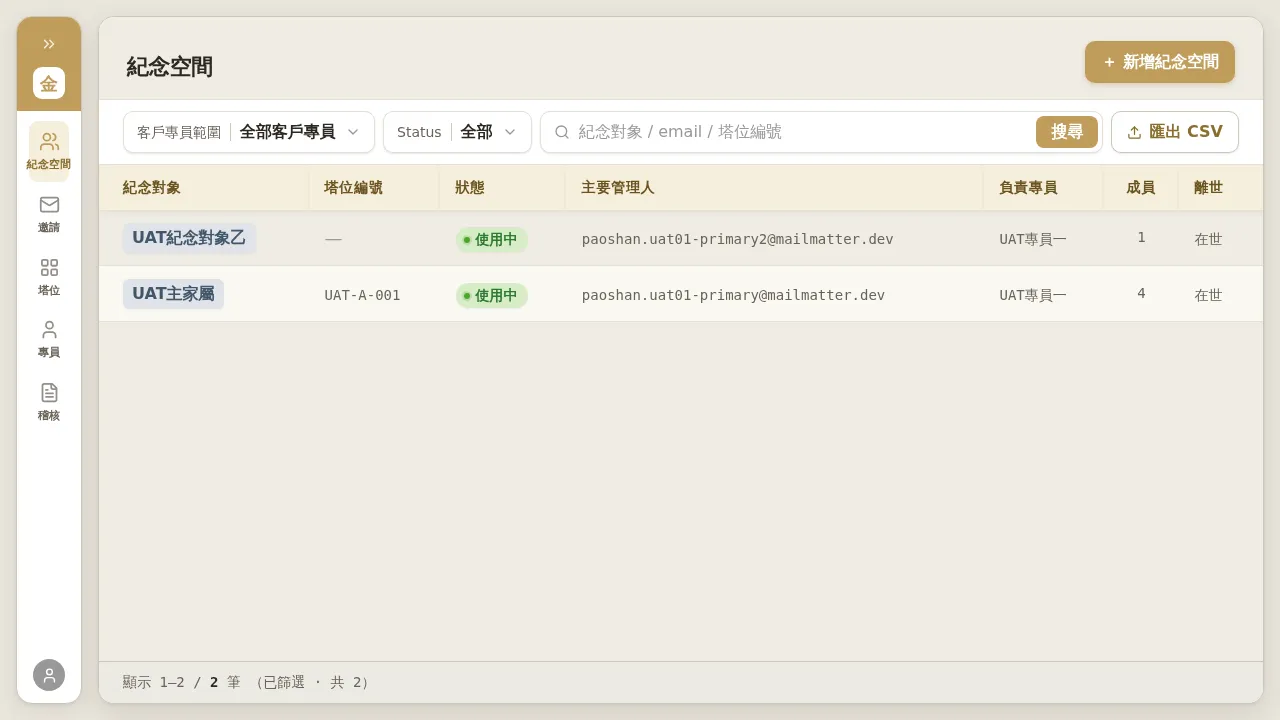 Figure 4-1: A Manager’s “Memorial Spaces” list. The “Account Manager Scope” dropdown at the top left can switch the view across the Manager’s Account Managers; columns include honoree, niche number, status, primary administrator, responsible Account Manager, member count, and deceased status.
Acting as your own operator, creating memorial spaces directly: A Manager can also create memorial spaces themselves (top-right “+ New Memorial Space”). The operation is exactly the same as for an Account Manager; please refer to Chapter 2 of the Account Manager Manual.
Bulk Transfer of Memorial Spaces (changing the responsible Account Manager)
To transfer a batch of memorial spaces from one Account Manager to another (permanently changing the responsible Account Manager while keeping the account itself), use bulk transfer:
- Go to the “Account Managers” page, and on the source Account Manager’s row, click “⋯” → “Transfer Memorial Spaces”.
- The dialog lists the memorial spaces under that Account Manager; check the items to transfer (you can select all).
- In the “Transfer to” dropdown, select the Account Manager taking over.
- Click “Transfer N to ○○○” to execute.
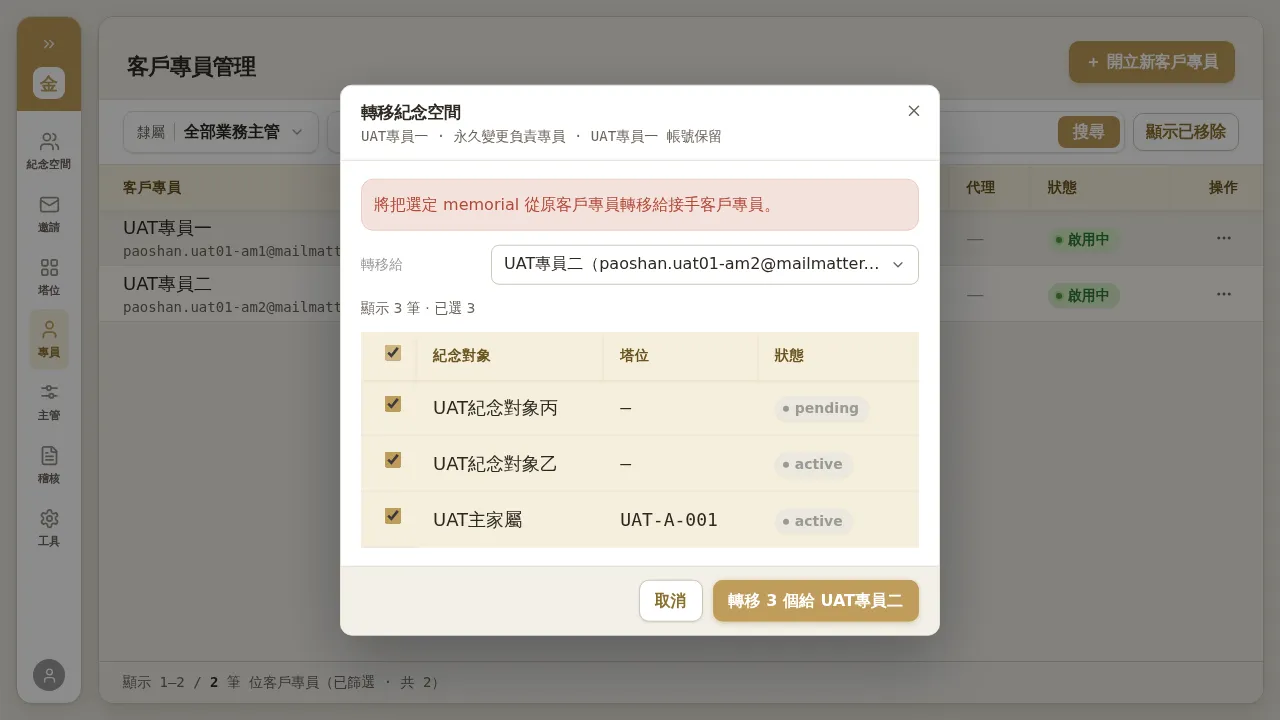 Figure 4-2: The “Transfer Memorial Spaces” dialog — check the memorial spaces to transfer, select the Account Manager taking over, and submit. The transfer changes only the “responsible Account Manager (owner)”; it does not change niche ownership, and pending invitations are transferred along with it. (This figure is an example of the Tenant Admin view; the interface is identical for a Manager within their own team’s scope.)
Notes
- Bulk transfer changes only the responsible Account Manager; the memorial space’s niche binding, members, and content are untouched.
- If the “Transfer to” dropdown does not list the person you expect to take over (for example, the target is not on your team), that cross-team adjustment must be completed by a Tenant Admin — the same limitation as “Change Supervisor” in Section 3.1.