5.1 Niche Photos (Versioned, Shared by All Memorial Spaces in the Same Niche)
Niche photos belong to the niche itself (not to any one memorial space); all memorial spaces under the same niche share the same set of photos, and the family-facing side sees only the latest version.
- Upload / update: upload a new photo on the “Niche Photos” row of the detail page, or via that niche’s “⋯” on the “Niches” page. An update does not overwrite the old photo; it becomes a new version.
- View history: on the “Niches” page, open that niche’s “Niche Photo History” to see all past versions (latest first, marked “Currently Displayed”).
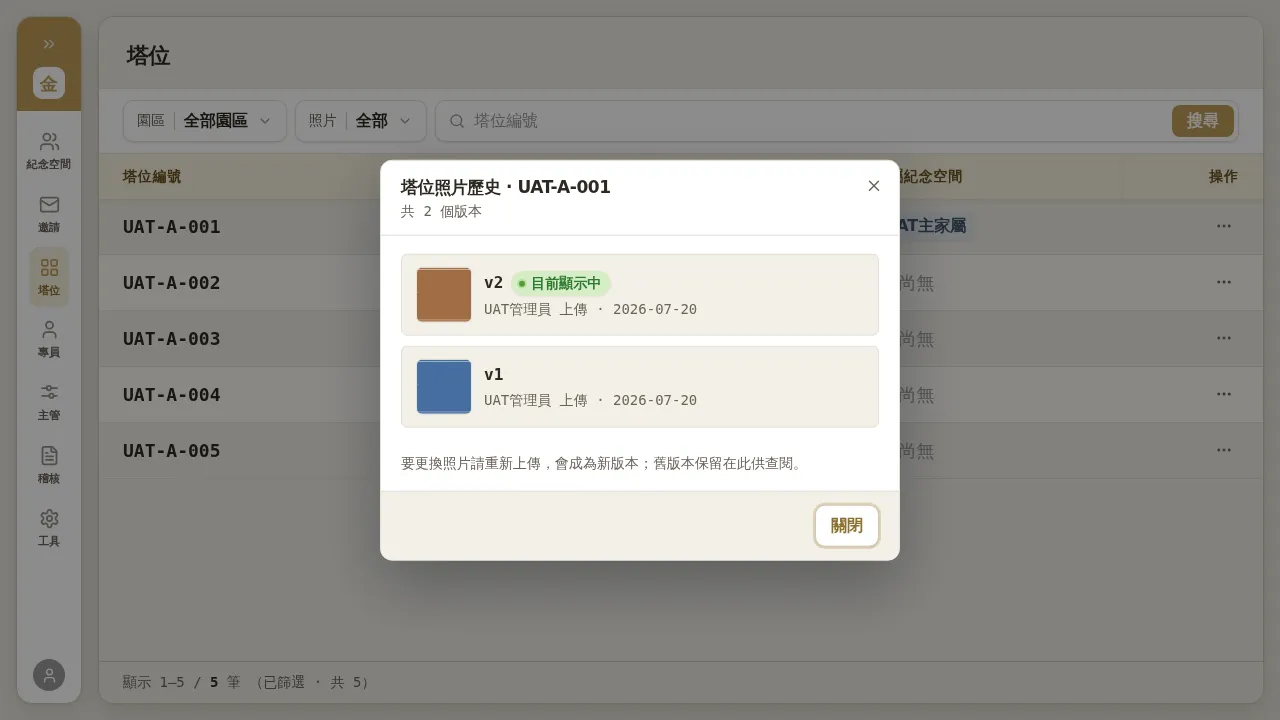 Figure 5-1: Niche photo history — “To change the photo, upload again and it will become a new version; old versions are retained here for reference.” v2 is marked “Currently Displayed”, and v1 is retained as the old version.
Notes
- After uploading a new photo, the list thumbnail may not refresh immediately and the version badge display may also lag (a manual refresh is needed) — this is a known minor display glitch; the actual version is per the “Niche Photo History”.
5.2 AI Memorial Video (Cannot Be Previewed / Deleted After Upload)
Phase 1 does not auto-produce AI short videos; you need to produce the finished video yourself and upload it manually.
- On the detail page, in the “AI Memorial Video (uploaded by Account Manager)” area, click “Upload Video”.
- After choosing the file, before submitting, confirm the file is correct (the filename is visible at this point).
- Click “Confirm Upload”.
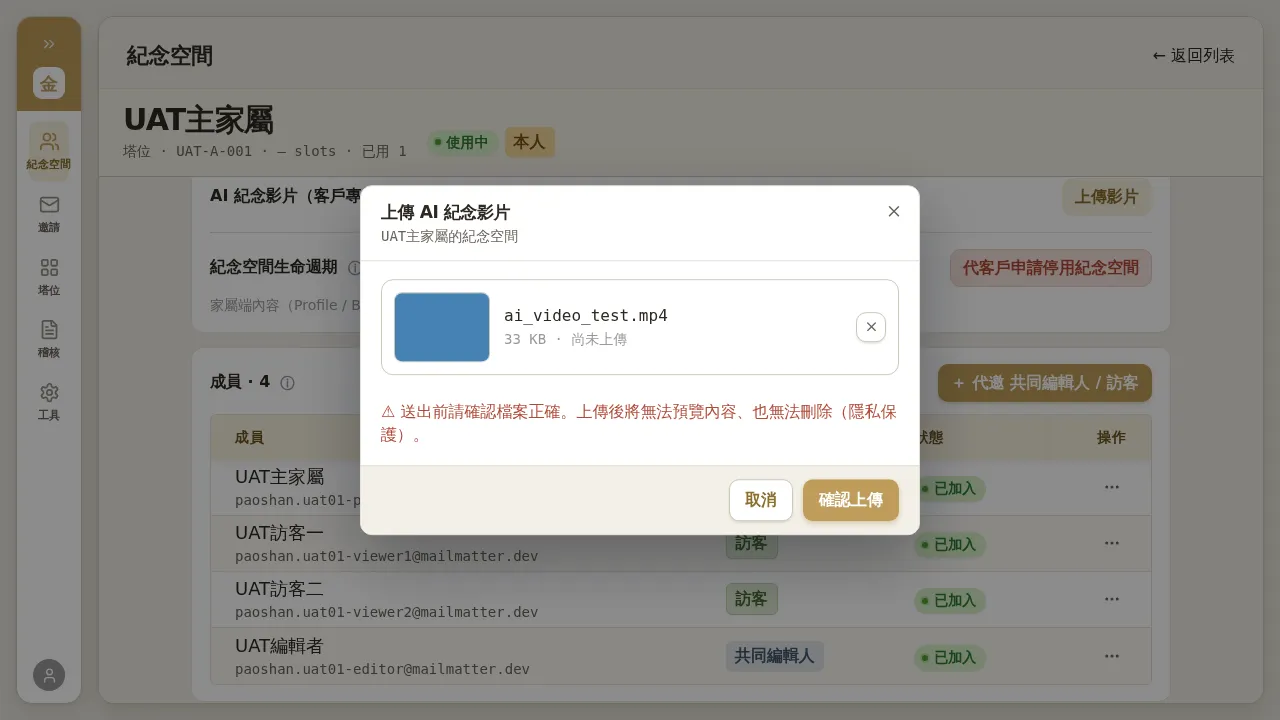 Figure 5-2: Upload AI memorial video — the warning before submitting: “Please confirm the file is correct before submitting. After uploading it cannot be previewed or deleted (privacy protection).”
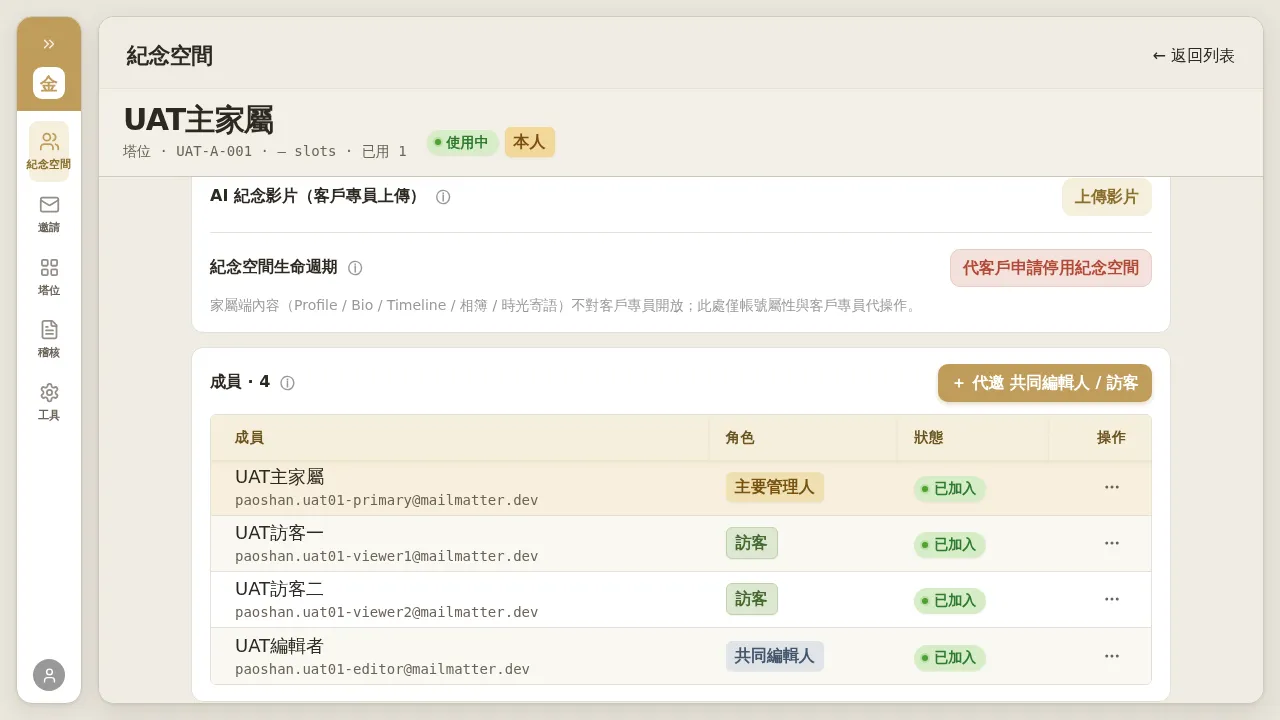 Figure 5-3: After the upload completes, the back-office panel does not show a video count / filename / history, and there is no preview or delete button — this is a privacy protection design.
Notes (important)
- After uploading it cannot be previewed or deleted, and the back-office panel leaves no upload trace (only the success message at the moment of operation and the audit event). Be sure to confirm it is the correct file before submitting.
- Since uploaded content cannot be verified from the UI, if the client later has doubts about the video, contact engineering / the system administrator for help verifying.