Open the “Account Managers” page. At the end of each Account Manager row, the “⋯” menu offers reassignment and delegation operations.
3.1 Change Supervisor (move an Account Manager under a different Manager) — no longer offered on the Manager side
Current version status (updated 2026-07-23)
- On the Manager side, the Account Manager “⋯” menu no longer has a “Change Supervisor” item (the menu offers only: View Memorial Spaces/Transfer Memorial Spaces/Set Delegate/Remove Account Manager).
- Cross-Manager reassignments are always completed by a Tenant Admin. If you need to move an Account Manager under a different Manager, please ask a Tenant Admin to handle it.
- (Background: in the previous version this menu had a “Change Supervisor” item, but its dropdown was empty and the operation could not actually be completed; this version removes the entry point altogether, making the behavior more consistent.)
- A change of supervisor only adjusts the staff structure (the Account Manager comes under a new Manager); it does not change the ownership of any memorial space. Reassigning the owner of a memorial space is a separate matter (see the bulk transfer in Chapter 4).
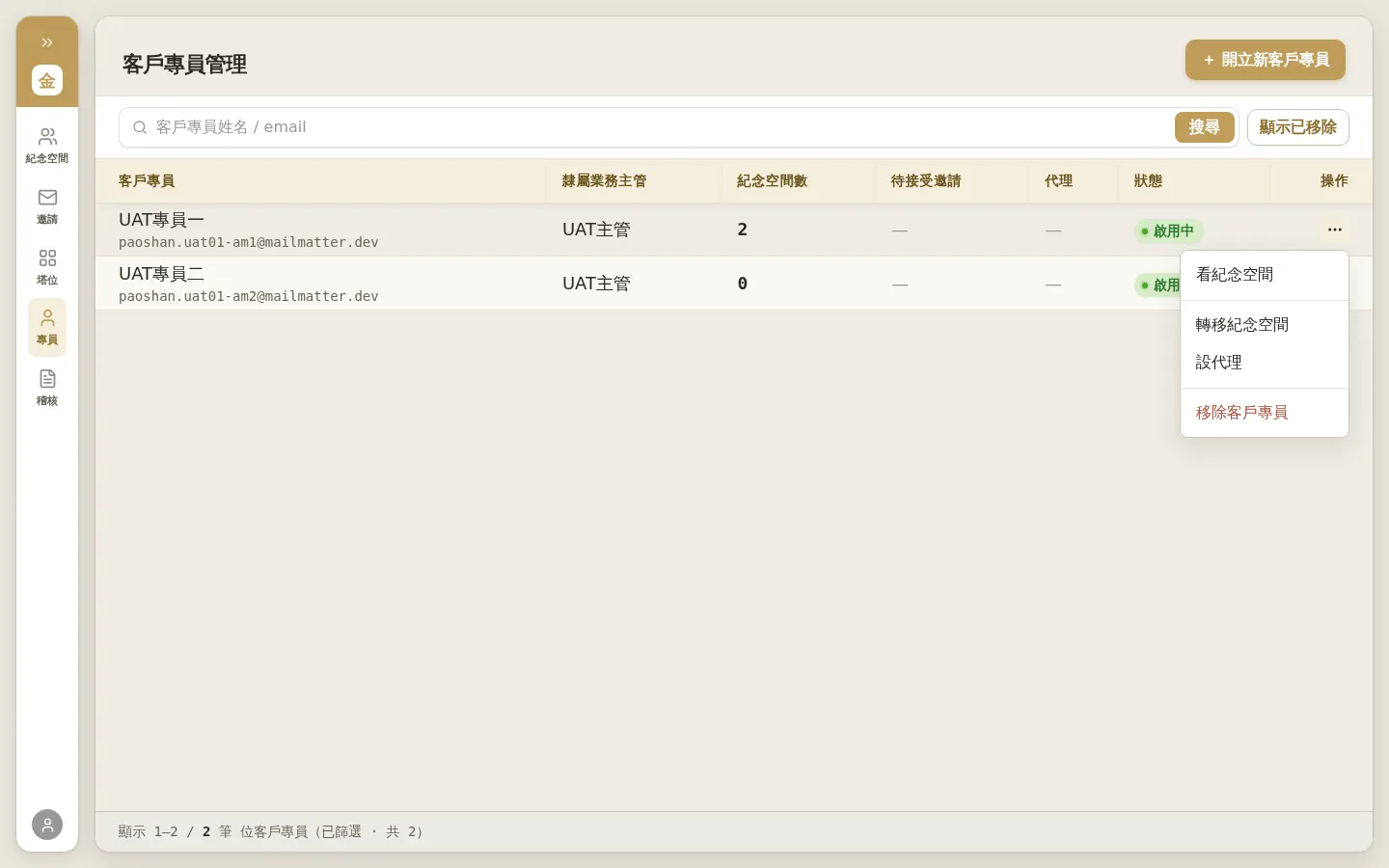 Figure 3-1: The “⋯” menu on an Account Manager’s row on the Manager side — there is no longer a “Change Supervisor” item; for reassignments, contact a Tenant Admin.
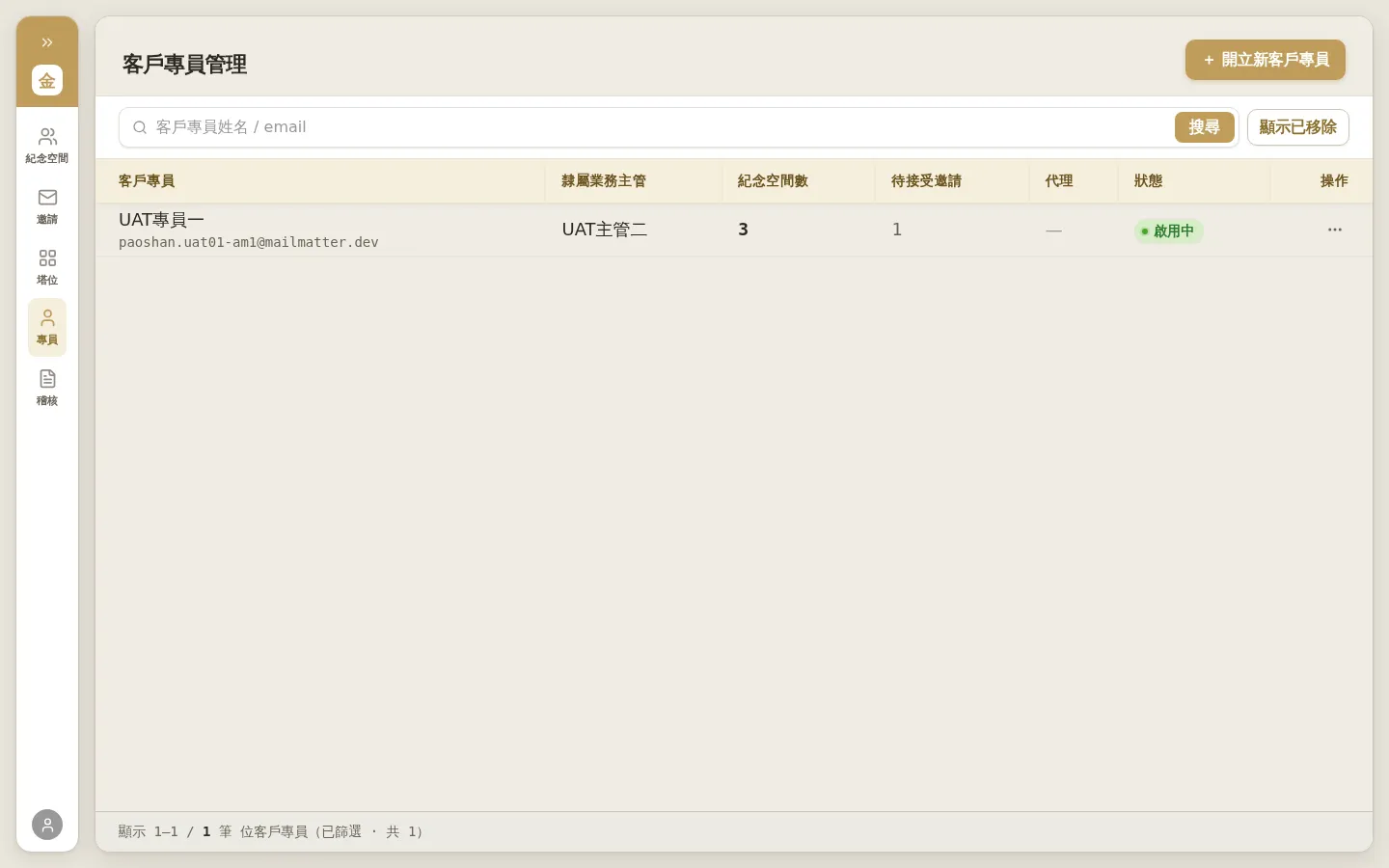 Figure 3-2: In the “Account Manager Management” roster, a Manager can see the Account Managers reporting to them, along with their memorial space counts, pending invitation counts, and status.
3.2 Set / Cancel Delegate (temporary caretaking)
A delegate = letting another Account Manager temporarily take care of all of an Account Manager’s clients; the delegated person’s owner assignment stays unchanged. Delegation is a temporary arrangement (for example, leave or backup support) that lasts until you manually “Cancel Delegation”.
Setting a delegate
- On the row of the Account Manager to be delegated, click “⋯” → “Set Delegate”.
- The dialog shows the “Original Responsible Account Manager” (including their client count, which does not change). In the “Assign Delegate Account Manager” dropdown, select the delegate.
- Fill in the “Reason for Caretaking” and click “Set Delegate”.
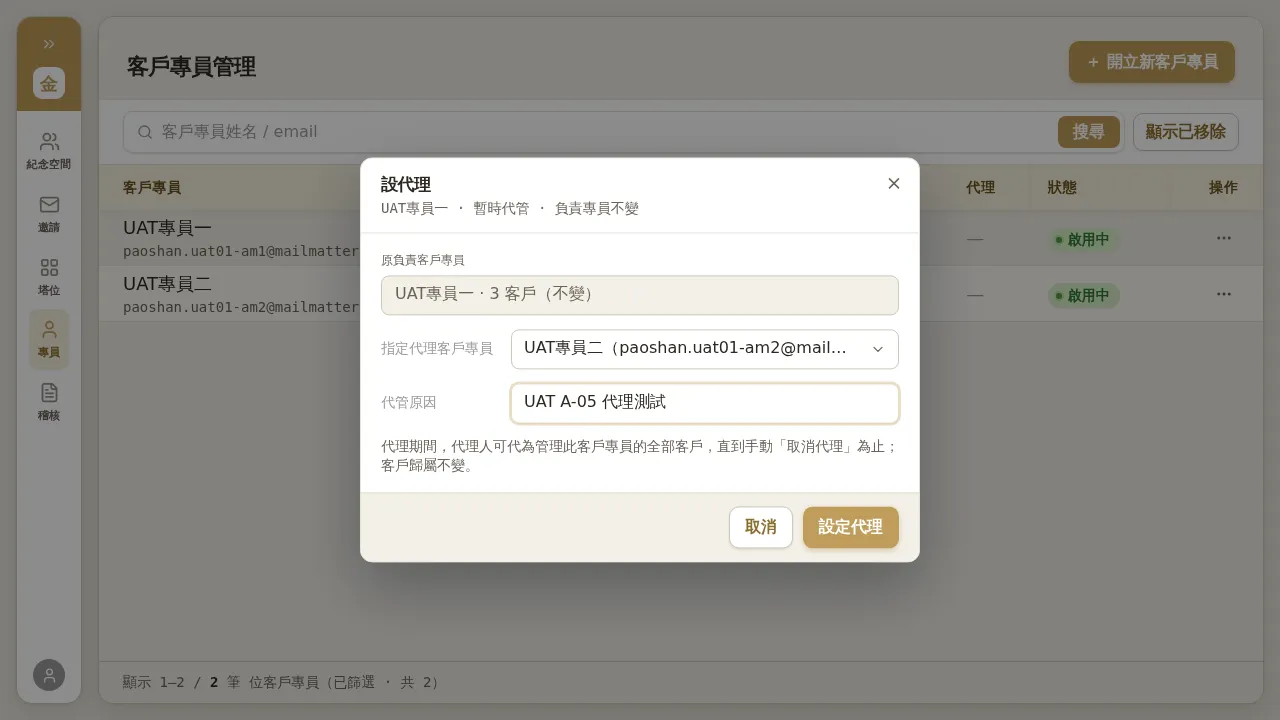 Figure 3-3: The “Set Delegate” dialog. After selecting a delegate Account Manager and entering the reason for caretaking, submit. Once set, the “Delegate” column in the roster shows the delegate.
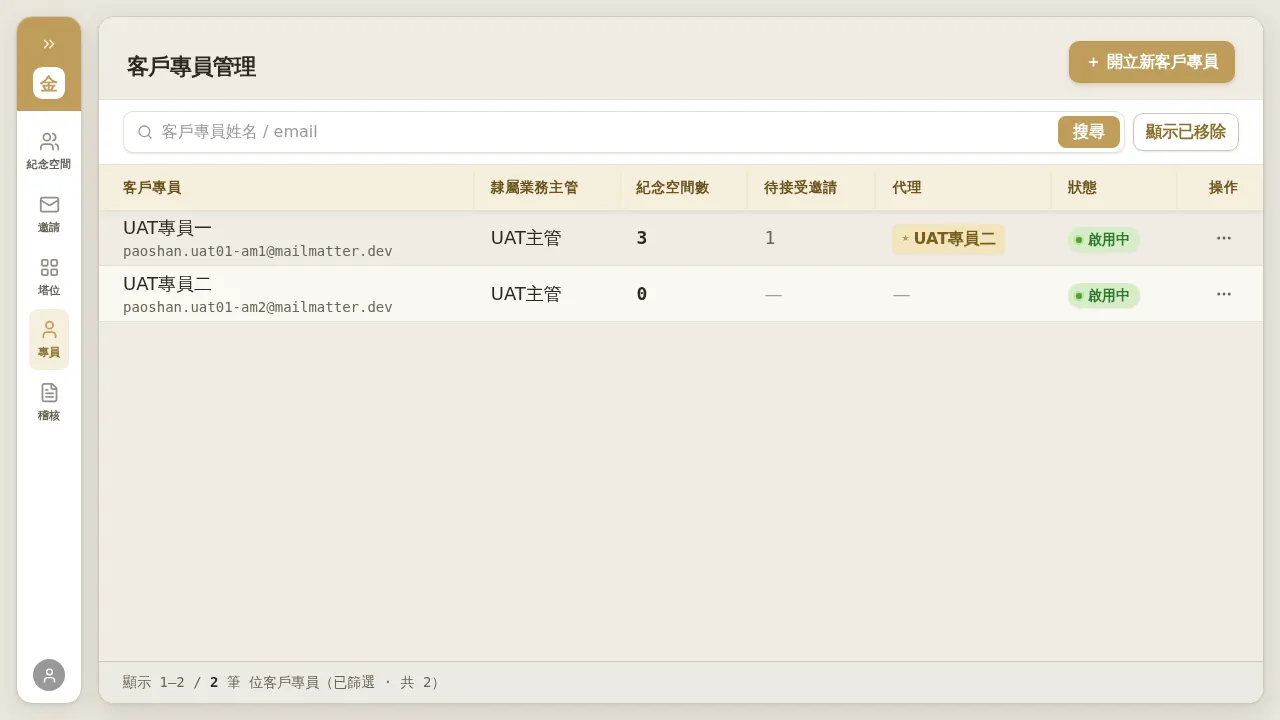 Figure 3-4: After a successful setup, the “Delegate” column on the delegated Account Manager’s row shows the delegate.
Cancel delegation: On the same row, click “⋯” → “Cancel Delegation” → confirm, and the Delegate column is cleared.
Notes (updated 2026-07-23 — feature now effective)
- Delegation now has an actual access effect: after the Account Manager assigned as delegate logs in, their “Clients” list shows all the clients under the delegated Account Manager, and they can open and manage them (the previous version had only the marker with no actual effect; this has been fixed in this version).
- On the delegated clients’ rows, “Responsible Account Manager” still shows the original Account Manager (ownership unchanged).
- A reminder: the delegate’s side has no “delegating” indicator — delegated clients cannot be distinguished from the delegate’s own clients in the list, so when handing over, communicate the delegation scope verbally/in writing.
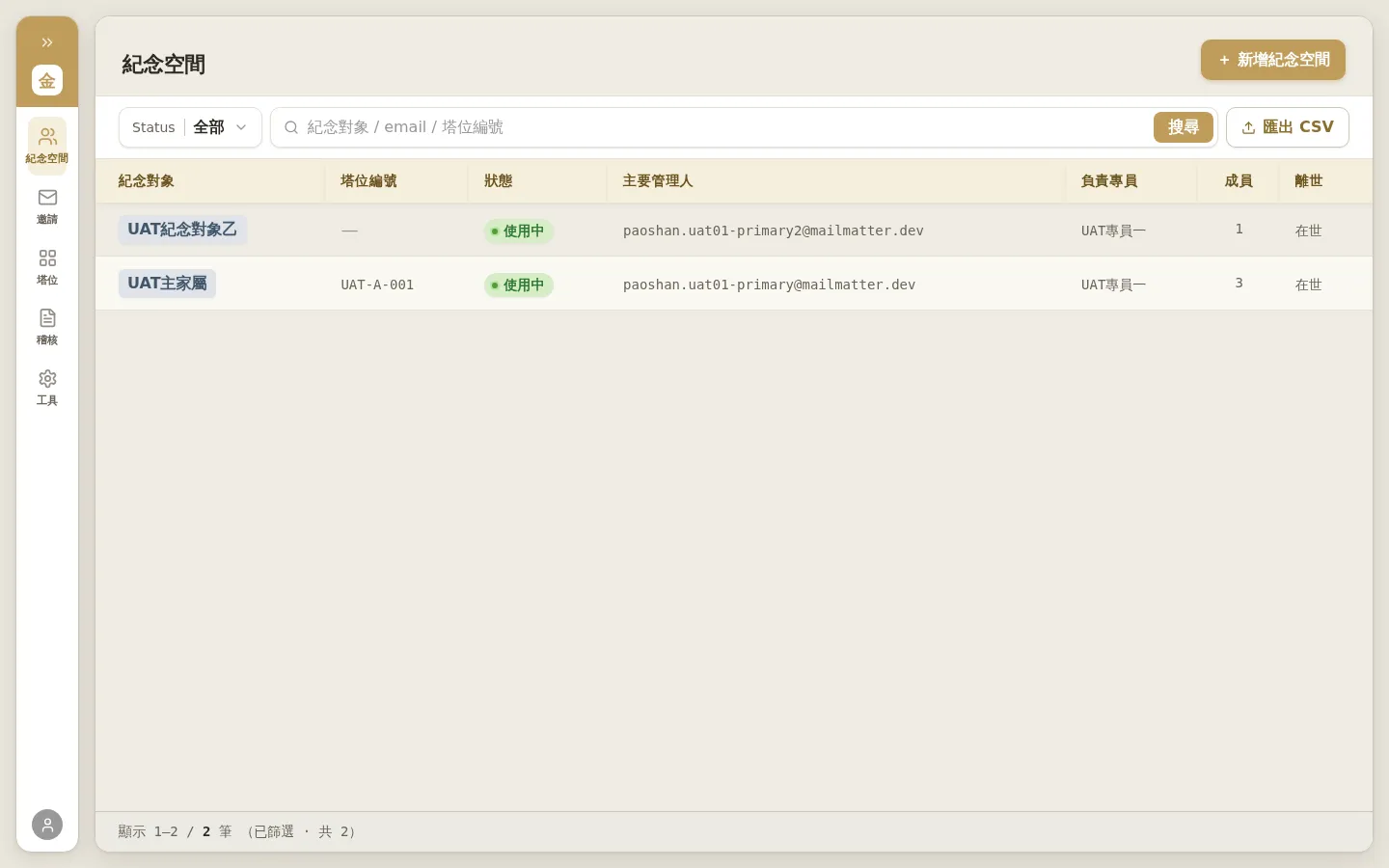 Figure 3-5: After the Account Manager assigned as delegate logs in, the client list shows the memorial spaces under the delegated Account Manager (the “Responsible Account Manager” column still shows the original Account Manager).
3.3 Removing an Account Manager (with notes)
On the Account Manager’s row, “⋯” → “Remove” removes the account. When removing:
- A removal reason is required (written to the audit log).
- If the Account Manager still has clients/memorial spaces under them, the system requires you to designate a successor (bulk-transferring their clients to yourself or another Account Manager); if they have none, no successor is required.
Notes
- There is currently no UI entry point for “restoring” a removed account: a removed Account Manager (after enabling “Show removed”) shows only “—” in the actions column, with no button to restore.
- If you need to restore a removed Account Manager, please contact engineering/the system administrator to handle it on the back end.