“Time Letters” is the most private, and most tender, feature of this platform: it lets the “Honoree,” during their lifetime, write a series of messages in advance for the people they love, to be delivered into their hands only at a particular moment in the future.
Only an “Honoree (isHonoree)” account can see this feature. Whether Primary Manager, Co-Editor, or Viewer, anyone who is not the Honoree will find that this interface does not appear at all in the memorial space — it is neither shown nor hinted at. Even the platform’s back-office staff cannot read the content of the letters. This is a deliberate privacy protection design.
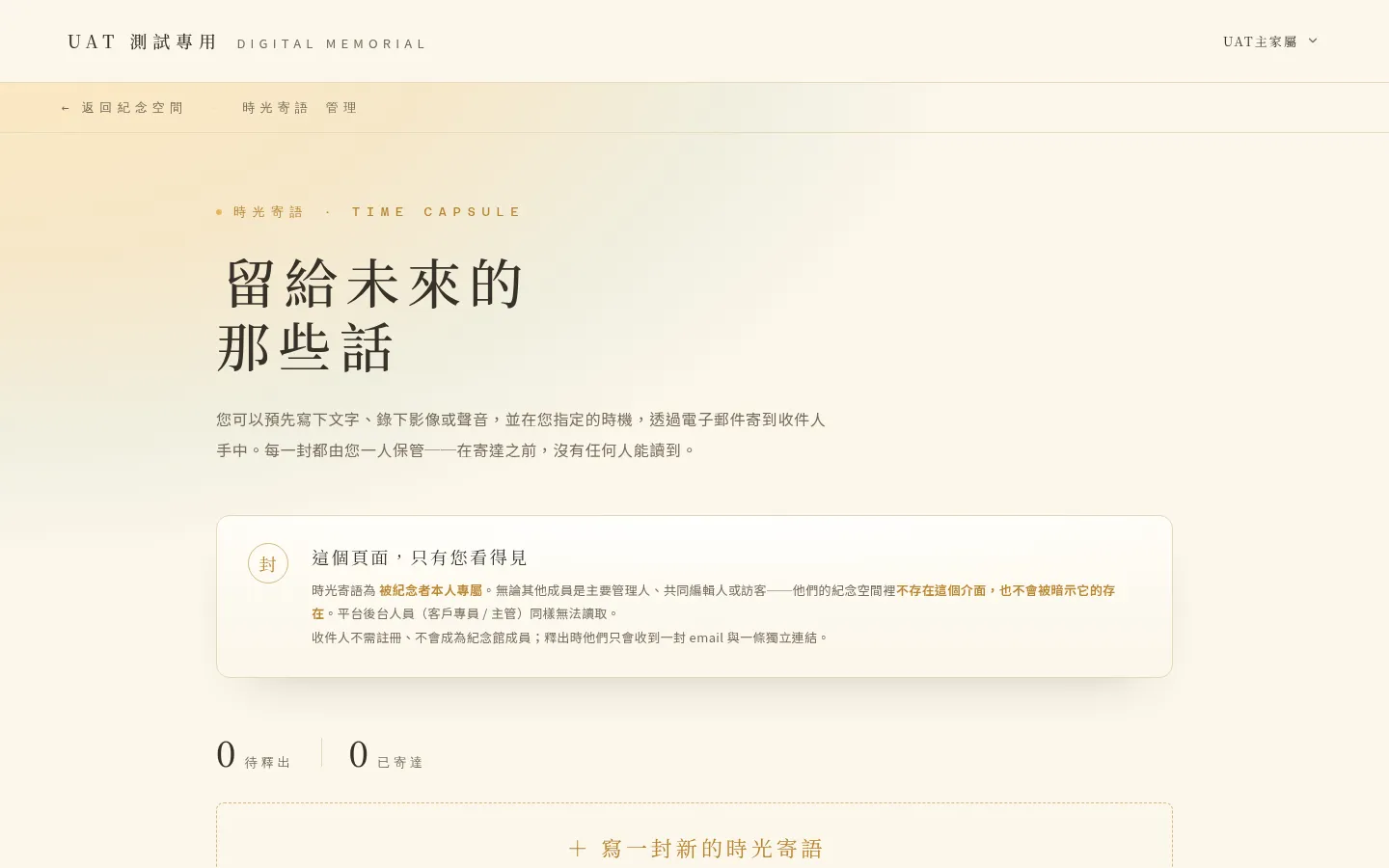 Figure 6-1 The Time Letters home page; the screen makes clear that this is a space exclusive to the Honoree, unseen by others.
6-1 Writing a Letter
Tap “Add a Time Letter” to open the composing window. A letter is made up of the following parts, all completed within the same window:
- Content type: choose one of text, image, video, or audio (“text” is unique to Time Letters).
- Text content: you can include a text message, up to 3,000 characters.
- Recipients: fill in the recipients’ emails (you can specify several).
- Release timing: choose when it is sent (see 6-2).
- Preview: you can preview how it will appear before sending.
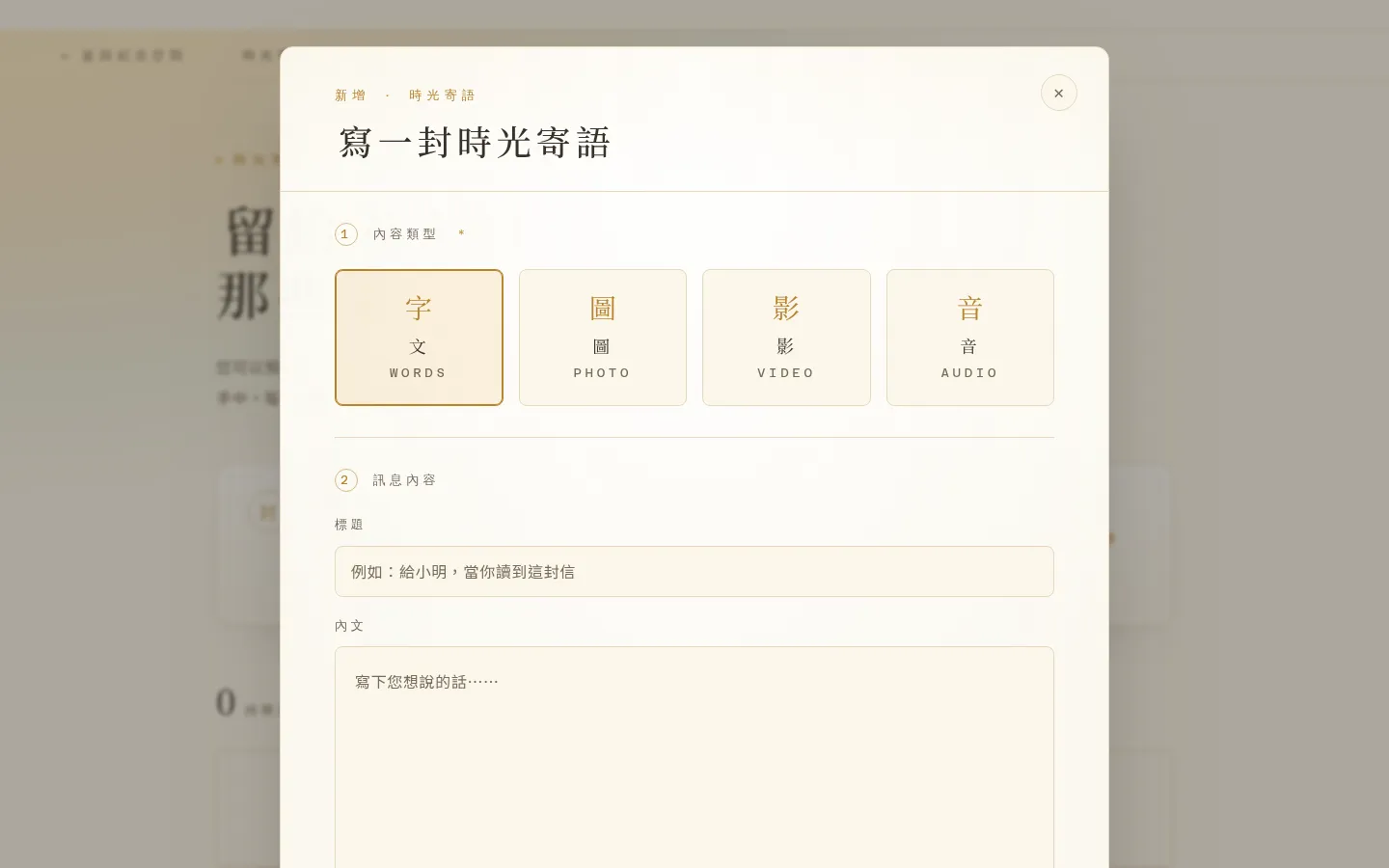 Figure 6-2 The Time Letters composing window: content, recipients, and release timing are all completed within the same window.
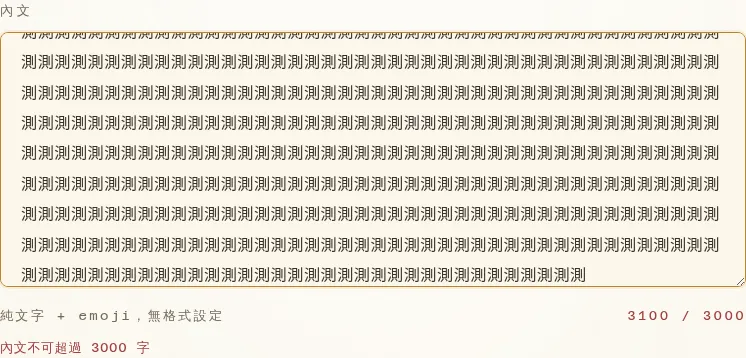 Figure 6-3 When exceeding 3,000 characters, the counter turns red as a prompt and saving is temporarily unavailable, until it is adjusted.
💡 Drafts are saved automatically: while composing, the content is automatically kept in your browser. Even if you close it by accident, a “restore draft” prompt appears when you reopen, so you can carry on where you left off.
6-2 Release Timing (Three Options)
Each letter chooses one release timing. The following describes the system’s current actual behavior:
| Option | On-screen label and behavior |
|---|---|
| ① After passing | Sent when the honoree is marked as deceased; you can also set a delay (a number of days / months later). |
| ② Specific date (with year) | The date you specify serves as the earliest release boundary; per the system’s current behavior, it is actually sent only after the honoree has passed. |
| ③ Specific date (without year) | Labeled on screen as “one-time” — per the system’s current description, it is “just this once, not repeating, sent the first time this month-and-day is reached after passing.” |
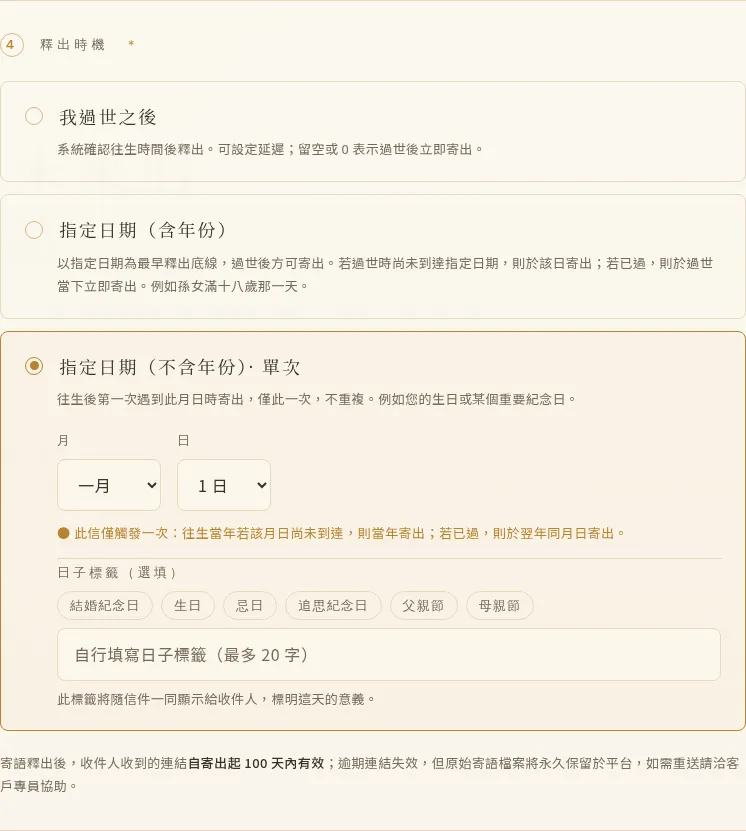 Figure 6-4 Release timing ③ “specific date (without year)” clearly shows the label “one-time.” ① “After passing” can additionally set a delay; ② “specific date (with year)” can be paired with preset labels such as an anniversary.
💡 A small note — about the meaning of release timing The judgment of release timing operates per the system’s current actual behavior. Please note especially: when you choose “specific date (with year),” even if the date has arrived, the letter will not be sent early while the honoree is still living — the system waits until after passing, and until the date condition is met, before delivering. And “specific date (without year)” is labeled on screen as “one-time.” If you have a specific expectation for the trigger timing of an important letter, we suggest confirming once with your Account Manager, so it does not differ from what you expect.
6-3 Editable After Creation, Up Until Release
Once created, letters are listed as cards. Before release, you can edit the content, or add and remove recipients.
💡 Once released, it is locked: once a letter is released (the email has been sent, the link has been generated), it can no longer be edited or withdrawn, and the card is labeled “released · cannot be modified.” This is to safeguard the integrity of those words at the moment they were sent — please make sure everything is right before release.
Also, in a few cases a card may show “the system cannot read it back,” but when you actually open the edit window the content still loads normally, so you can edit with confidence.
6-4 How Recipients Receive a Letter
When the release condition is met, the system sends an email to each recipient, containing a dedicated link. The recipient does not need to register or log in — clicking the link lets them read the words you left, on a separate, quiet page.
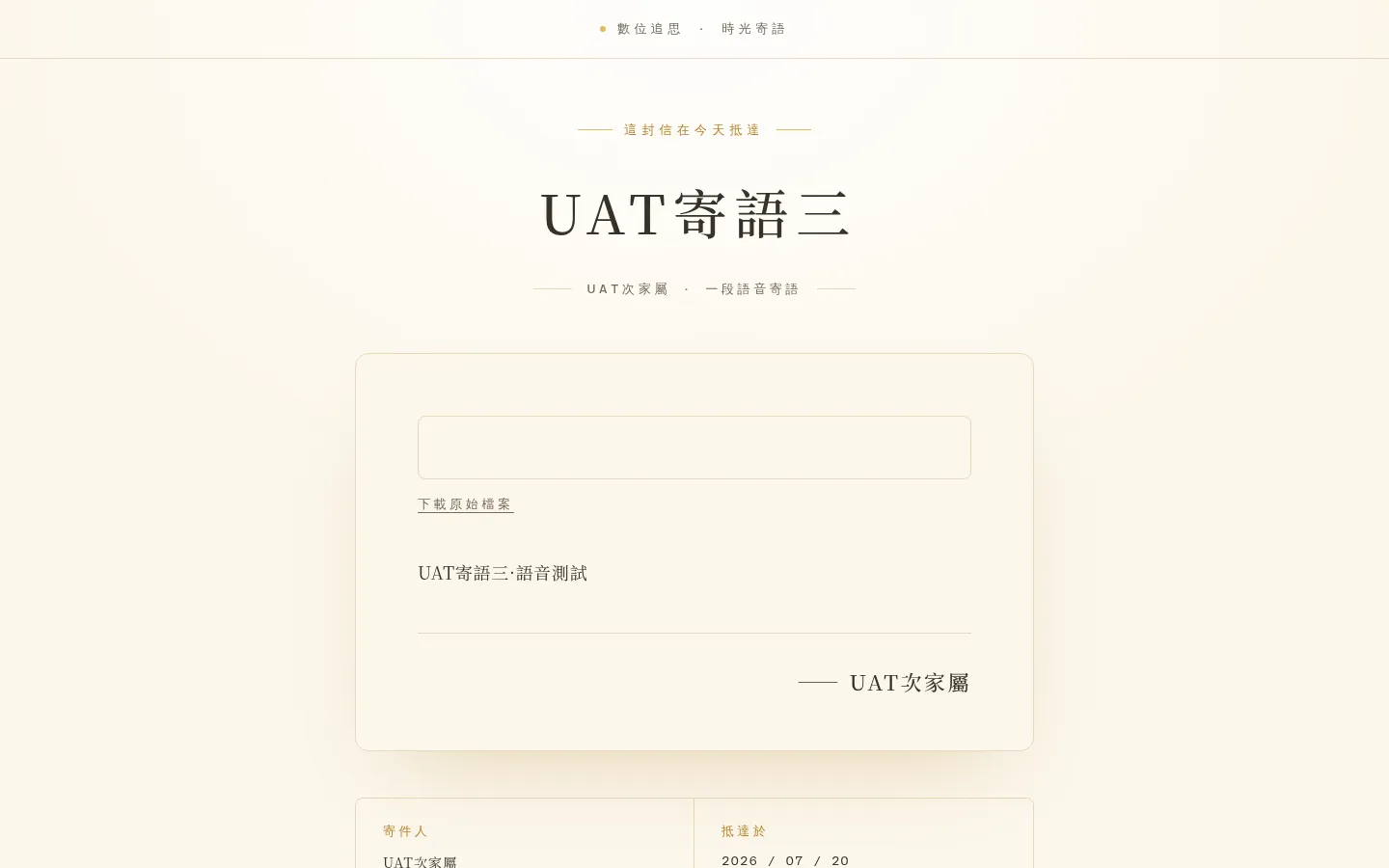 Figure 6-5 The separate page the recipient sees after clicking the link (the same letter also has a matching layout on a phone).
💡 About the recipient link
- This link is valid for 100 days.
- The link itself has no extra login protection: anyone who has the link can open it. So please make sure the recipient emails you fill in are correct; how the link is kept after it is sent is left to the recipient’s own care.
- If the link has expired or is invalid, the recipient sees a neutral notice page (without revealing the reason), and can contact the Account Manager following the guidance.
6-5 Delivery Record
After a letter is released, you can view the delivery record on the letter card — including whether it was successfully delivered and the time it was sent — so you can rest assured the words have arrived.
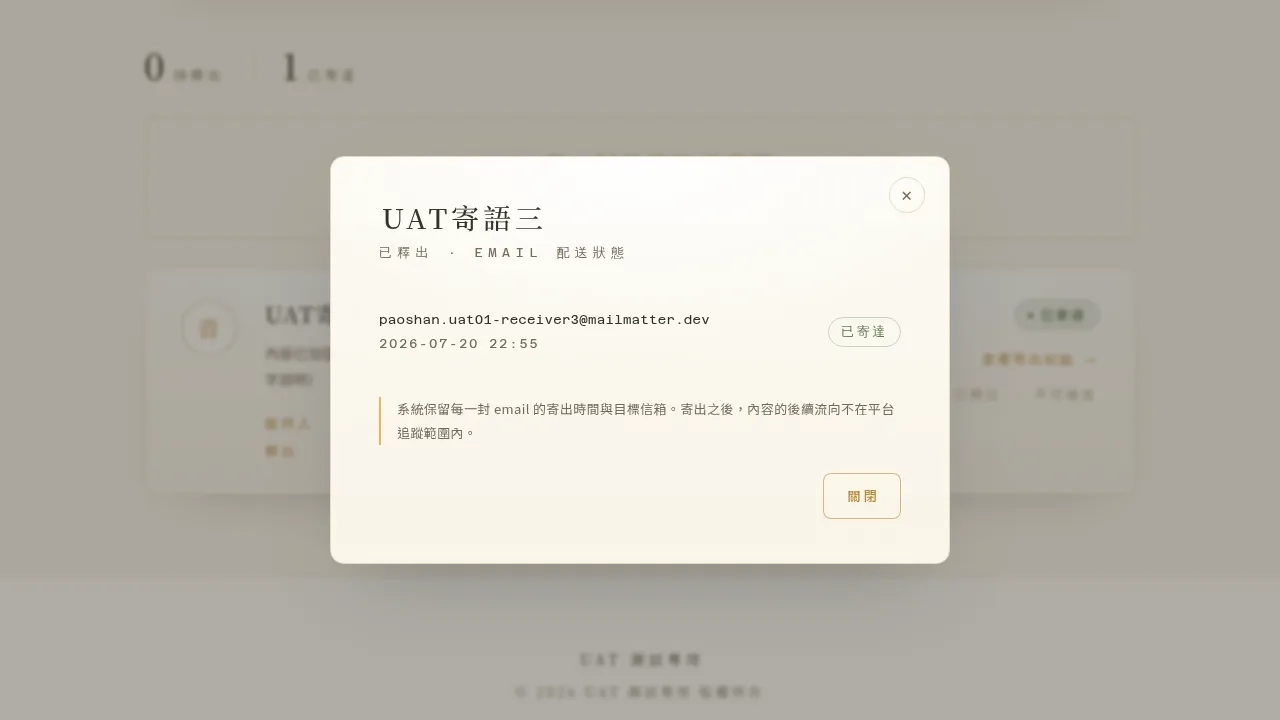 Figure 6-6 The delivery record of a released letter, showing the delivery status and time.
💡 Tips for this chapter
- If you later need to “resend” a letter’s link (for example, if the recipient did not receive it), this action can be handled with your Account Manager’s help; each resend generates a new link and identifier, so please remind the recipient to go by the link in the latest email, as the old link becomes invalid.
- Letter content is stored encrypted, and platform back-office staff cannot read the content.