When a client requests deactivation, you apply for deactivation on their behalf (30-day buffer, during which it can be restored).
- Go to the memorial space detail page and, in the “Memorial space lifecycle” area, click “Apply to deactivate the memorial space on the client’s behalf”.
- In the confirmation dialog, enter that memorialized subject’s name to confirm (e.g. enter “UAT Memorialized Subject B”).
- Only after the name matches can “Deactivate” be clicked; clicking it deactivates.
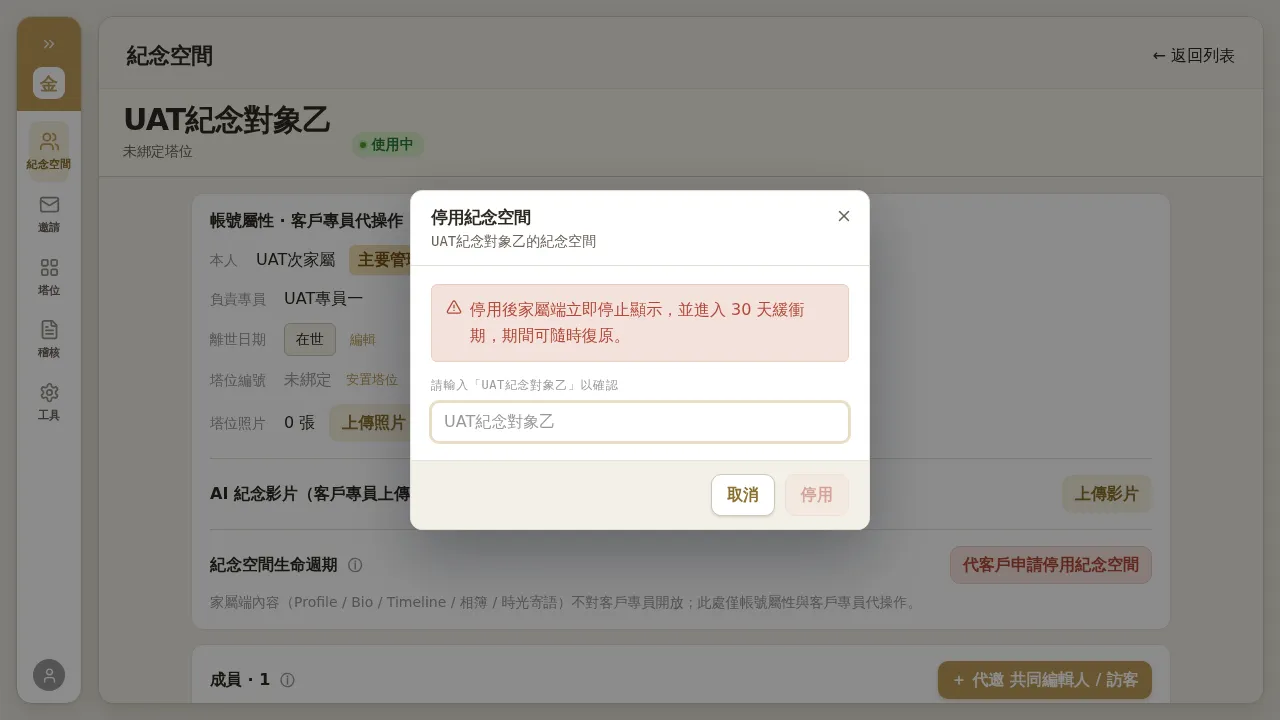 Figure 6-1: Deactivate memorial space — “After deactivation, the family-facing side immediately stops displaying it and enters a 30-day buffer period, during which it can be restored at any time.” You must enter the memorialized subject’s name to confirm; if the name does not match, “Deactivate” cannot be clicked.
Restoration: within 30 days after deactivation, you can restore it in the lifecycle area of the detail page (the family-facing side has no such permission; only the business side can restore).
Notes
- Deactivation executes upon entering the name to confirm, with no separate approval flow; operate only after confirming the client’s intent.
- After deactivation, the family-facing side immediately and completely hides the memorial space (the card disappears; a direct link shows no permission), rather than a grayed-out card.
- After the 30-day buffer expires, it becomes permanent deletion; be sure to seize the restoration window within the buffer.
- (Test-site note) After restoration, the family-facing side may still briefly show no permission due to CDN cache delay; this is an environment caching issue, not a restoration failure.