When a Time Letter’s recipient has lost the link, you can resend a new link on the “Tools” page.
- In the left navigation, click “Tools”.
- In “Resend Time Letter”, fill in:
- Recipient email
- Identifier (the 6-digit identifier in the email the recipient has)
- Click “Resend”. The system sends a new link and the original link expires; the success message shows the new link’s validity period (e.g. “New link valid until 2026-10-28”, i.e. the new link is valid for 100 days).
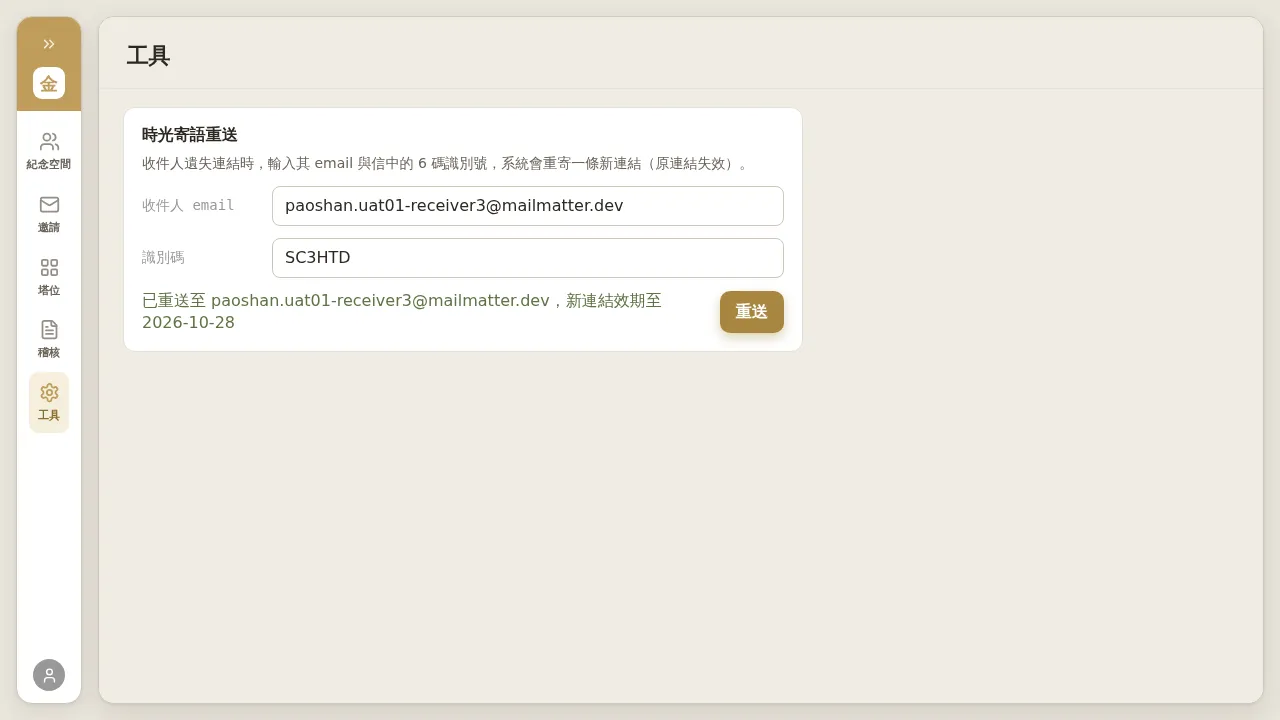 Figure 7-1: Resend Time Letter — after filling in the recipient email and the 6-digit identifier from the email, click “Resend”; the system resends a new link (the original link expires) and shows the new link’s validity period.
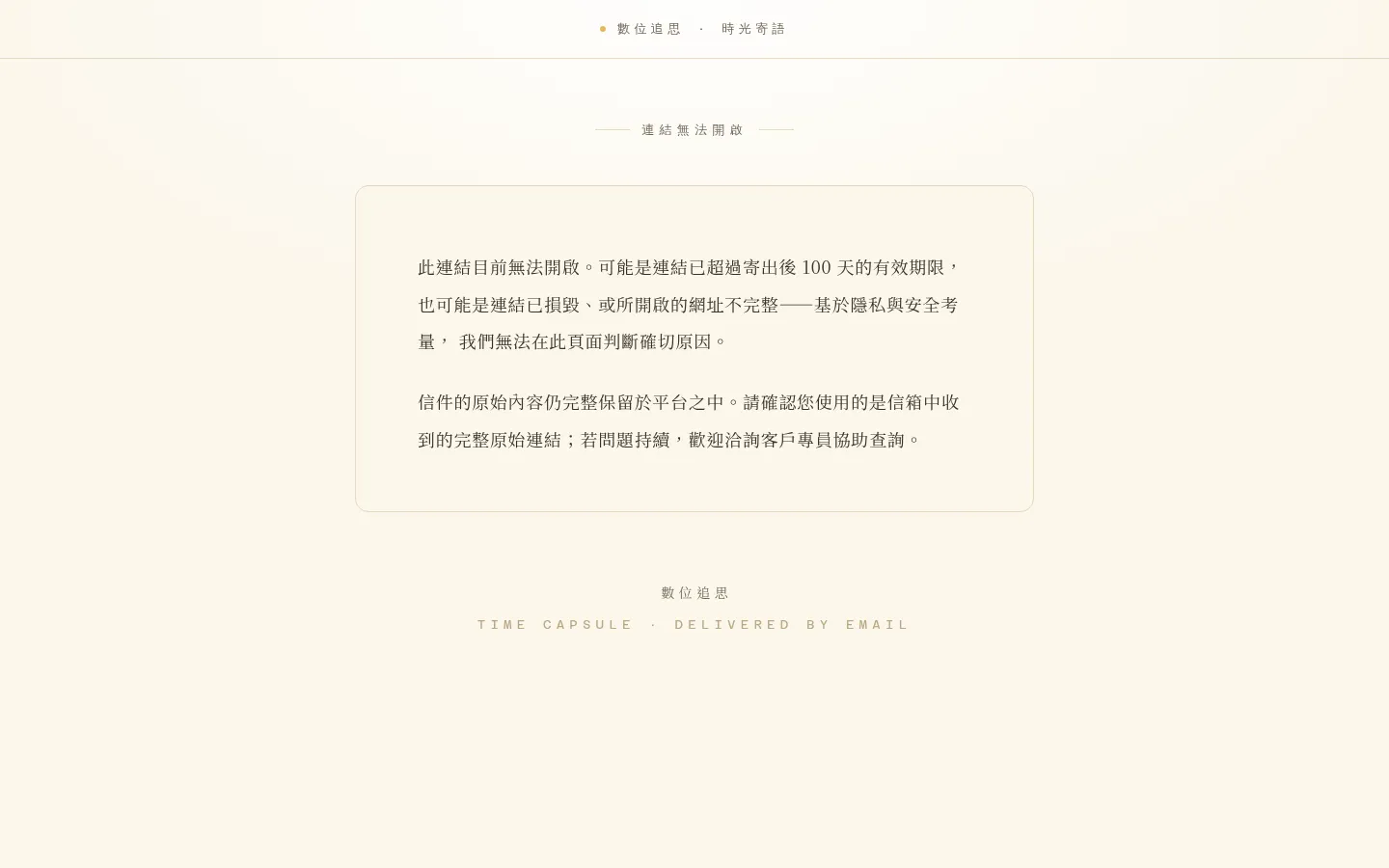 Figure 7-2: After resending, the old link the recipient has becomes invalid, and opening it shows an invalid-link page (the reason for invalidity is deliberately not disclosed). Be sure to guide the recipient to use the most recent email.
Notes (important)
- Every resend issues a new 6-digit identifier (e.g. SC3HTD → K1SKA5; the new email carries a new code). So if you later help the same recipient again, always use the identifier on the “most recent email”; an old code will cause the resend to fail.
- When the identifier is wrong, it only shows the generic “Resend failed, please try again later” without stating that the code is wrong — first confirm the recipient has the code from the most recent email.
- The old link becomes invalid after resending; the invalid-link page does not disclose the reason (expired / corrupted all show the same page), which is a privacy design.