The Tenant Admin holds personnel governance authority across the entire enterprise: adjusting Account Manager assignments, bulk-transferring memorial spaces, and removing Managers / Account Managers while designating a successor.
5.1 Reassign (Move an Account Manager to Another Manager)
- Go to “Account Managers” → find that Account Manager’s row → open the “⋯” menu → “Reassign”.
- The dialog shows “Current Manager”; in the “Reassign to” dropdown, choose the new Manager.
- Click “Save”.
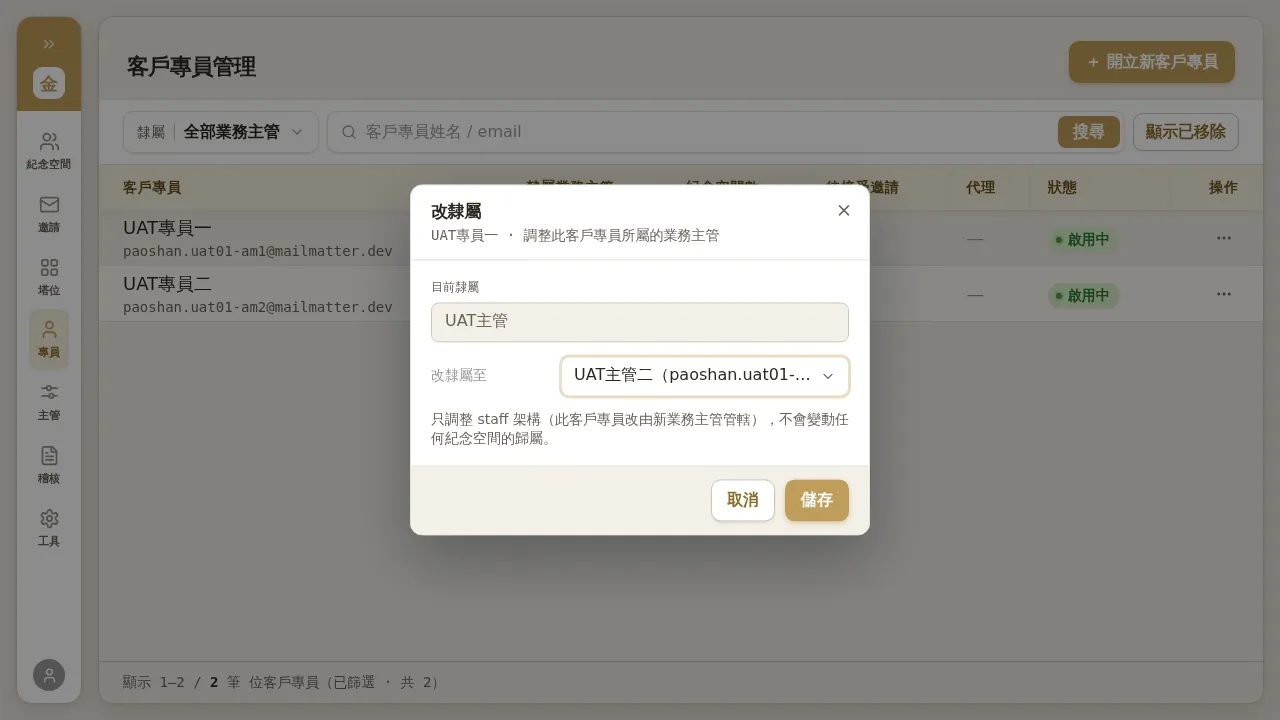 Figure 5-1 Reassign: this only adjusts the staff structure (the Account Manager is now overseen by the new Manager) and does not change the ownership of any memorial space. When the Tenant Admin operates, the dropdown correctly lists other Managers.
Notes / Known Limitations
- “Reassign” only changes the staff reporting relationship, not memorial space ownership (the memorial spaces under the Account Manager still belong to that Account Manager). To transfer memorial spaces, use 5.2.
- When a Manager runs “Reassign” themselves, the “Reassign to” dropdown may be empty (they cannot see other Managers); in practice only the Tenant Admin can complete a reassignment. If a Manager reports an empty dropdown, please handle it yourself (as Tenant Admin).
5.2 Bulk Transfer Memorial Spaces (Change Owner Account Manager)
To transfer all memorial spaces under one Account Manager in bulk to another Account Manager:
- On the “Account Managers” row, open “⋯” → “Transfer / Bulk Transfer”.
- Check the memorial spaces to transfer (subset selection supported), assign the new owner Account Manager, and confirm execution.
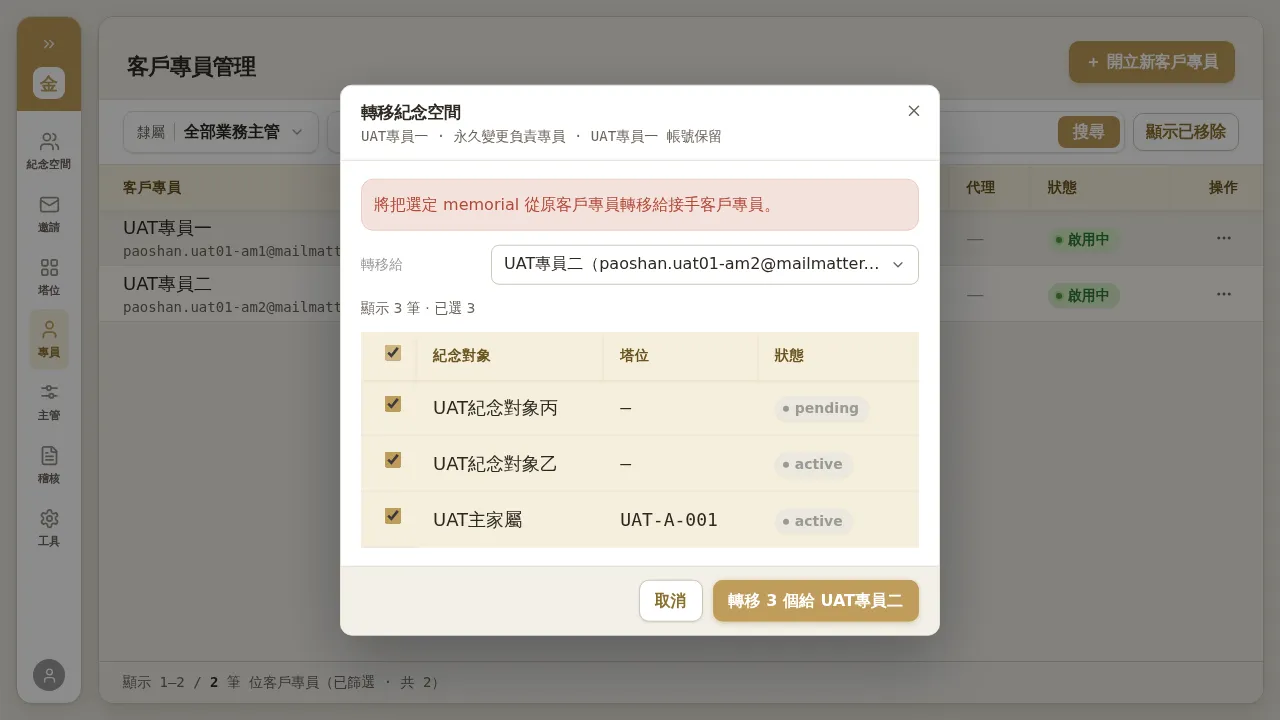 Figure 5-2 Bulk transfer memorial spaces: you can select all or a subset to transfer to another Account Manager; pending invitations are transferred along with them. The dialog makes clear that it changes nothing about the niche relationship beyond ownership—i.e. niches are not touched.
- The transfer only changes the owner AM; niche bindings and the memorial space itself are not touched.
- Pending invitations on the memorial space are transferred together.
- The transfer event is written to the audit log (queryable from both sides).
5.3 Removing a Manager / Account Manager (with Succession)
When removing staff, if they still have an Account Manager subtree or memorial spaces beneath them, you must designate a successor to take over.
Removing an Account Manager:
- On the “Account Managers” row, “⋯” → “Remove”.
- If they have memorial spaces, you must designate the Account Manager who will take over; if they have no memorial spaces, the dialog shows “No successor needed”.
- A removal reason is required (you cannot submit without it) and is written to the audit log.
- Click “Execute Removal”; the account is then deactivated.
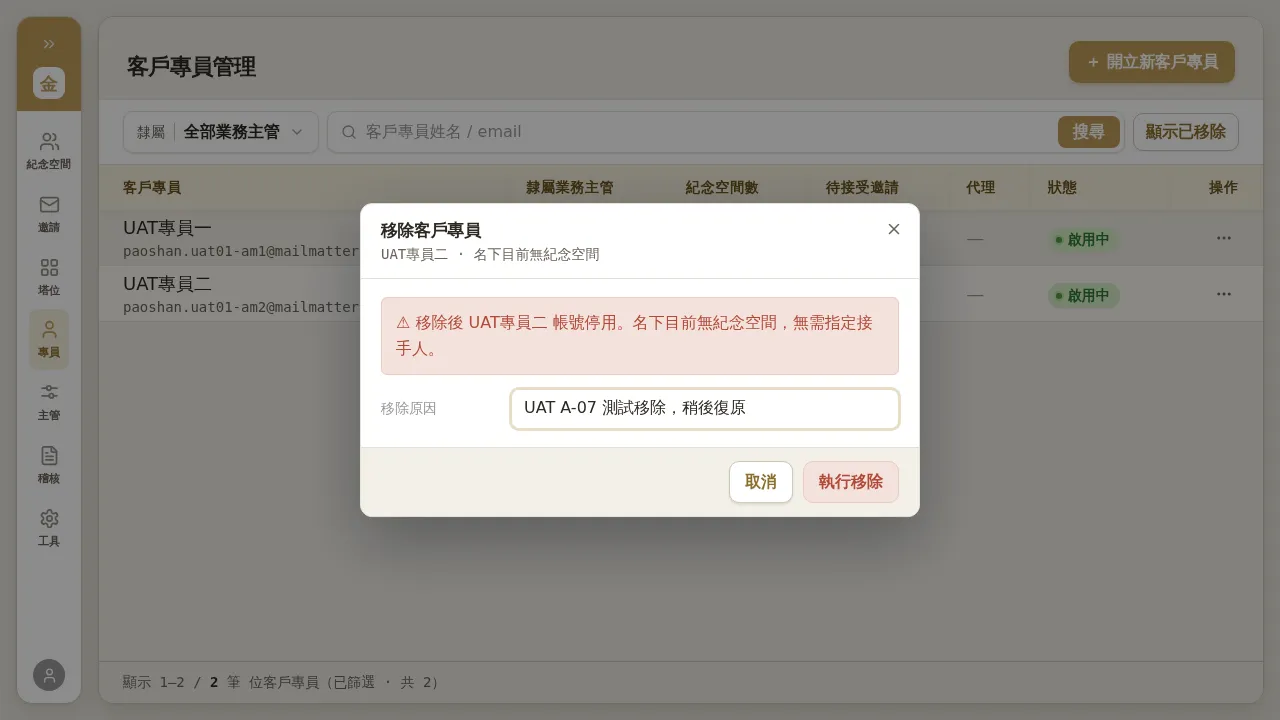 Figure 5-3 Removing an Account Manager: the warning explains the consequences, and the removal reason is required; no successor is needed when there are no memorial spaces beneath them.
Removing a Manager (Tenant Admin only): likewise requires a removal reason; the Account Managers beneath them will all be reassigned to a designated other Manager. If that Manager has no Account Managers beneath them and no memorial spaces, the dialog will show “No successor needed”.
5.4 Current State of Restoration (Reactivate)
Removed staff can be restored, but—
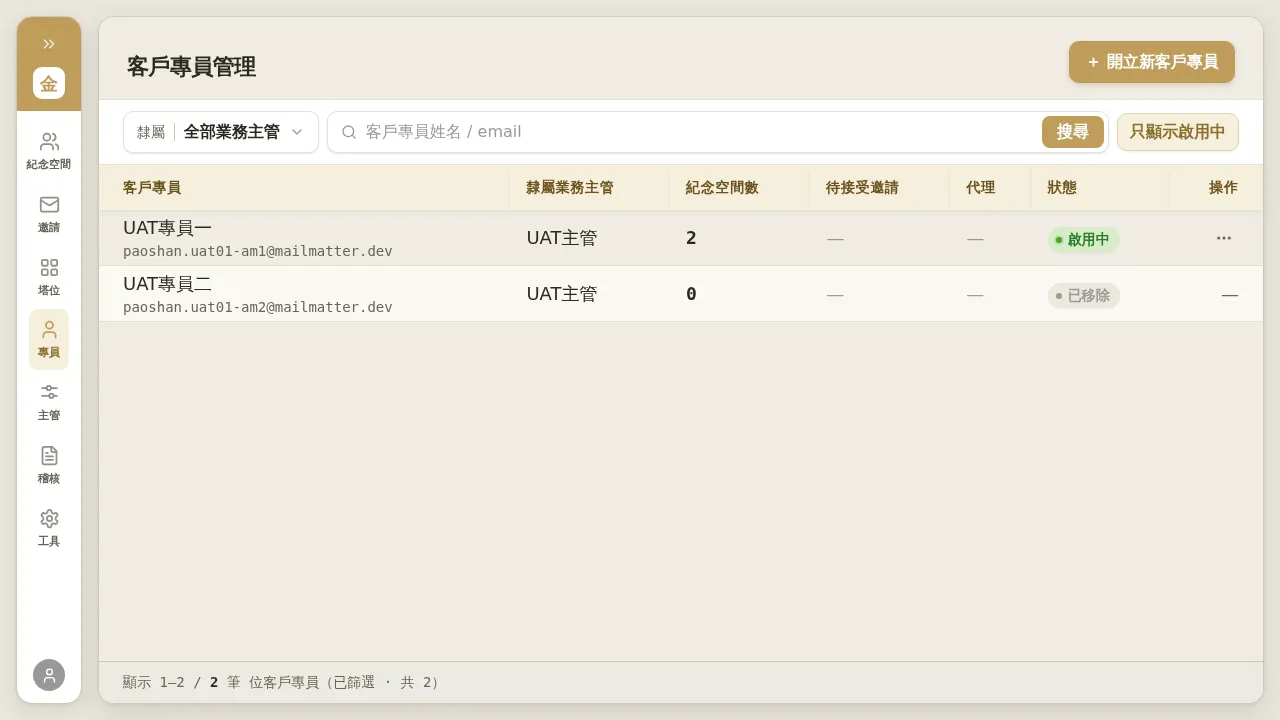 Figure 5-4 Under the “Show removed” view, a removed staff row’s operation column shows only “—”, and there is currently no restore button.
Notes / Known Limitations
- On the “Account Managers / Managers” page, clicking “Show removed” reveals the history of removed accounts, but a removed row’s operation column is currently “—”, with no “Restore” button. The backend has the ability to restore, but the current version does not provide an entry point in the interface. If you need to restore a removed staff member, please contact the engineering team for help (they can perform the restoration from the backend; after restoration, that account can log in normally).
- Removal is a governance operation that forces succession. Before executing, confirm the successor is correct and fill in the removal reason truthfully (it goes into the audit log).