This chapter is the warmest heart of the platform — gathering photos, videos, sound, and life stories, little by little. Both the Primary Manager and Co-Editors can edit this content; Viewers can browse it.
5-1 Switching to Edit Mode
A memorial space is normally in “browse mode.” To begin editing, tap the Edit toggle in the top-right corner — only those with editing permission (Primary Manager, Co-Editor) can see this button. Once turned on, editable entry points appear in each section of the screen.
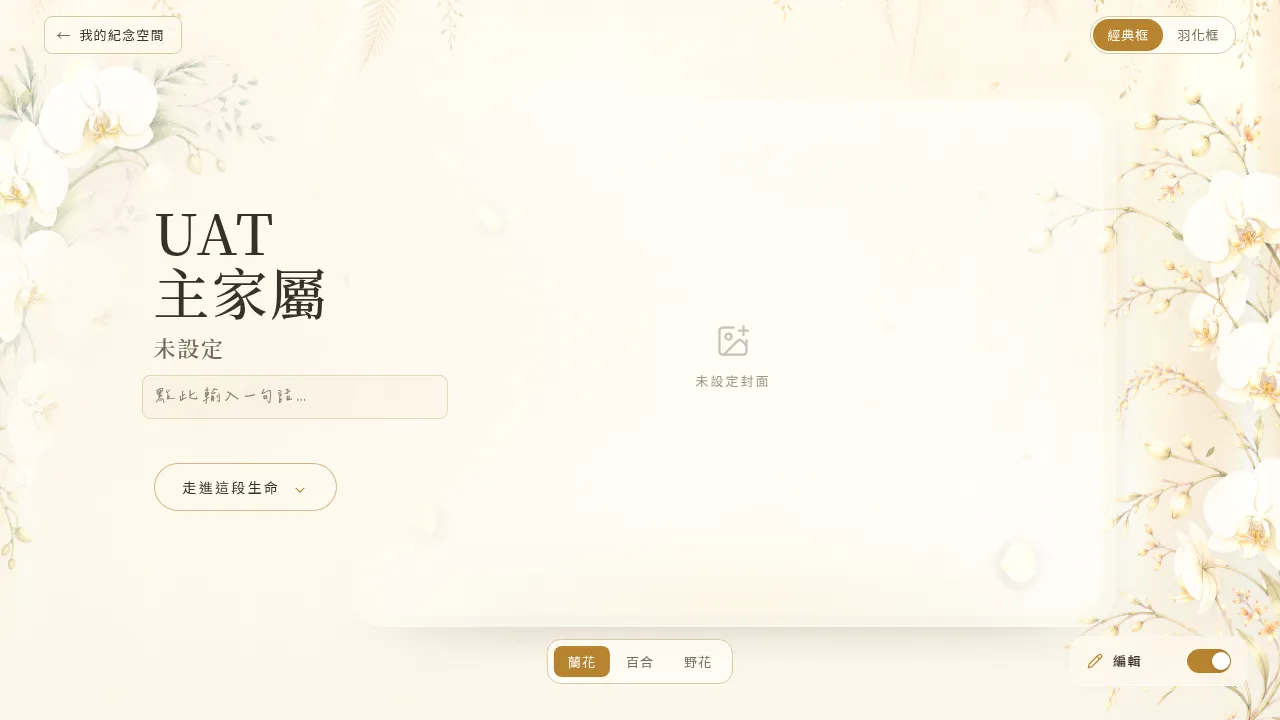 Figure 5-1 The edit toggle in the top-right corner; once turned on, you can edit each section’s content in place.
5-2 Life Story
The “Life Story” tab is divided into two parts: the biography above and records below.
The biography is a long piece of text that supports basic text styling (bold, italic, links, bullet lists). The biography uses auto-save on blur — when you click anywhere outside the text box, the content is saved automatically; there is no separate “save” button.
The records are a series of timeline entries. When adding one, you can choose from three templates: Milestone / Life Event / Cherished Memory, and each can carry photos, videos, or sound (chosen from an existing album, or uploaded directly; directly uploaded media is also gathered into the system album “Life Story”).
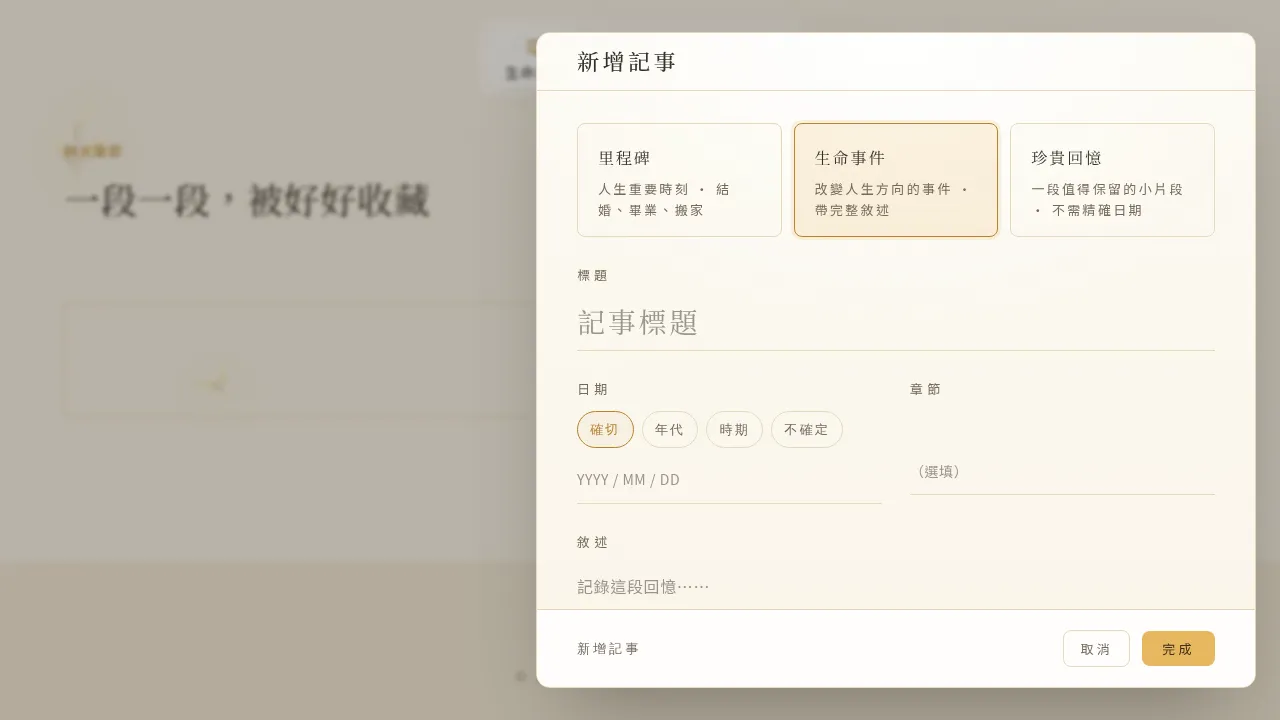 Figure 5-2 When adding a record, you can choose from the Milestone, Life Event, or Cherished Memory templates, and attach media.
💡 A small note — the ordering of records Records can be reordered by dragging with the handle on the left, and the order is saved (since 2026-07-23): after dragging and refreshing, the order stays unchanged. When releasing, drop the record card onto another record card before releasing for it to take effect.
5-3 Media Archive
The “Media Archive” is where photos, videos, and sound are gathered together. You can create albums by event (such as a “wedding album”), and a single album can hold photos, videos, and sound all at once, with no need to separate them.
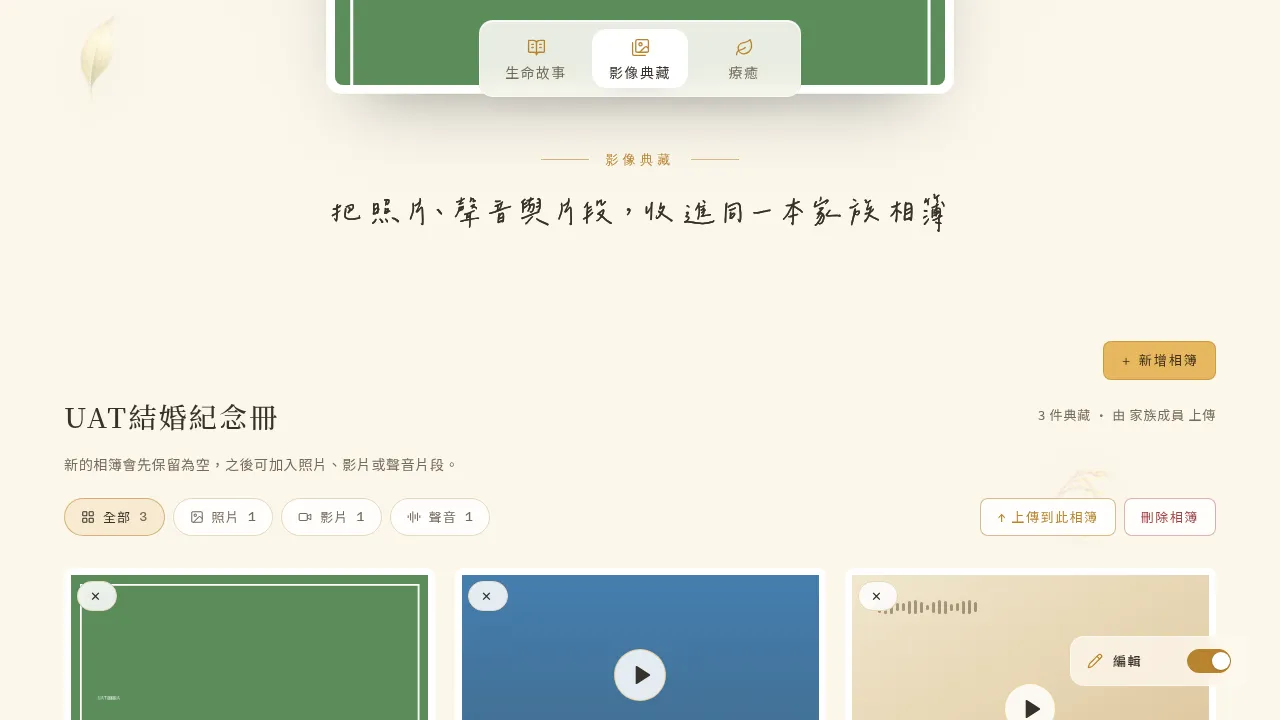 Figure 5-3 The filter bar above the album can switch between “All / Photos / Videos / Sound,” and shows the count for each type.
Lightbox (enlarged view): tapping any photo enlarges it in a lightbox, where you can add a caption. You can also set a photo as the opening main image, making it the main visual on the memorial space home page.
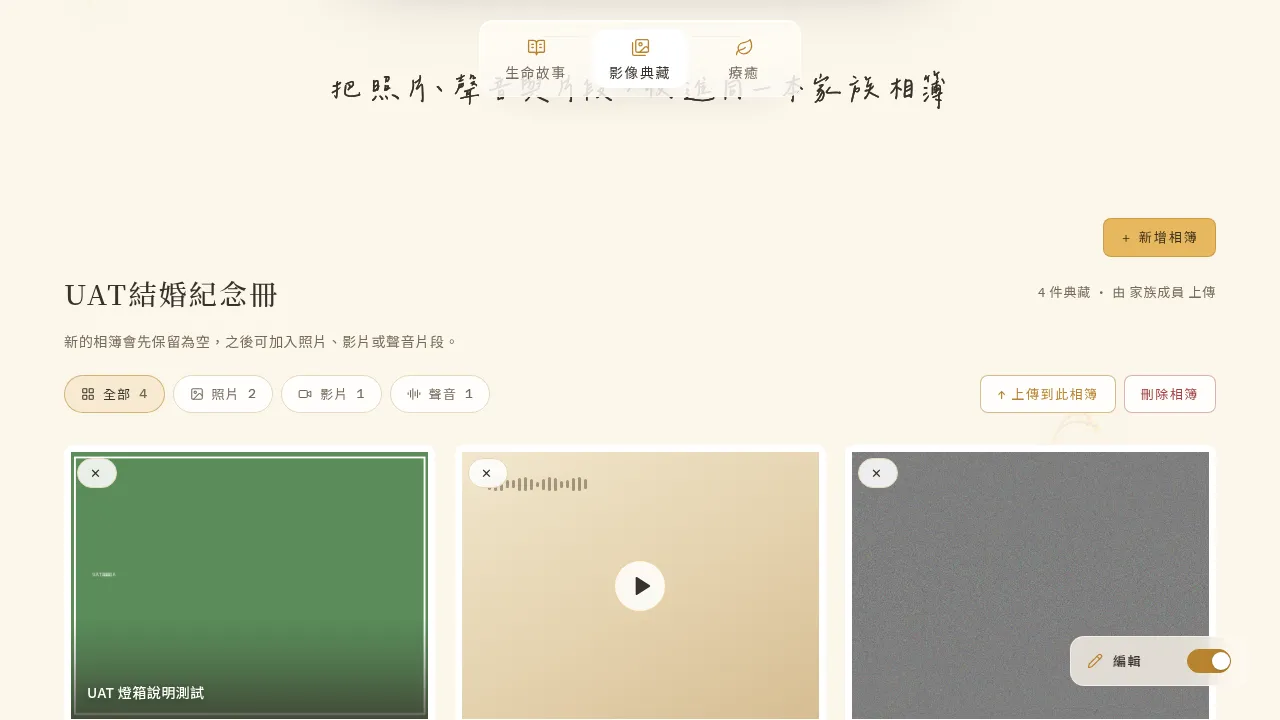 Figure 5-4 In the lightbox you can edit the caption and set the photo as the memorial space’s opening main image.
AI Oil Painting: you can apply an AI oil-painting style to a photo, producing a painting-like memorial image. Simply choose a style from the side of the lightbox, and the finished work is automatically gathered into the “AI Oil Painting” system album.
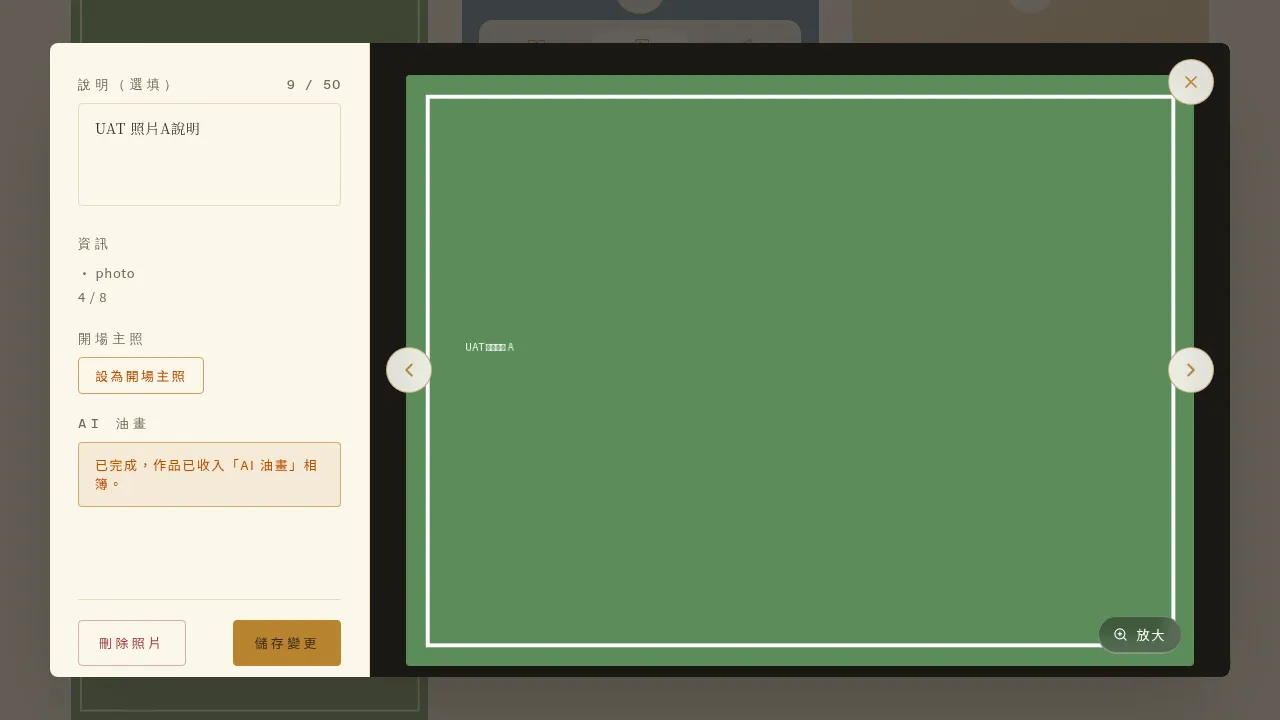 Figure 5-5 A finished AI oil-painting work; the platform offers a variety of painting styles, and the result is automatically gathered into the “AI Oil Painting” album.
💡 Tips for the Media Archive
- The lightbox currently has no download button: this version does not yet provide a dedicated download button in the enlarged view.
- Uploading large files: when a photo exceeds about 6MB or a video is fairly long, the system shows a gentle “the file is large” reminder, but does not block the upload — you can still continue.
- AI Oil Painting has a production quota: each memorial space has a maximum number of works; once it is used up, please contact your Account Manager if you need more. A few styles may fail to produce in the current environment; just try again with a different style. Failed works do not use up your quota.
5-4 Healing (Read-Only Browsing)
The “Healing” tab offers shared blessing / healing material prepared by Chin Pao San (such as sutra chanting and meditation videos), for all members (including Viewers) to browse and play. This content is shared and does not belong to any individual honoree, so it is view-only and cannot be edited or deleted.
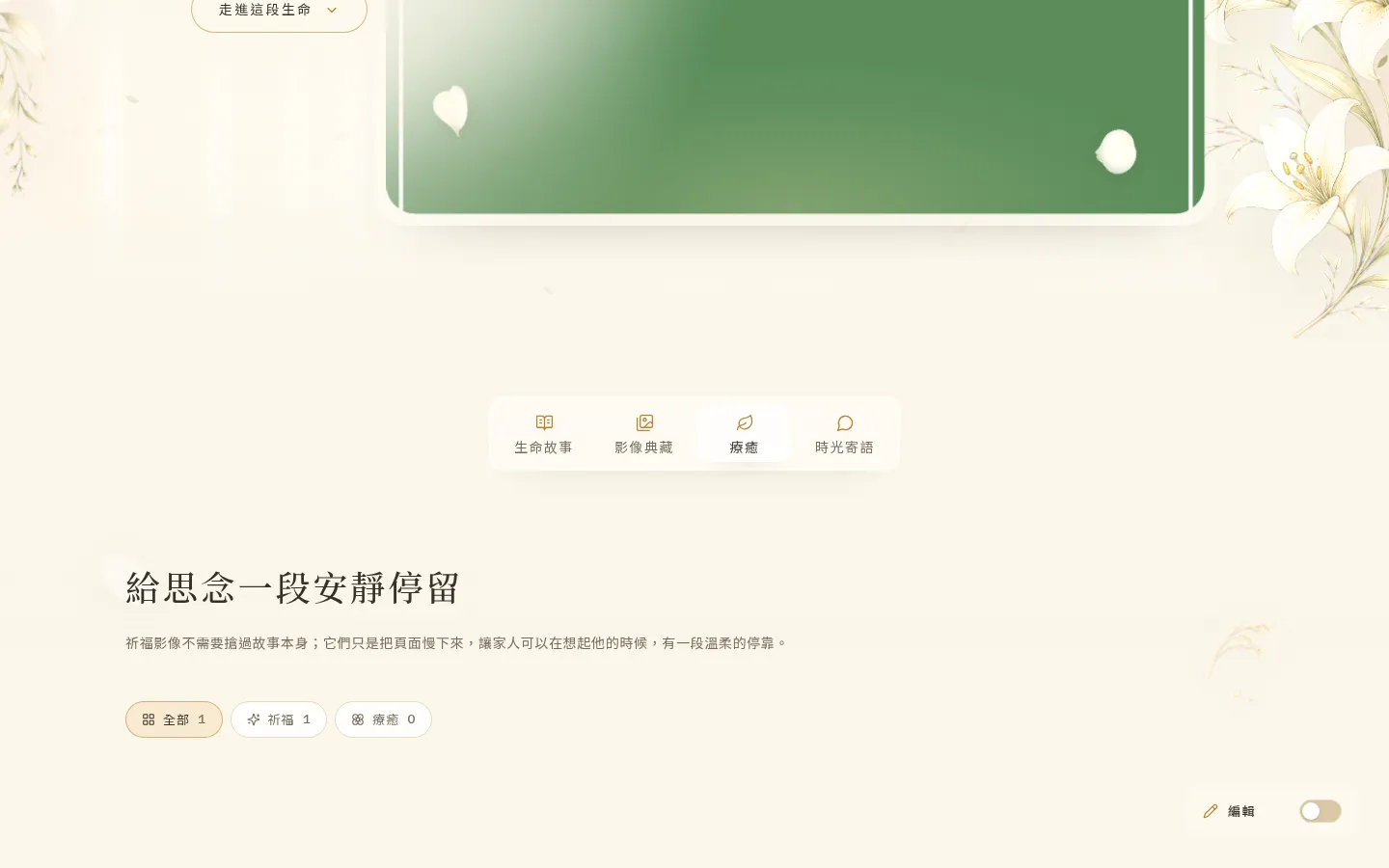 Figure 5-6 The Healing tab: shared blessing / healing material that all members can browse; the content is read-only.
💡 The Healing material on the platform is still being enriched, so the amount you see may still be small. This is normal, and Chin Pao San will continue to add to it.
5-5 Personalizing the Cover and Floral Theme
You can change the memorial space’s cover photo, and choose a floral theme and card frame, to bring the whole space closer to the character of your loved one.
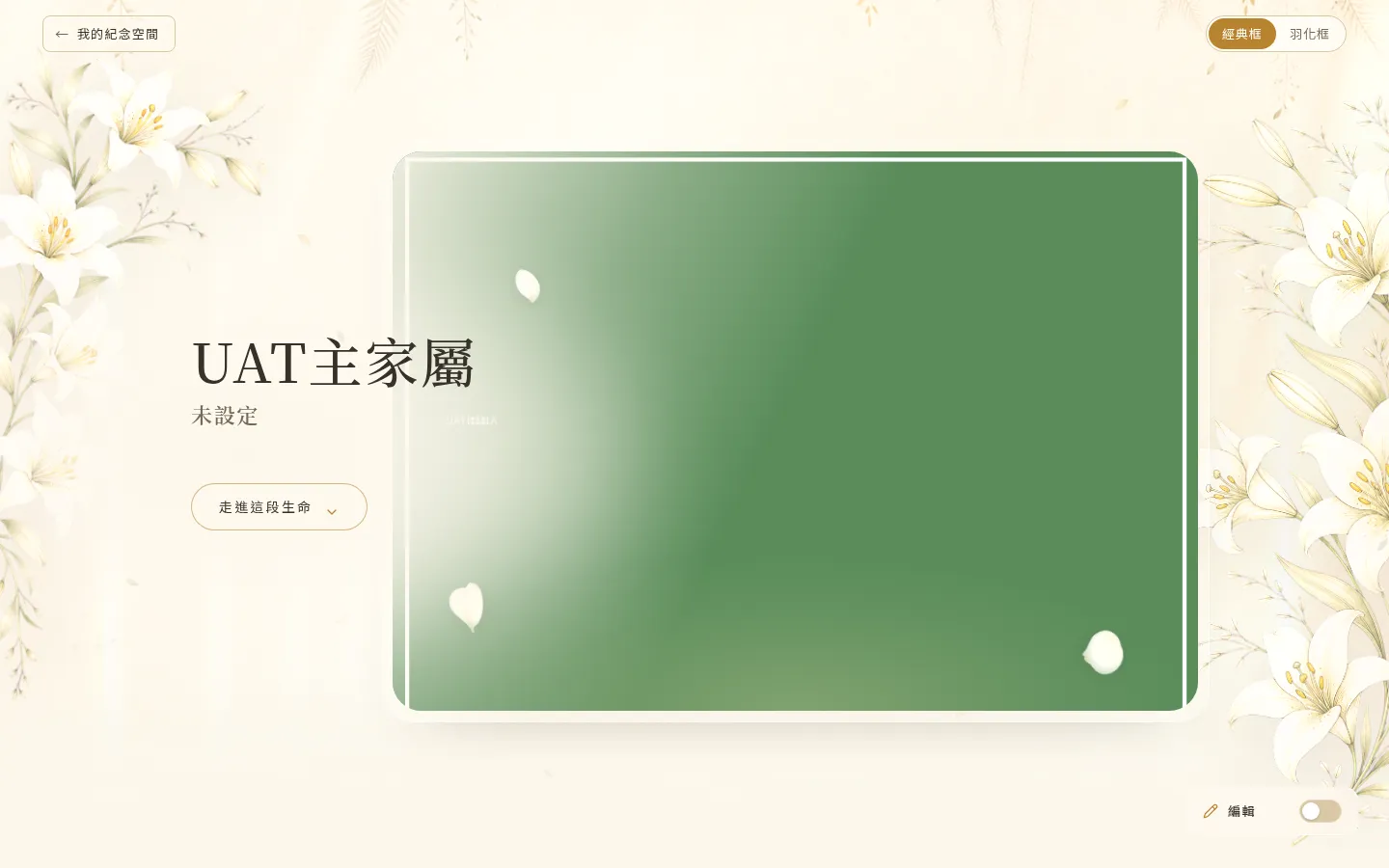 Figure 5-7 The result after changing the cover and floral theme.
💡 A small note
- Changing the cover opens the file picker directly for you to choose a new image; there is not yet a path to “choose from an existing album.”
- The floral theme appears consistently across devices and for all members; the card-frame style, however, is stored in your own browser, so others, or you on a different device, may see a different setting.
💡 An important note for this chapter — deletion has no recycle bin On the family side, content such as photos, videos, and records cannot be restored by yourself once deleted; there is no recycle bin. When deleting, the system shows a “cannot be undone after deletion” reminder — please be sure to confirm before deleting.