The first screen you see after logging in is your Home (Dashboard). It brings together all the memorial spaces “connected to you” — whether you are the Primary Manager, a Co-Editor, or a Viewer in each.
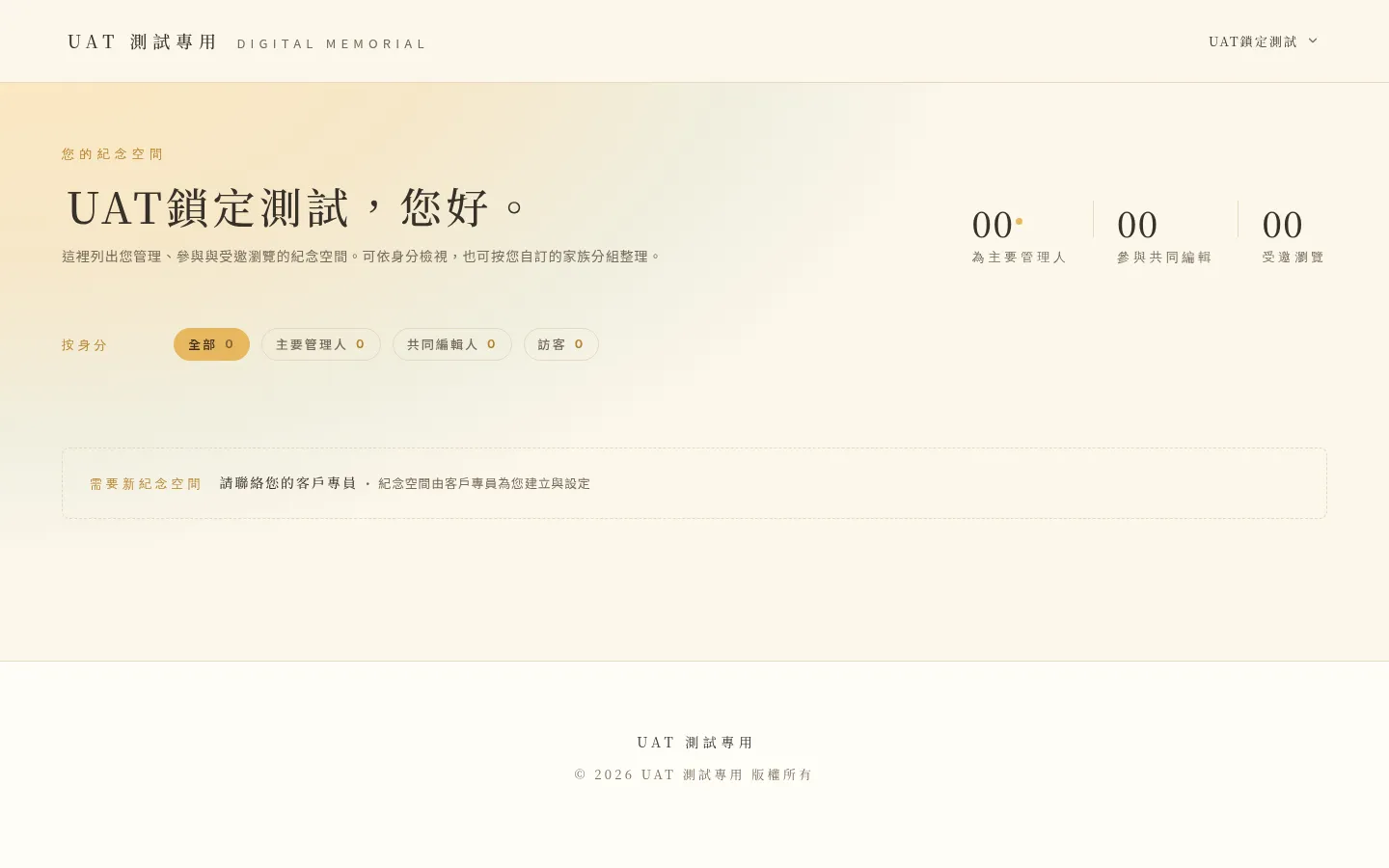 Figure 2-1 The role categories at the top of the home page; the system sorts the memorial spaces by your identity. On the phone view they appear as horizontally scrolling chips, easy to browse one-handed.
2-1 Sorted by Identity
At the top of the home page are a few category tabs (chips) that separate the memorial spaces by your role, so you can tell at a glance “the ones I am Primary Manager of,” “the ones I help edit,” and “the ones I come to visit.”
💡 A small note The current version of the home page does not show a “memorial space quota / remaining count.” If you need to add a memorial space, please contact your Account Manager for help opening one.
2-2 Creating and Managing Family Groups
As the number of memorial spaces you take part in grows, you can use Family Groups (FamilyGroup) to organize them into your own categories such as “paternal side,” “maternal side,” or “close friends,” just like sorting things into folders.
Steps:
- On the home page, tap “Manage Groups” to enter group settings.
- Create a new group and name it (fill in freely).
- Return to a memorial space card, tap the “⋯” menu on the card → “Add to Group,” and you can place it into one or more groups.
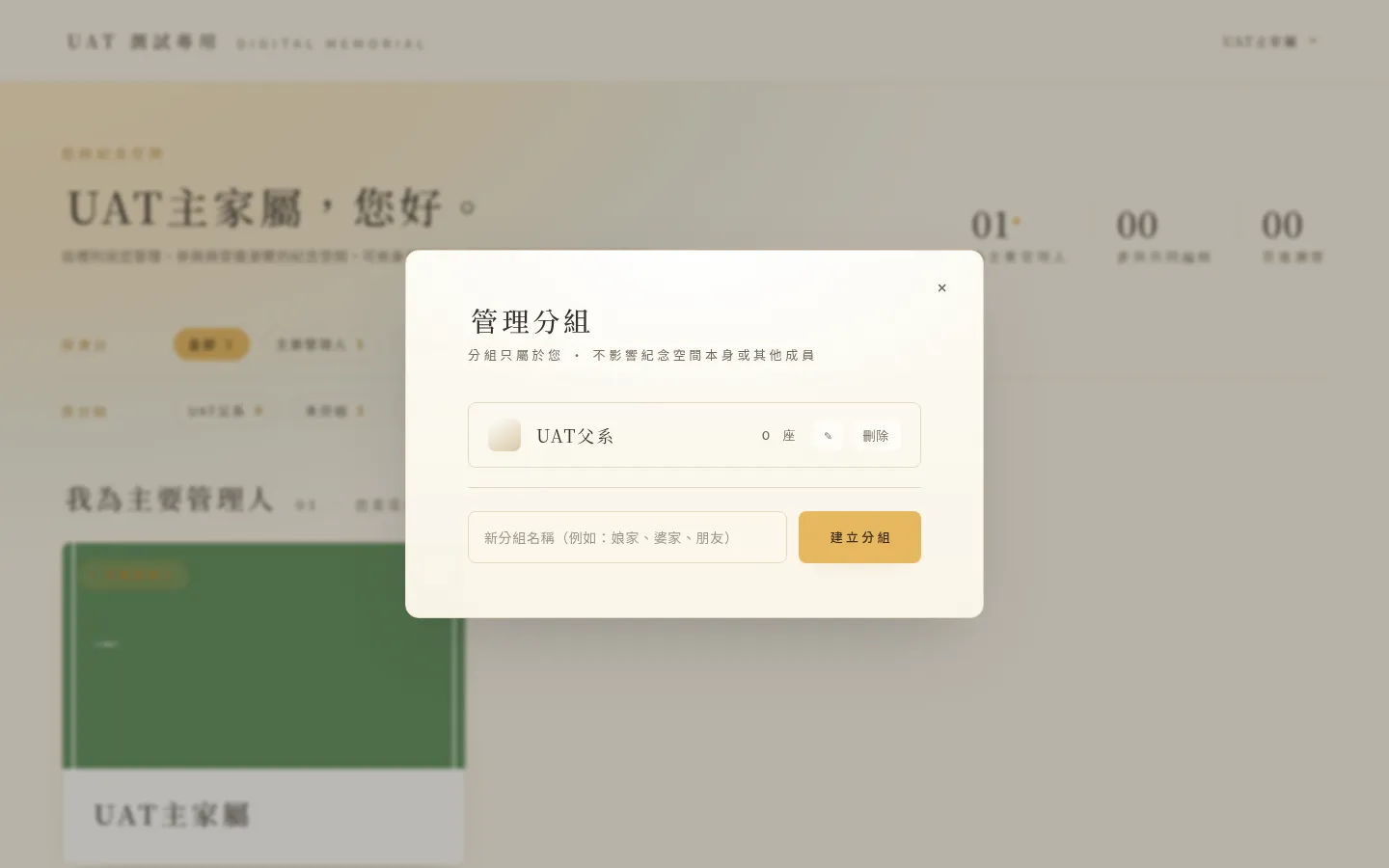 Figure 2-2 Create and name a new group in “Manage Groups.” Once the first group is created, a row of group chips appears on the home page and an “Ungrouped” chip is added automatically.
A memorial space can belong to several groups at once; they are not mutually exclusive. Each group’s home page can also carry a line of descriptive text, to give the category a little more warmth.
2-3 Family Nicknames (Visible Only to You)
Within each group, you can set a personal family nickname for each honoree (for example, showing your grandfather as “Grandpa”). This nickname is visible only to you — it does not change the honoree’s original name, nor affect how other family members address them. The panel also clearly states “visible only to you” when you set it.
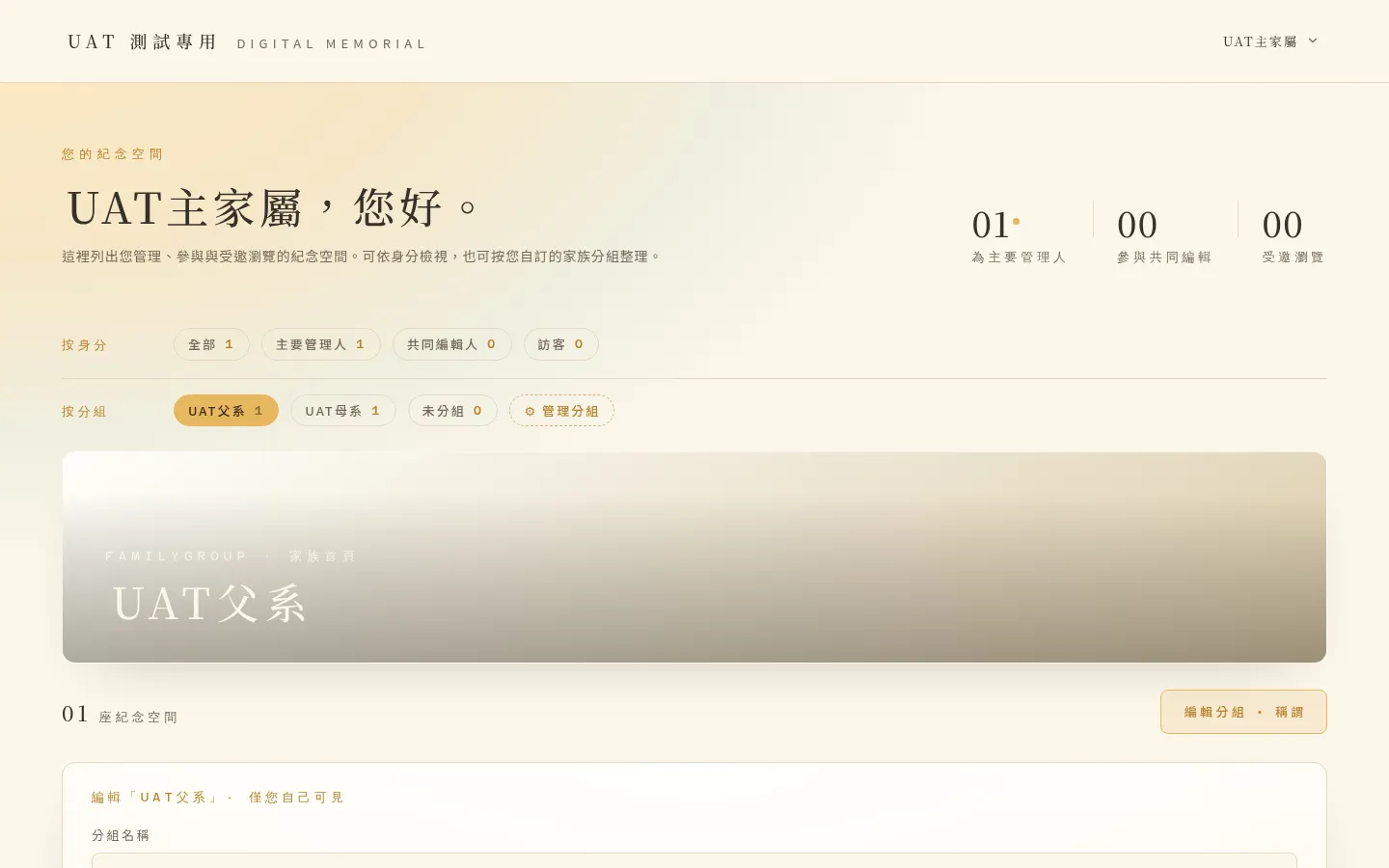 Figure 2-3 Setting a personal nickname for an honoree in the group edit panel; once set, the honoree appears within that group as “original name + your nickname.”
💡 Tips for this chapter
- Family nicknames are entirely private: any nickname you set cannot be seen by other members (including Viewers).
- The banner on a group’s home page is currently a system default main visual; this version does not yet provide an entry point to upload or choose your own banner.
- The order of the group chips occasionally swaps after a refresh — this is a known display behavior and does not affect the group’s contents.
- Manual drag-to-reorder of cards: cards on a group’s home page are sorted by the honoree’s date of birth by default; they can be manually dragged into a new order, and it is saved (kept after a refresh). Note: the group view is an embedded view of the home page, and a refresh returns to “All”; click that group’s chip again to see the saved custom order.
- When deleting a group, the confirmation dialog may read as though it is “only removing members,” but it in fact deletes the group itself; the memorial spaces and their contents are not affected — only this category disappears.