The left-navigation “Niches” item is the niche overview; bulk import and creating a park/section are on the “Tools” page (see Chapter 7).
3.1 Bulk Import Niches via CSV (Tenant Admin only)
Niches are not added one at a time manually; instead they are bulk-imported via CSV, a feature available only to the Tenant Admin:
- Go to the “Tools” page → “Bulk Niche Import” → click “Import CSV” (you can “Download Template” first).
- In the dialog, choose the target park/section (if none exists yet, click “+ Add Park/Section” to create one first), then “Choose CSV File”.
- The system executes immediately on confirmation. When finished it shows a row-by-row result summary: total / added / updated / skipped / errors, plus each row’s “identifier · action (added / updated) · note”.
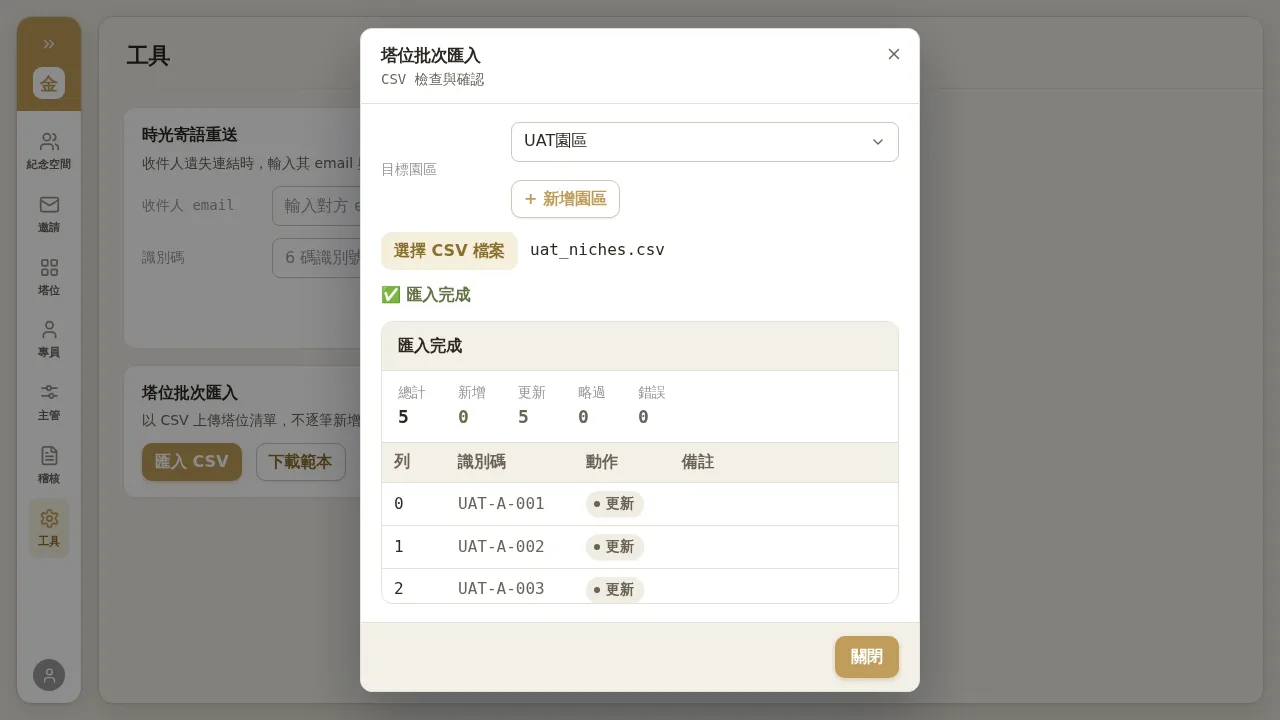 Figure 3-1 Bulk niche import: choose target park/section → choose CSV → execute; when finished, a row-by-row action summary is shown (in this example all 5 rows are “updated”).
Notes / Known Limitations
- The import has no “preview / diff confirmation before submitting”—clicking runs it directly, and the row-by-row action table is shown only afterward. Be sure to use “Download Template” to verify the columns and confirm the CSV content is correct before importing.
- The import is idempotent (repeatable): importing the same niche number again “updates” it rather than creating a duplicate, and the action column will show “updated”.
- The niche number limit is 50 characters.
- When creating a park/section fails (e.g. a duplicate slug), the screen only returns the generic “Failed to add park/section, please try again” without stating the reason. If it repeatedly fails, use a different park/section name, or contact engineering for help.
3.2 Editing a Niche
From the “Niches” list, open the “Edit” dialog for a niche to modify fields such as the niche number; it updates when saved. Changes take effect immediately, so confirm the new number does not conflict with an existing niche.
3.3 Niche Photos: Versioning and History
Niche photos are bound to the niche (not to a person): all memorial spaces under the same niche share the same set of niche photos. When you upload a new photo:
- It does not overwrite the old photo—the old version is retained as a historical version.
- The family-facing side sees only the current, latest photo; history is not exposed.
- You can open “Niche Photo History” on the niche row to view all versions; the latest is marked “Currently Displayed”, and the uploader and date are recorded.
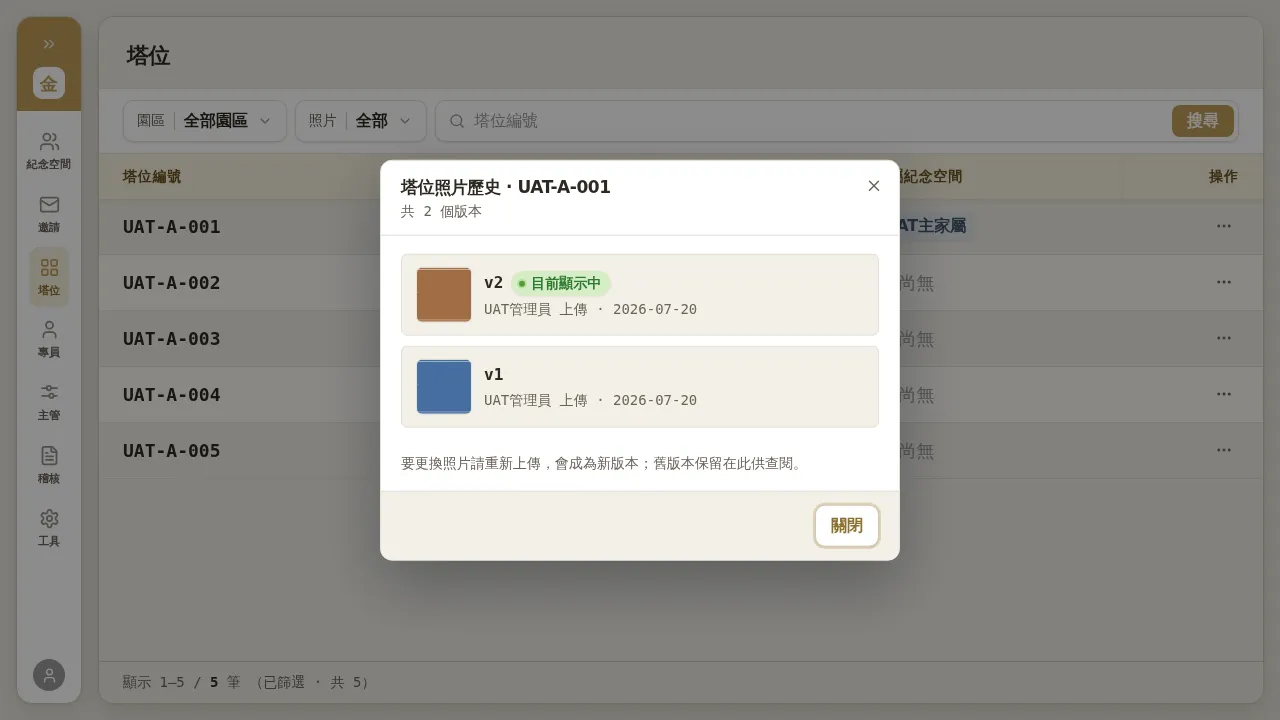 Figure 3-2 Niche photo history: v2 is marked “Currently Displayed” and v1 is retained as the old version; “To change the photo, upload again and it will become a new version; old versions are retained here for reference.”
Notes / Known Limitations
- The photo “version badge” on the niche list currently has a display glitch and may be stuck at
v1(even when it is actually v2, and the thumbnail is v2). To see the true version status, rely on the “Niche Photo History” dialog (as above), where the version is correct.- After uploading a photo, the list does not refresh automatically and may still show “Not uploaded”; manually refreshing the page will make it appear.
3.4 Niche Adjustments (Move / Swap Entire Niche / Remove)
On a niche’s “Adjust” page you can perform two kinds of operation: moving occupants one by one (moving a memorialized subject from one niche to another) and “⇄ Swap Entire Niche” (swap the occupancy of two niches in one click). Changes use a staged (pending apply) mode; only when you click “Execute Adjustment” at the end are they actually committed. “Remove from niche (become niche-less)” is also on this page, used to return a memorial space to an “unbound to niche” state.
Notes / Known Limitations
- “Execute Adjustment” has no secondary confirmation dialog; it applies as soon as it is clicked (including sensitive operations like “Remove from niche”). Carefully verify the staged changes before applying.
- Removing from a niche does not remove the memorial space’s service: removing from a niche merely breaks the niche binding; the memorial space can still continue using all family-facing features. There is no “cancel niche” wording on screen; this meaning is achieved through the “Remove from niche” flow.
- A memorial space not yet bound to a niche cannot be “bound in” from the niche side. To bind a niche to an unbound memorial space, go to that memorial space’s detail page and use “Assign Niche” (see Chapter 4).