Enter any memorial space detail page, and the “Account attributes · Account Manager operations on behalf” area gathers the fields you can operate on behalf: Honoree, date of passing, niche number, niche photos.
4.1 Assign / Change the Honoree
- On the “Honoree” row, click “Assign Honoree” (or “Change Honoree” when already assigned).
- The dialog lists the members; select one to set as Honoree and click “Confirm Change”.
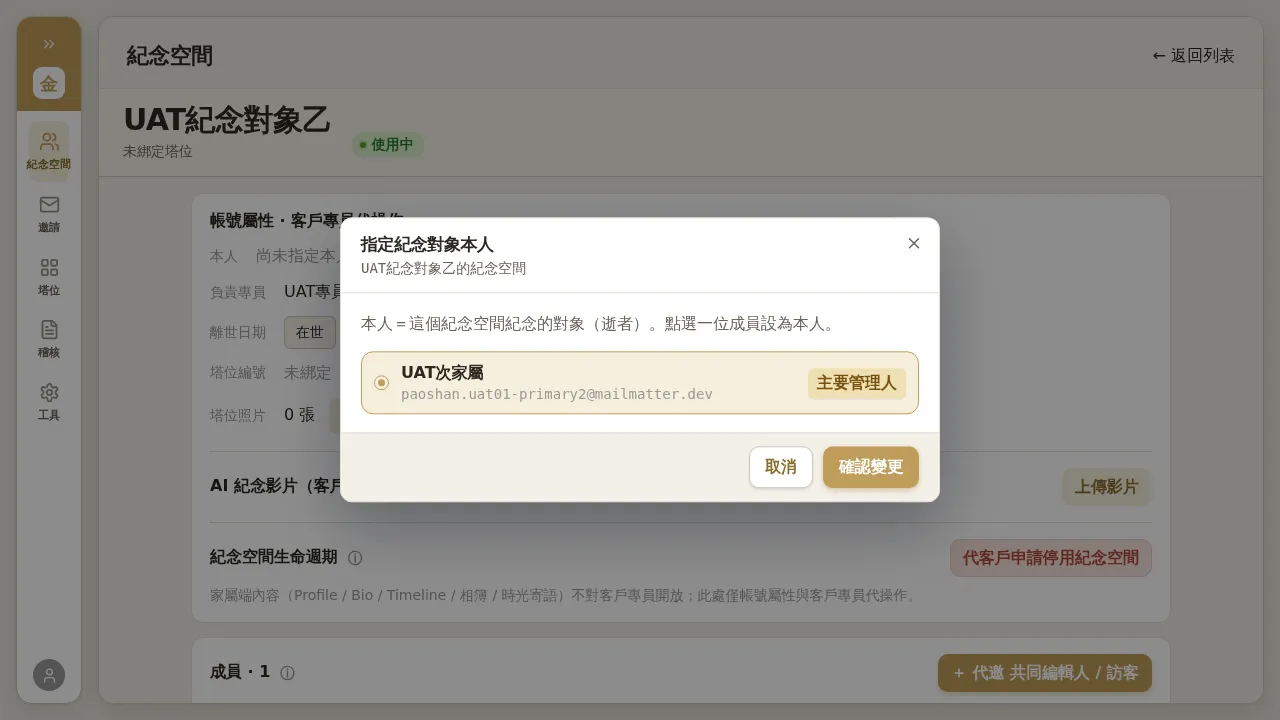 Figure 4-1: “Assign memorialized subject Honoree” — the Honoree = the subject this memorial space memorializes (the deceased). Select a member (usually the Primary Manager) to set as Honoree. Once set, that member will see the “Time Letters” feature on the family-facing side.
Notes
- The Honoree is a one-time flag (once-flag): once set, in principle it cannot be freely changed on your own. If it is set wrong and needs correcting, contact engineering / the system administrator to handle it via the database-layer customer service process (the spec-compliant AM customer-service fallback).
- The “Honoree” and role are two different things: a person can be the Honoree without being the Primary Manager; the Honoree flag determines whether the family-facing side shows “Time Letters”, and it does not disappear as the role changes.
4.2 Date of Passing (Set / Correct / Revert to Living)
- On the “Date of Passing” row, click “Edit”.
- In the dialog, choose the “Date of Passing” and click “Mark as Deceased”.
- To later correct the date or revert to living, operate on this same row.
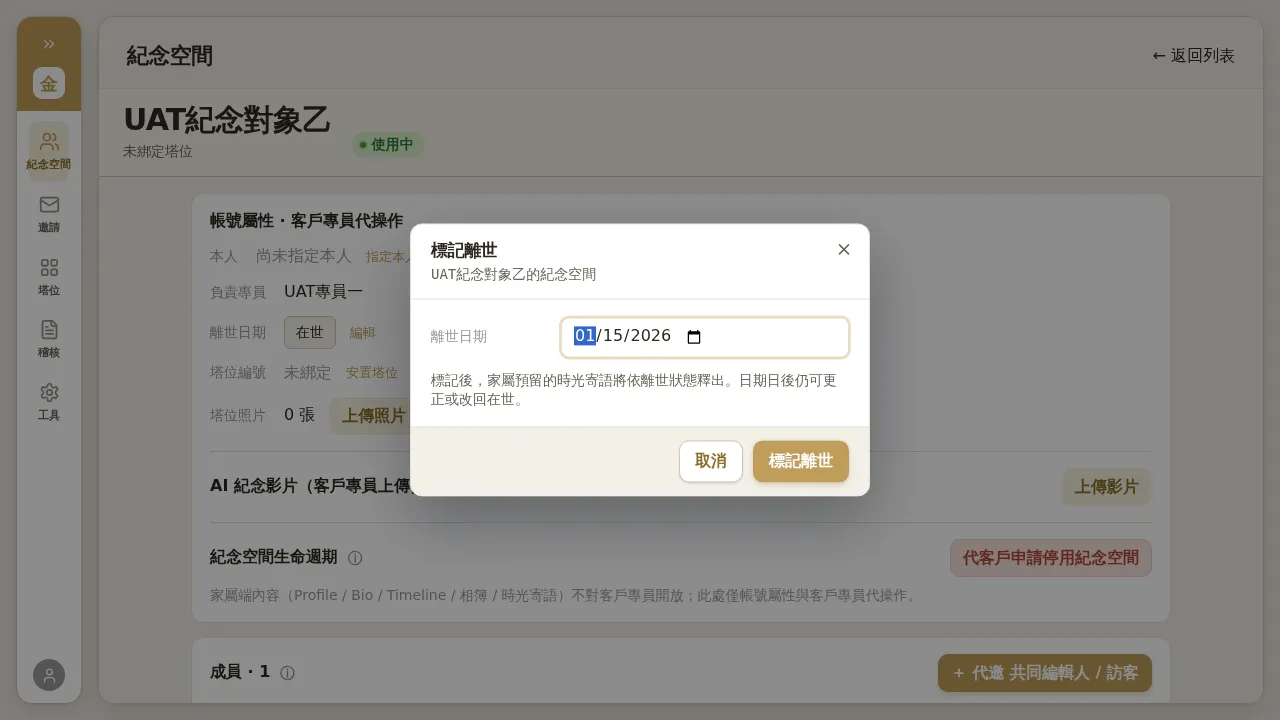 Figure 4-2: Mark as deceased — choose the date of passing and submit. Note: “Once marked, the Time Letters reserved by the family will be released according to the deceased status. The date can still be corrected or reverted to living later.”
Notes
- Marking as deceased triggers the release judgment for Time Letters (letters reserved by the family and set to “release after passing” will be sent accordingly); confirm the date is correct before submitting.
- The family-facing side shows only the “year” of passing: what you set in the back office is the full date (e.g. 2026-01-15), but the family-facing memorial space page shows only “2026”. This is the display behavior of the current version, not a lost setting.
- The birthday is edited by the family themselves and is not here.
4.3 Niche: Bind / Adjust / Remove
- Bind (Assign Niche): on the detail page, on the “Niche Number” row click “Assign Niche” → choose a niche (the dropdown shows occupancy as
UAT-A-003 (0/2)) → “Confirm Assignment”. After binding, the family-facing niche information reflects immediately. - Move / Swap Entire Niche / Remove: go to “Niche Adjustment” on the “Niches” page; changes use a staged (pending apply) mode, and only when you click “Execute Adjustment” at the end are they committed. To remove, use “Remove from niche (become niche-less)”.
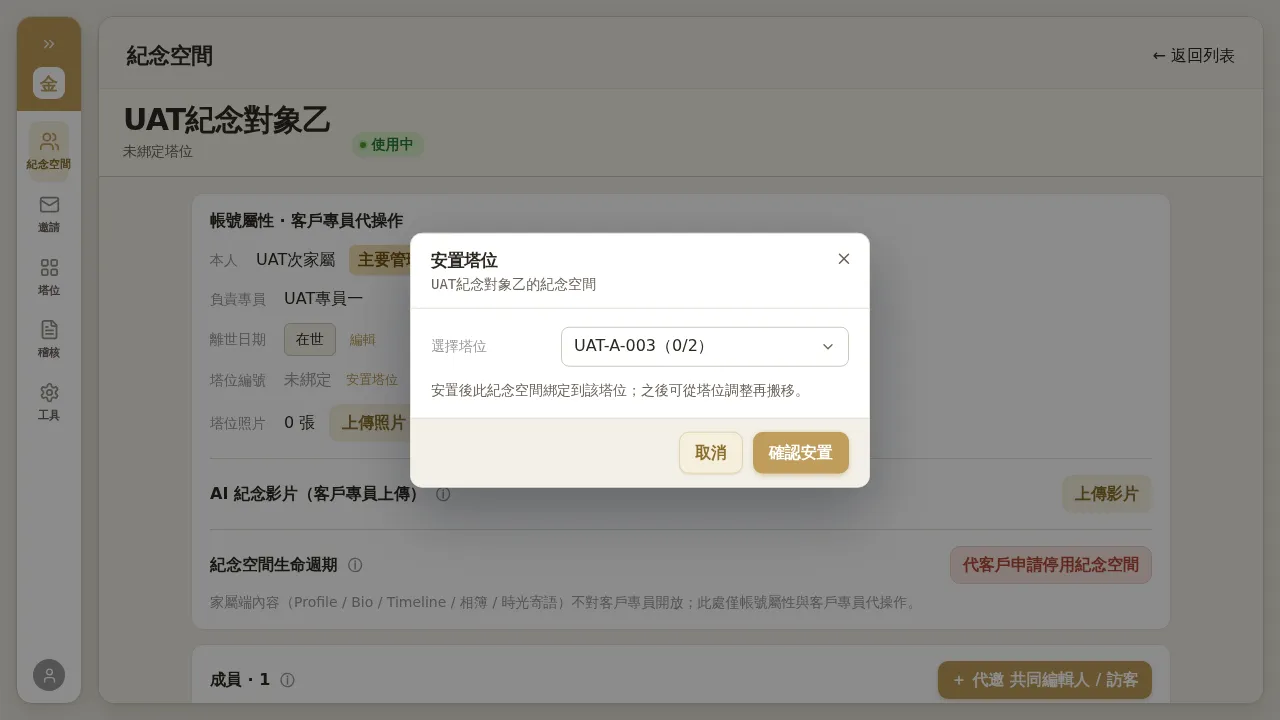 Figure 4-3: Assign niche — select a niche from the dropdown (including occupancy count); “After assignment, this memorial space is bound to that niche; you can move it again later from Niche Adjustment.”
Notes
- A memorial space not bound to a niche cannot be bound in from the “Niches” page side; use “Assign Niche” on the detail page.
- “Remove from niche” does not deactivate the memorial space’s service — it merely breaks the niche binding; the memorial space reverts to a “niche-less” state, and all family-facing features work as usual (matching the rule that service is retained on niche removal / cancellation).
- “Execute Adjustment” currently has no additional confirmation dialog; it takes effect on submission, so verify the staged content first.