A Manager account is activated via an invitation email sent by a Tenant Admin; it cannot be self-registered.
- You receive an invitation email whose subject includes “Digital Memorial Platform Manager”. Click the activation link in the email (in the format
.../activate?token=...). - On the activation page, fill in your name and password (password rule: at least 8 characters, must contain both letters and numbers), and complete email verification.
- Once activation is complete, the system logs you in automatically and takes you straight into the business back office.
- For future visits: go to the login URL and sign in with your email + password.
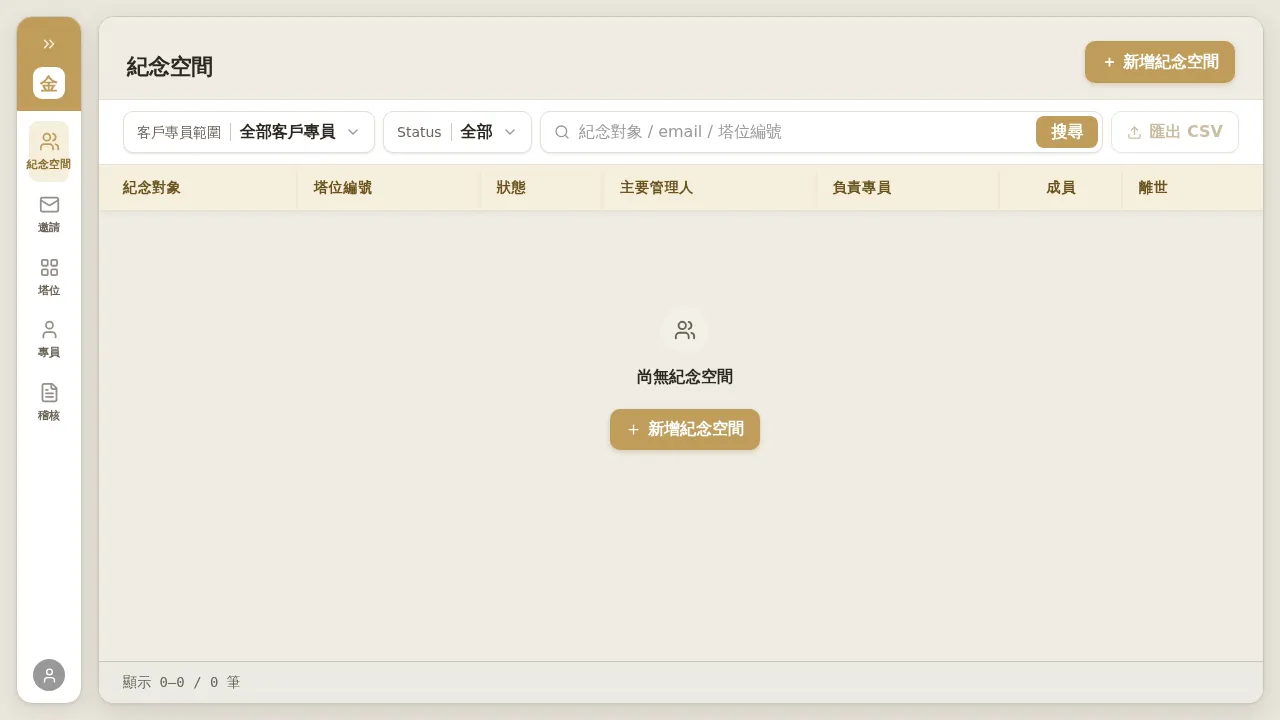 Figure 1-1: The “Memorial Spaces” list a Manager sees on first login (no data yet). The left navigation bar has only five items — “Memorial Spaces / Invitations / Niches / Account Managers / Audit” — with no “Tools” or “Managers”. This is the key difference between a Manager and a Tenant Admin.
Notes
- Passwords can be reset, and there is no “cannot reuse old password” restriction. If you forget your password, use “Forgot password” on the login page to receive a 6-digit verification code by email (valid for 5 minutes; can only be resent after 60 seconds) to reset it.
- The activation link has a limited validity period; if it expires, ask a Tenant Admin to resend it.