As the Primary Manager, you can invite family and close friends to take part in this memorial space, and assign each of them a fitting role. Only the Primary Manager has the permission to invite and manage members.
3-1 Inviting a Co-Editor or Viewer
- Enter the memorial space’s settings → member management area.
- Tap “Invite” and fill in:
- Email (required): the invitee’s email address.
- Nickname (optional): the invitee’s relationship to the honoree, for example “granddaughter” or “dear friend.”
- Invitation message (optional): a few words for the recipient, up to 200 characters.
- Choose the role (Co-Editor / Viewer) and send. The system sends an invitation email with a dedicated link.
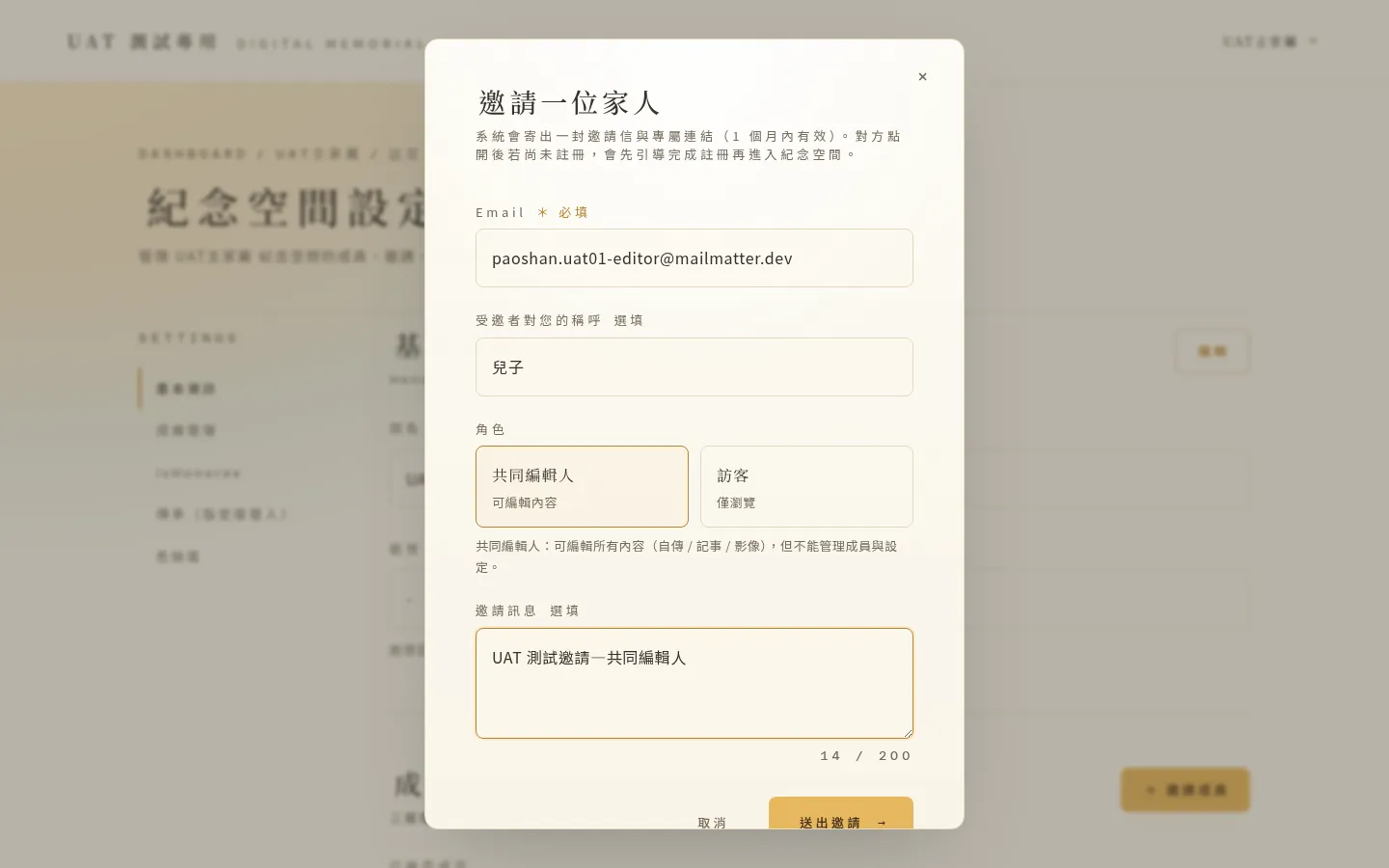 Figure 3-1 Inviting a member: fill in the email, nickname, and invitation message, and choose the role.
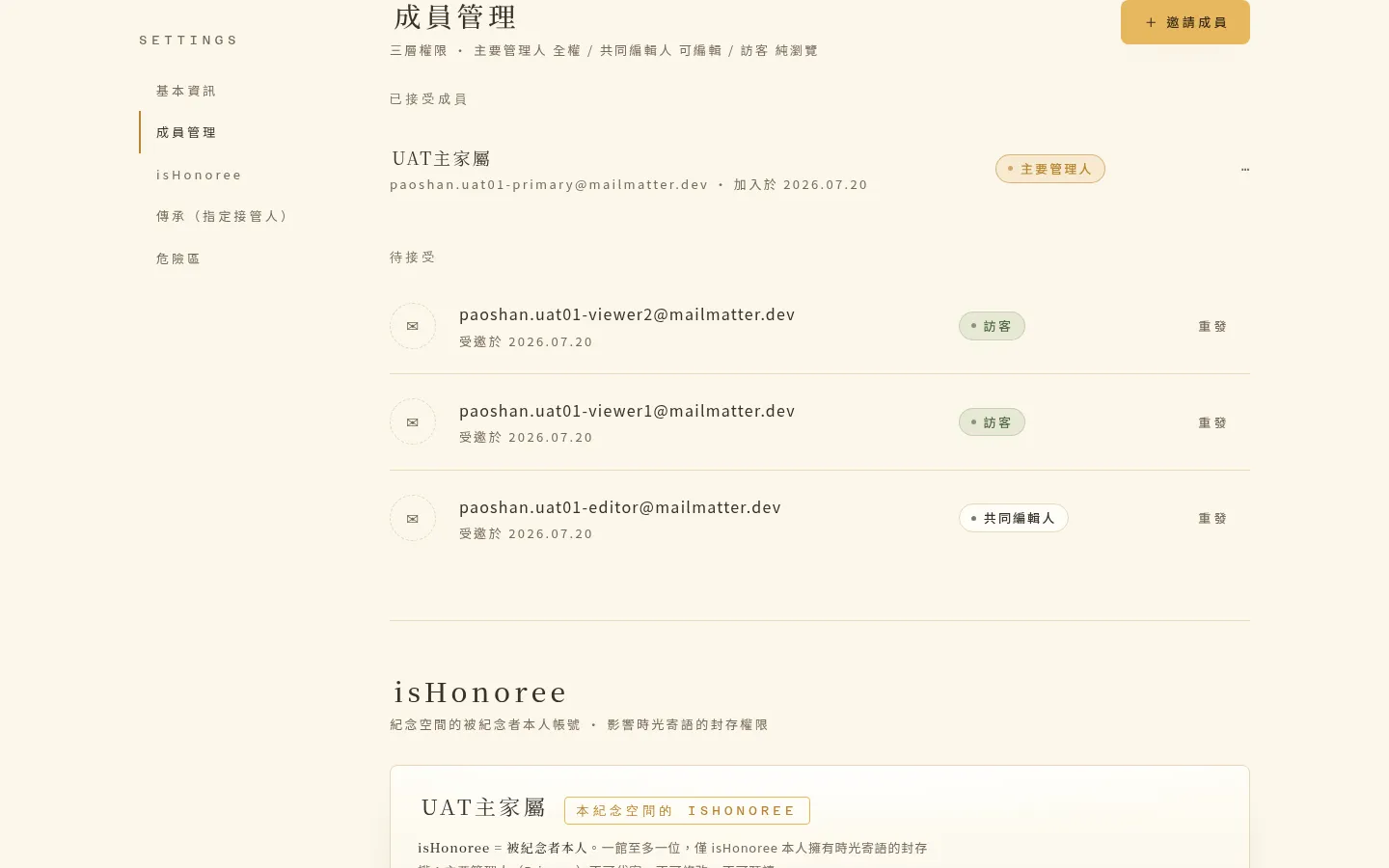 Figure 3-2 After sending, the member list shows these invitations. The invitee joins automatically once they register or log in via the link.
After receiving the email, if the invitee already has an account they simply log in and join; if they do not yet have one, they are guided through registration (the same verification flow as in Chapter 1) and then join automatically. The invitation link is valid for about 1 month.
If the person is a returning former user (for example, someone who was removed and wants to rejoin), when re-inviting them: if they are currently logged in with the same email, clicking the link joins them automatically; if they are logged out, the link brings up an in-page login card, and they join once logged in.
3-2 Changing a Member’s Role
You can switch a member between “Co-Editor” and “Viewer” at any time.
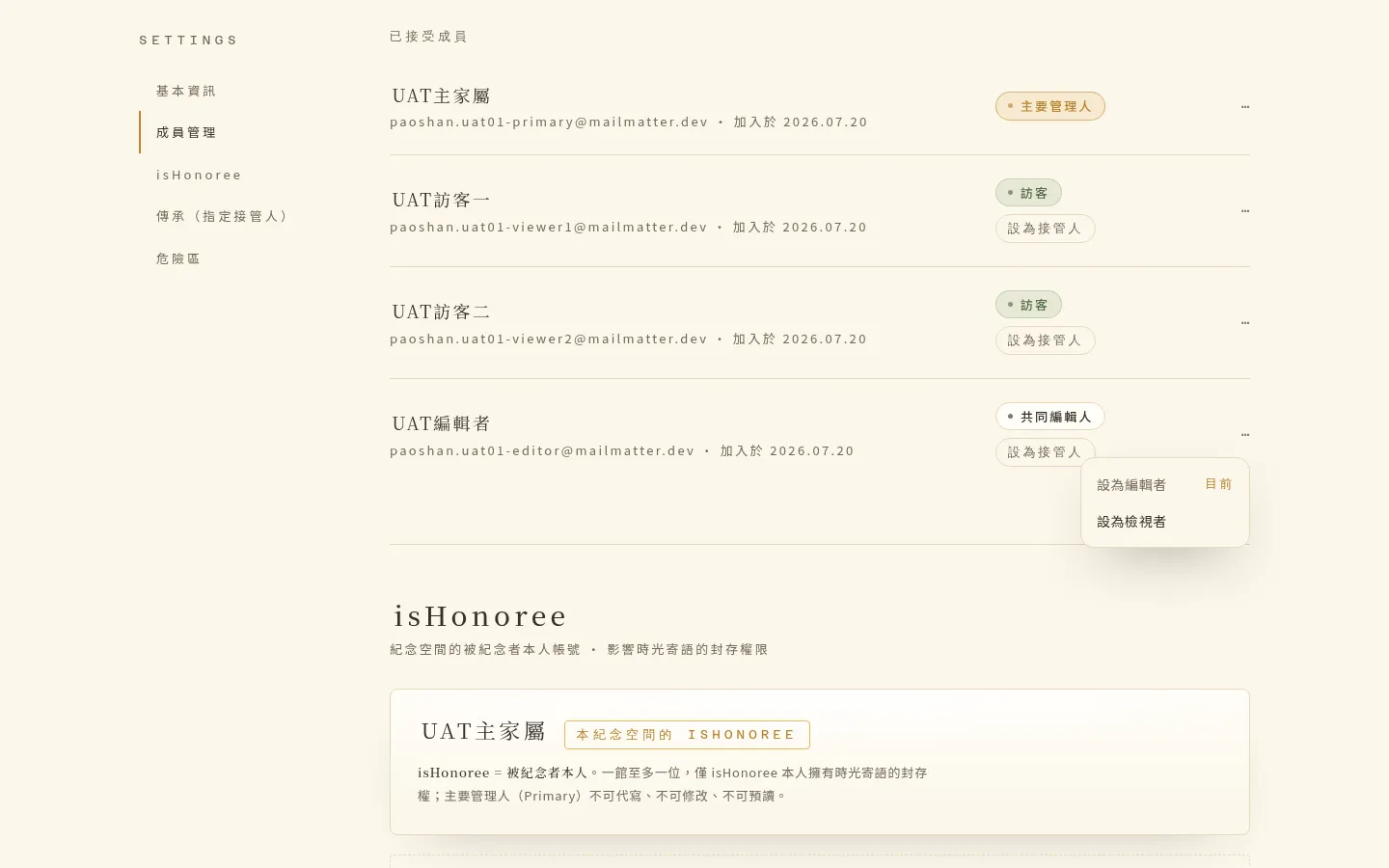 Figure 3-3 Change the role from the member menu, for example “set as Editor / set as Viewer”; the change takes effect immediately.
💡 A small note Changing a role takes effect immediately, with no second confirmation. After changing a member from Co-Editor to Viewer, they immediately lose editing permission; and vice versa. Please double-check before making the change.
3-3 Bulk-Removing Viewers
When you need to tidy up several Viewers at once, you can use bulk removal. The system asks you to confirm before it runs; those removed immediately lose access, and can be re-invited later.
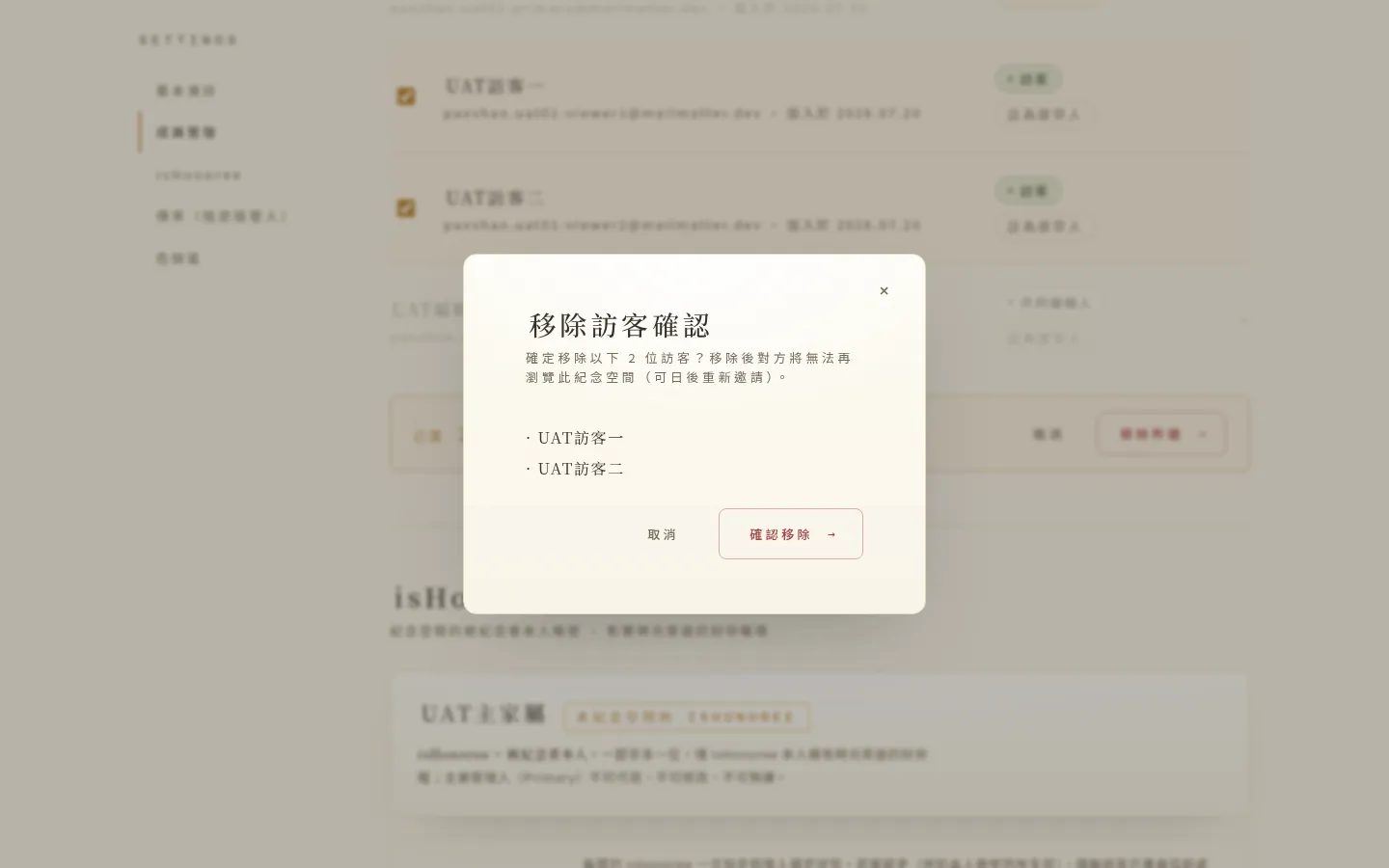 Figure 3-4 The bulk-removal confirmation dialog. Bulk removal is limited to “Viewers” only — checkboxes appear only in the Viewer rows, and Co-Editors are not within its scope.
💡 Tips for this chapter
- Revoking an invitation: for invitations that are “already sent but not yet joined,” the current member list only offers “Resend,” and does not yet provide a revoke button. If you need to recall an invitation, please contact your Account Manager for help. Resending generates a new link, and the old link becomes invalid.
- The “nickname” entered when inviting is currently only stored in the system; it does not appear in the invitation email or member list, and mainly serves as a record.