The Tenant Admin account is created when a Super Admin (platform back office) sets up the enterprise and sends an invitation; you will receive an invitation email.
Activation (First Time)
- Open the invitation email and click the activation link, which takes you to the “Activate Account” page at
https://your-tenant.curate.memorial/admin/activate?token=.... - Fill in your name, set a password, and confirm the password. Password rule: at least 8 characters, including both letters and numbers.
- Click “Create Account”. After activation you are logged in automatically to the business back office, with no need to log in again manually.
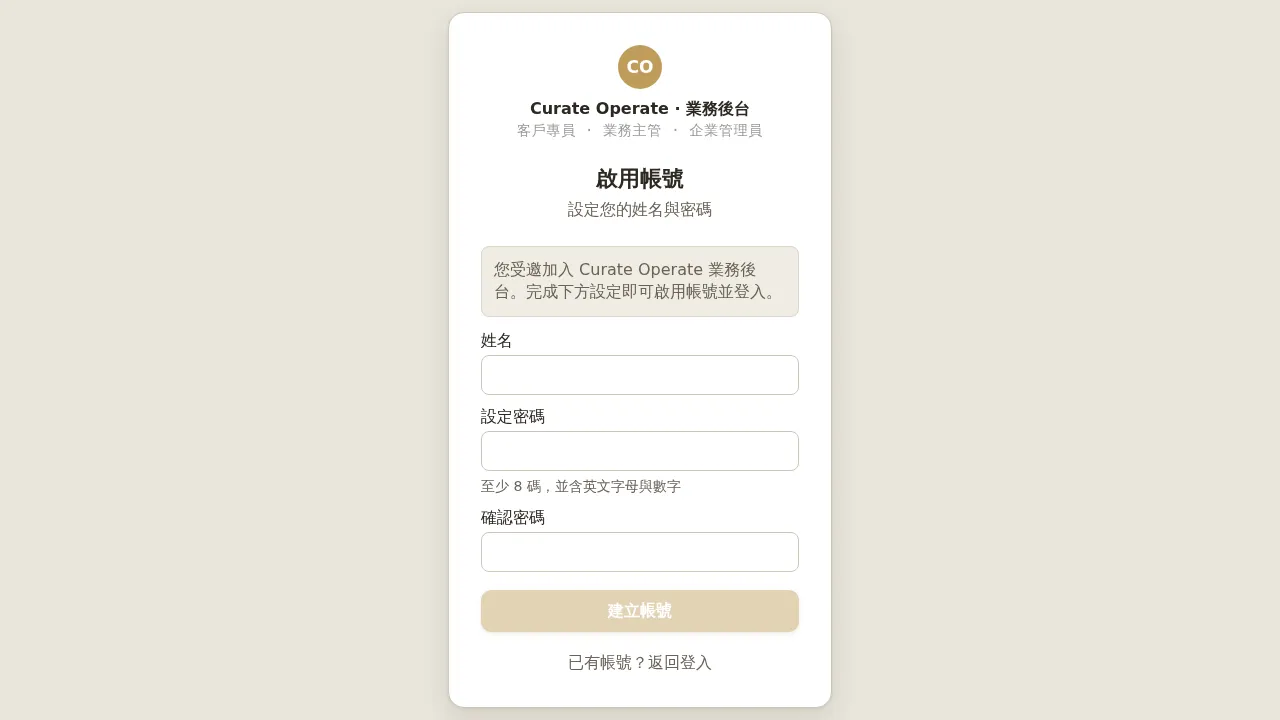 Figure 1-1 The “Activate Account” page of the business back office: the invitee sets their own name and password to complete activation and log in automatically. All three roles (Account Manager / Manager / Tenant Admin) go through this same activation page.
Logging In Afterward
Afterward, log in at https://your-tenant.curate.memorial/admin with your email + password.
Forgot Password (Two-Step OTP)
Click “Forgot Password” on the login page to reach /forgot:
- Enter your account email to receive a “Password Reset Verification Code” email.
- Enter the 6-digit code from the email on the page and set a new password; after the reset completes you are logged in automatically.
The code is valid for 5 minutes, with a 60-second cooldown before it can be resent.
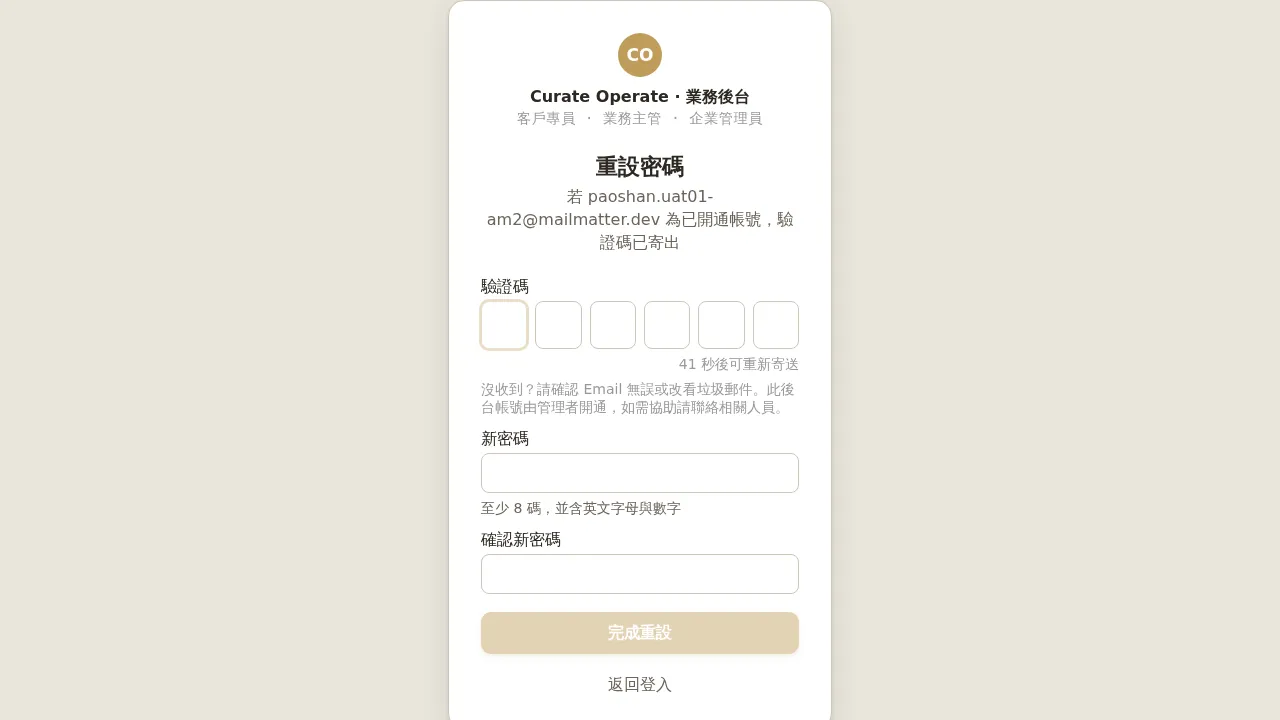 Figure 1-2 Step two of Forgot Password: enter the 6-digit code from the email and set a new password.
Notes / Known Limitations
- The role wording in the invitation email may not match the interface (emails have shown wording such as “Tenant Administrator”, while the interface always says “Tenant Admin”). This is a copy discrepancy and does not affect activation.
- Passwords have no “no reuse” restriction—changing back to an old password, or resetting a forgotten password to an old one, will succeed. The system only checks “at least 8 characters, including both letters and numbers”. For security, we still recommend setting a password different from previous ones.
- Changing your password from the account page keeps you logged in on this device (it will not log you out).