The left-navigation “Memorial Spaces” item is the core work page. The Tenant Admin can see memorial spaces across the entire enterprise.
List and Scope Switching
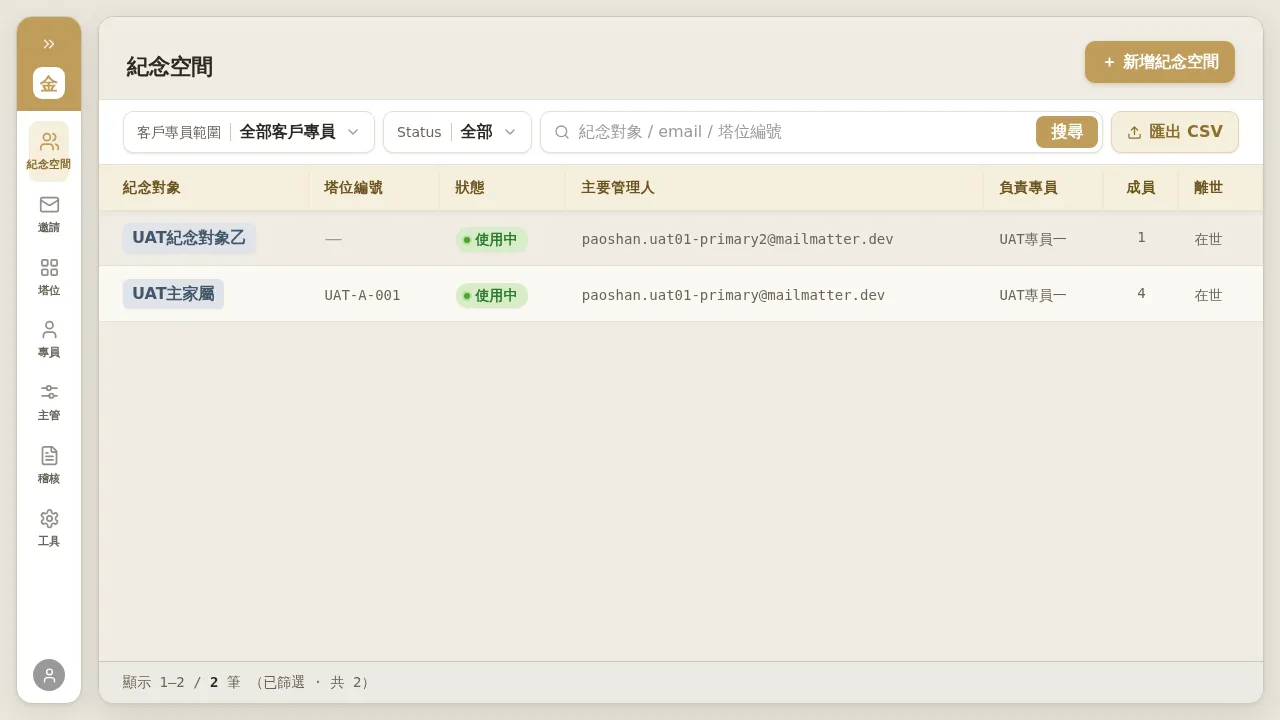 Figure 4-1 Memorial space list: columns are Memorialized Subject / Niche Number / Status / Primary Manager / Owner AM / Members / Deceased; at the top you can filter by “Account Manager scope” and “Status”, and “Export CSV”.
- Columns: memorialized subject, niche number (“—” shown when unbound), status (in use / deactivated, etc.), Primary Manager (the family-facing Primary; needs follow-up when unassigned), owner AM, member count, deceased status (living / year of passing).
- Account Manager scope: a dropdown exclusive to Tenant Admins and Managers, used to switch between “all Account Managers / a specific Account Manager” views (an Account Manager cannot see this dropdown because they see only their own clients).
- Status / Search: filter by status, or use the combined “memorialized subject / email / niche number” search.
- Click any row to enter that memorial space’s detail page.
What You Can Do on the Detail Page
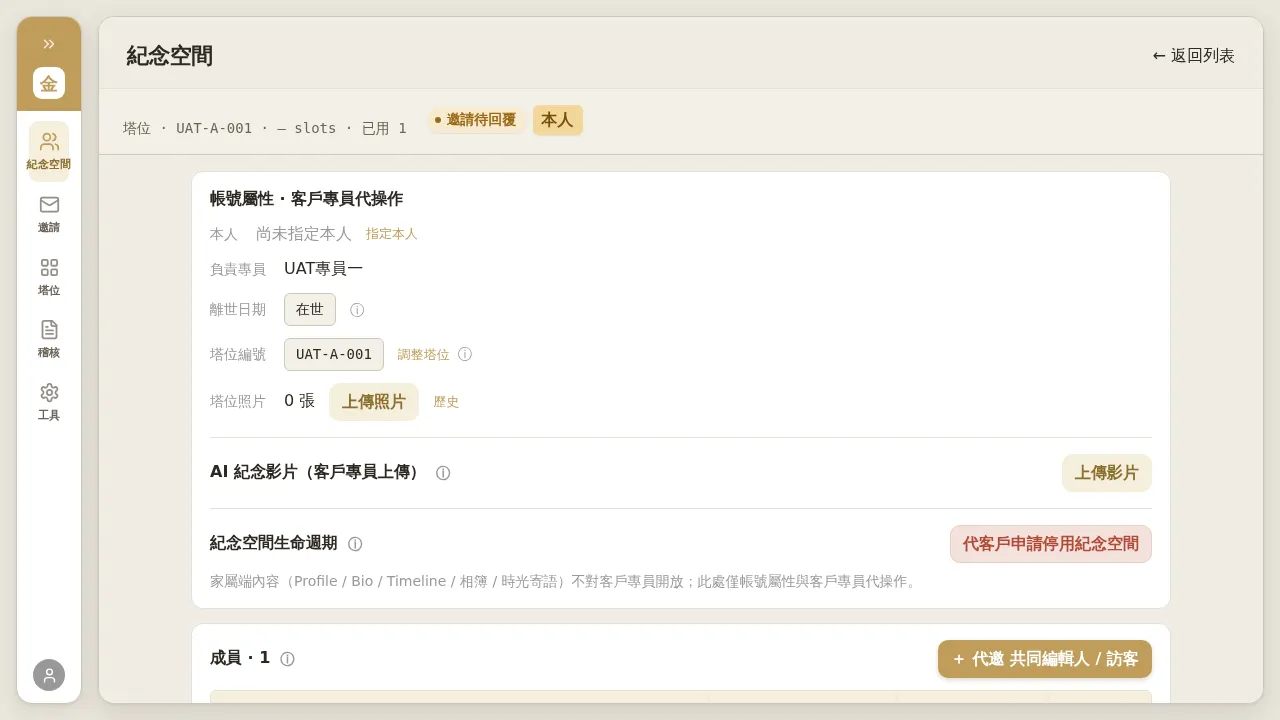 Figure 4-2 Memorial space detail page (business-side view).
The detail page is divided into sections; what the business side (including the Tenant Admin) can operate on behalf is limited to account attributes and business-side data:
- Account attributes · operate on behalf: assign / change the Honoree (isHonoree), set the date of passing (set / correct / revert to living), assign niche / niche number, and upload niche photos.
- AI memorial video (uploaded by Account Manager): upload AI videos and add tags.
- Memorial space lifecycle: apply to deactivate a memorial space on the client’s behalf (30-day buffer), etc.
- Members: invite Co-Editors / Viewers on behalf, resend / revoke member invitations, and involuntarily transfer the Primary Manager.
The detail page clearly marks the privacy boundary: “Family-facing content (Profile / Bio / Timeline / photo albums / Time Letters) is not accessible to Account Managers; only account attributes and Account Manager operations-on-behalf are here.”
Assign Niche: for a memorial space not bound to a niche, on the detail page click “Assign Niche” next to “Niche Number”, choose a niche (occupancy shown as UAT-A-003 (0/2)) → “Confirm Assignment”. To move or remove it later, return to the niche Adjust page (Chapter 3).
Notes / Known Limitations
- The Honoree (isHonoree) is designed as a one-time lock flag, but the current admin interface still allows clicking “Change Honoree” and completing the change even when already locked (only a warning message, no secondary safeguard). Changing the Honoree is a sensitive operation; be sure the subject is correct before submitting.
- After the business side uploads an AI video, the panel leaves no trace (no count / filename / history, only a toast and an audit event). This is by privacy design (once uploaded it cannot be previewed or deleted); if you need to investigate, use the audit log.
- (Fixed 2026-07-23) The earlier CDN caching phenomenon where “a just-restored memorial space still shows ‘No permission for this memorial space’ on the family-facing side” has been fixed (error responses are no longer cached). If you still occasionally encounter a loading anomaly in the future, a forced refresh is enough.