A Manager can invite new Account Managers to join and have them report to the Manager.
Steps
- In the left navigation, click “Account Managers” to open the “Account Manager Management” page.
- Click “+ Create New Account Manager” in the top right.
- In the dialog, enter the Account Manager’s Email. The “Reporting Manager” field defaults to you.
- Click “Create and Send Invitation”. The system sends an activation email, and the entry appears in the roster with an “Invited” status.
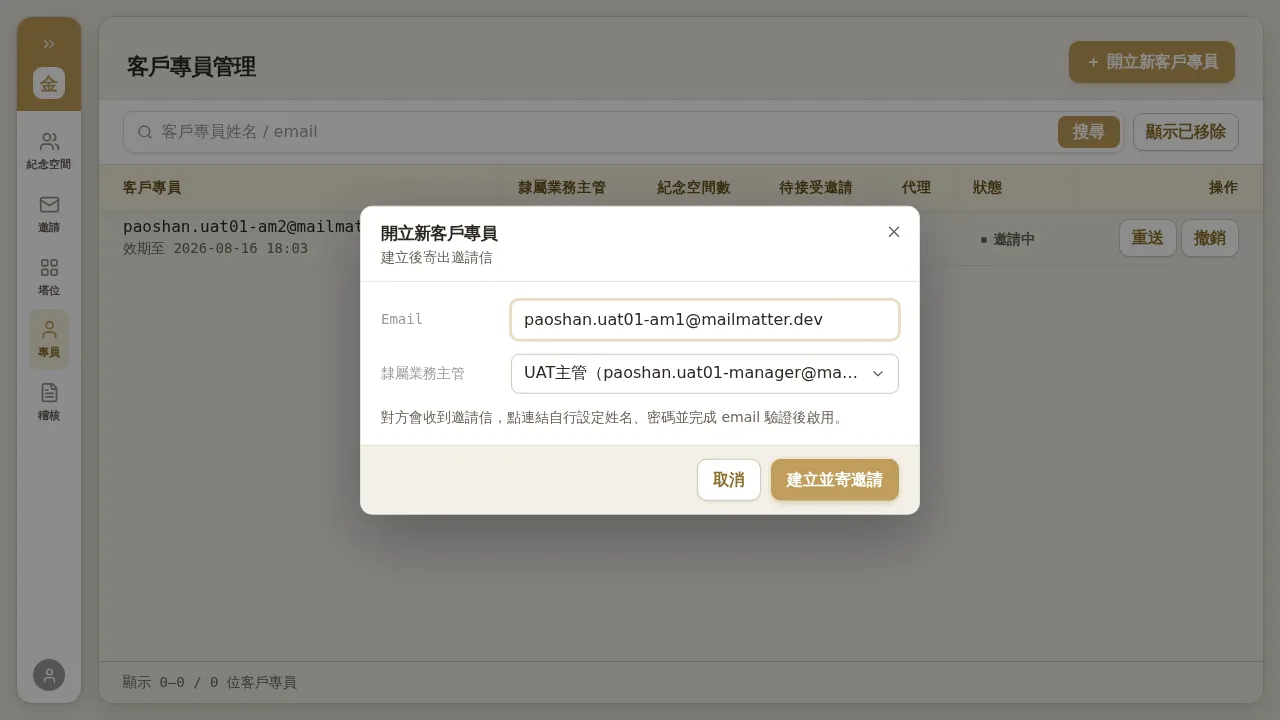 Figure 2-1: The “Create New Account Manager” dialog. You only need to enter an email; the reporting Manager defaults to you, the sender of the invitation. The invitee receives an invitation email, clicks the link, sets their own name and password, and is activated after completing email verification.
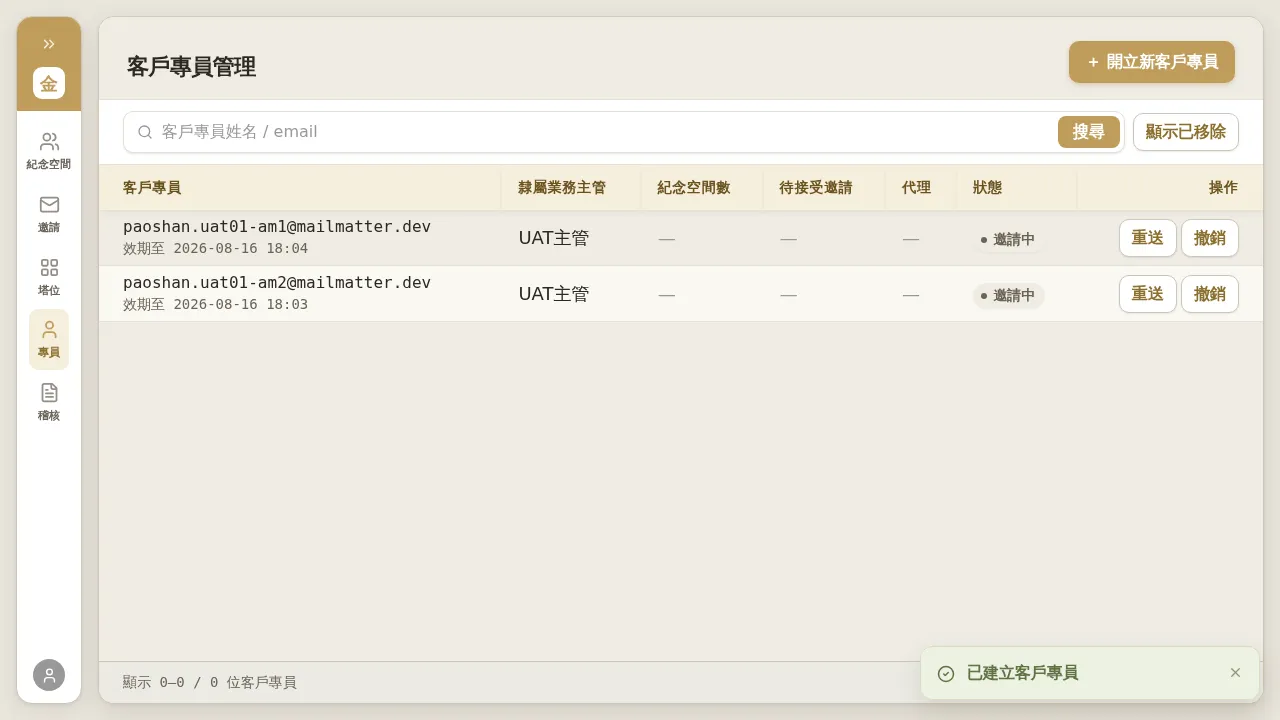 Figure 2-2: After sending, the Account Manager appears in the roster with an “Invited” status, and the end of the row offers “Resend” and “Revoke”. Once they complete activation, the status changes to “Active”.
Notes
- A Manager cannot invite other Managers. The creation dialog only allows creating Account Managers; adding/removing Managers is always handled by a Tenant Admin (see Chapter 6).
- Before the invitee has activated, you can “Resend” (send a new link; the old link is invalidated) or “Revoke” the invitation from that row in the roster.
- The role label used in the activation email currently reads “Business Specialist”, which is the same role as “Account Manager” in the back-office UI — this is merely a difference in wording.