In the “Memorial Spaces” list, click “+ Add Memorial Space” in the top right to enter the creation page. The first step is to choose the “creation method”, of which there are two.
Mode A: Create with a Niche Bound
Used when the client has purchased a niche; one niche can contain up to 6 memorial space slots.
- For “creation method”, choose “Create with a Niche Bound”.
- In the “Niche” field, enter a keyword and pull up the niche from the dropdown (e.g.
Section A Row 1 Position 1 (UAT-A-001)); please select it, do not type manually to avoid errors. The right side shows “N slots total · M used” for that niche. - In the “Memorial spaces for this niche” area, for each slot fill in:
- Memorialized subject’s name (can be left blank and filled in later)
- Primary Manager email (required)
- As appropriate, check “Set as Honoree” (see the explanation below)
- To create more, click “Add another”.
- Scroll down to confirm the “What happens after creation” summary, then submit.
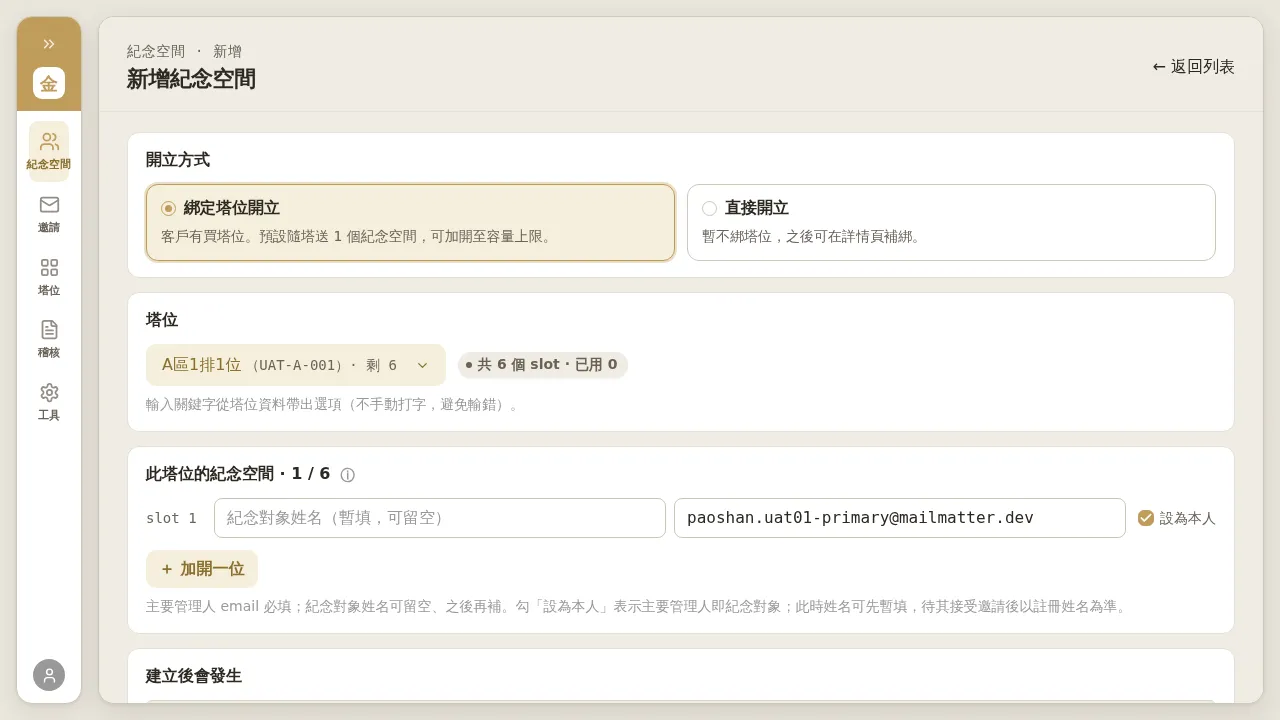 Figure 2-1: Create with a niche bound. The niche is pulled up by keyword and shows remaining slots; for each slot, fill in the Primary Manager email (required) and the optional memorialized subject’s name, and you may check “Set as Honoree”.
Mode B: Create Directly (No Niche Bound for Now)
Used when no niche has been bound yet; you can bind one later on the detail page (see Chapter 4).
- For “creation method”, choose “Create Directly”.
- In the “Memorialized subject assignment” area, fill in the memorialized subject’s name (can be blank) + Primary Manager email (required), and you may check “Set as Honoree”; to add more, click “Add another memorialized subject”.
- Submit.
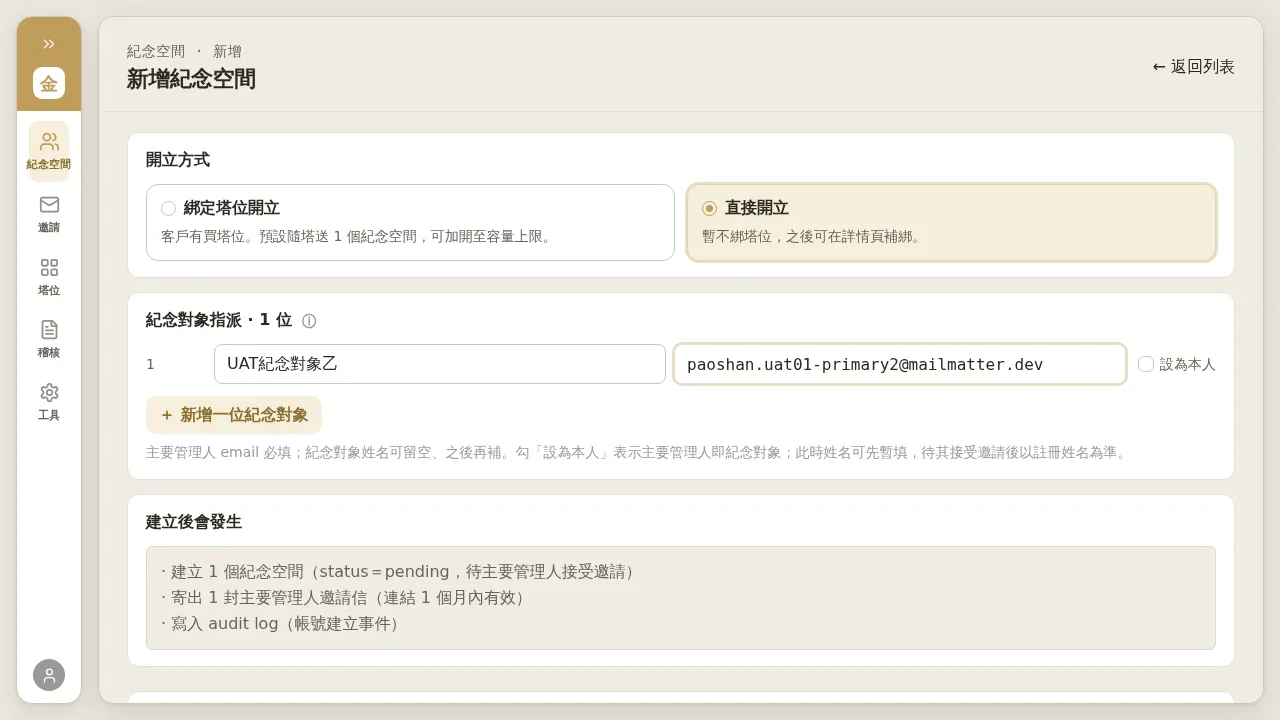 Figure 2-2: Create directly. No niche is bound; the “What happens after creation” at the bottom lists: create 1 memorial space (status = pending, awaiting the Primary Manager’s acceptance of the invitation), send 1 Primary Manager invitation email (link valid for 1 month), and write to the audit log.
About “Set as Honoree” and Creating with a Blank Name
- Checking “Set as Honoree”: means this Primary Manager is themselves the memorialized subject (the deceased). In this case the memorialized subject’s name can be filled in provisionally first, and the registered name is used once the person accepts the invitation and registers.
- Not checking: the Primary Manager is a family member (managing on behalf of the deceased), and the Honoree is designated separately (see Chapter 4).
- Creating with a blank name: when the memorialized subject’s name is left blank, the memorial space title first shows as “Untitled”; once the Primary Manager registers, the title automatically fills in their registered name (the title-COPY rule).
Notes
- After submitting, a memorial space is created (status pending) and a Primary Manager invitation email is sent, with the link valid for 1 month; the Primary Manager clicks the link and completes registration via OTP to activate.
- Can the Primary Manager be left blank temporarily and assigned later? The form requires the Primary Manager email; if the client does not have an email at the moment, we recommend confirming with the client before creating.